

Lightworks (Install - Pop!_OS 22.04 LTS)
Lightworks is a powerful video-editing tool used by industry professionals. This tutorial provides steps on installing Lightworks in Pop!_OS.
Register on Lightworks’ Website
Section titled “Register on Lightworks’ Website”In order to use this software you are required to register an account on Lightworks’ website.
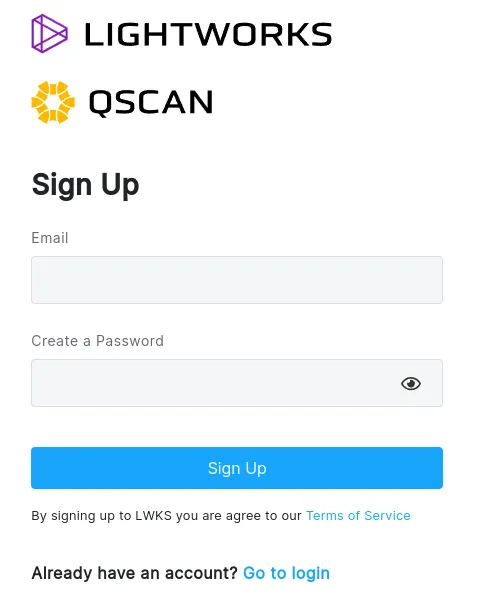
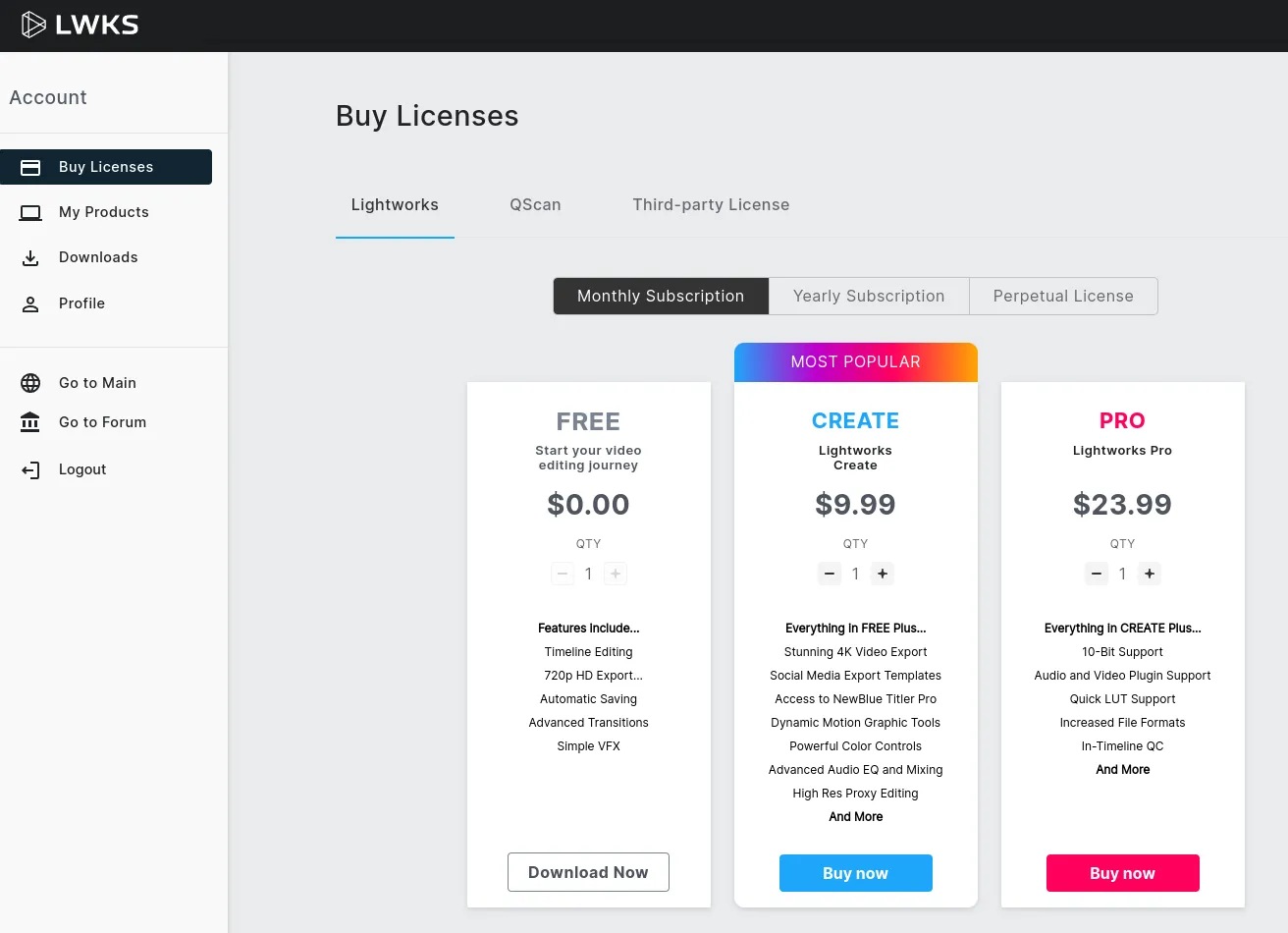
Once the account is created you will be taken to the your account dashboard:
Download the Linux DEB file
Section titled “Download the Linux DEB file”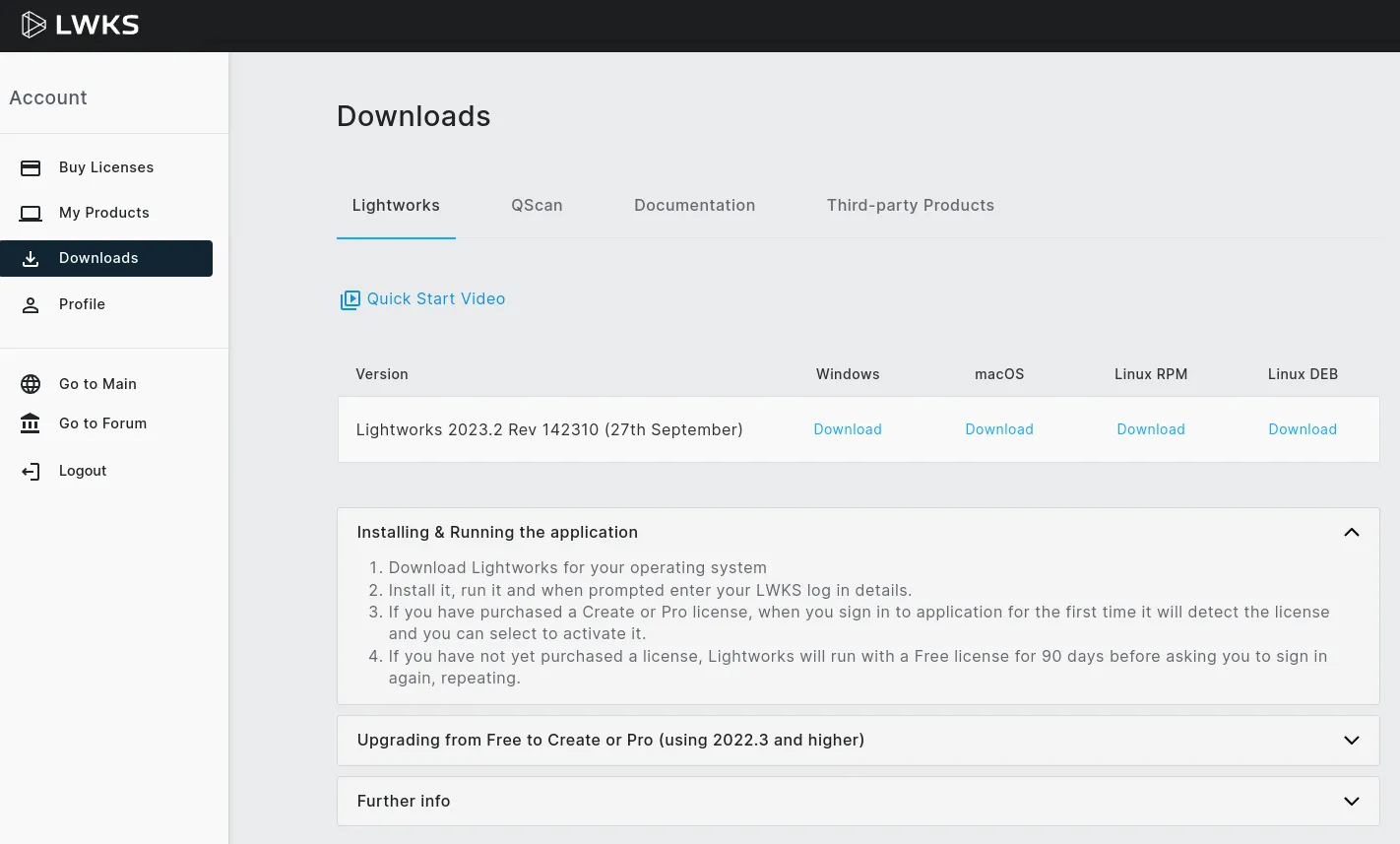
Your browser (Firefox is the default in Pop!_OS) will ask whether you want to open or save the file.
Install the DEB file
Section titled “Install the DEB file”In Pop!_OS, the default application for opening .deb files is Eddy. Choose the “Open” option, and Eddy will launch automatically when the download is complete. (If you are using a different web browser and you saved the .deb file, locate the .deb file in the Files app and open it.)
Click the green “Install” button in the top-right corner of Eddy to install the package. When the process is finished, a red “Uninstall” button will appear in its place.
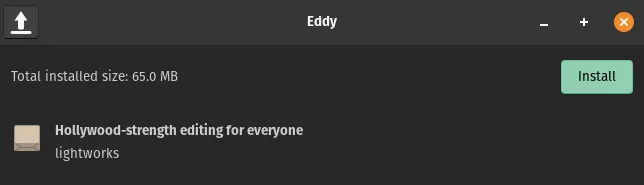
Now, the Lightworks launcher will appear in the Application menu or the Launcher when you search for it.
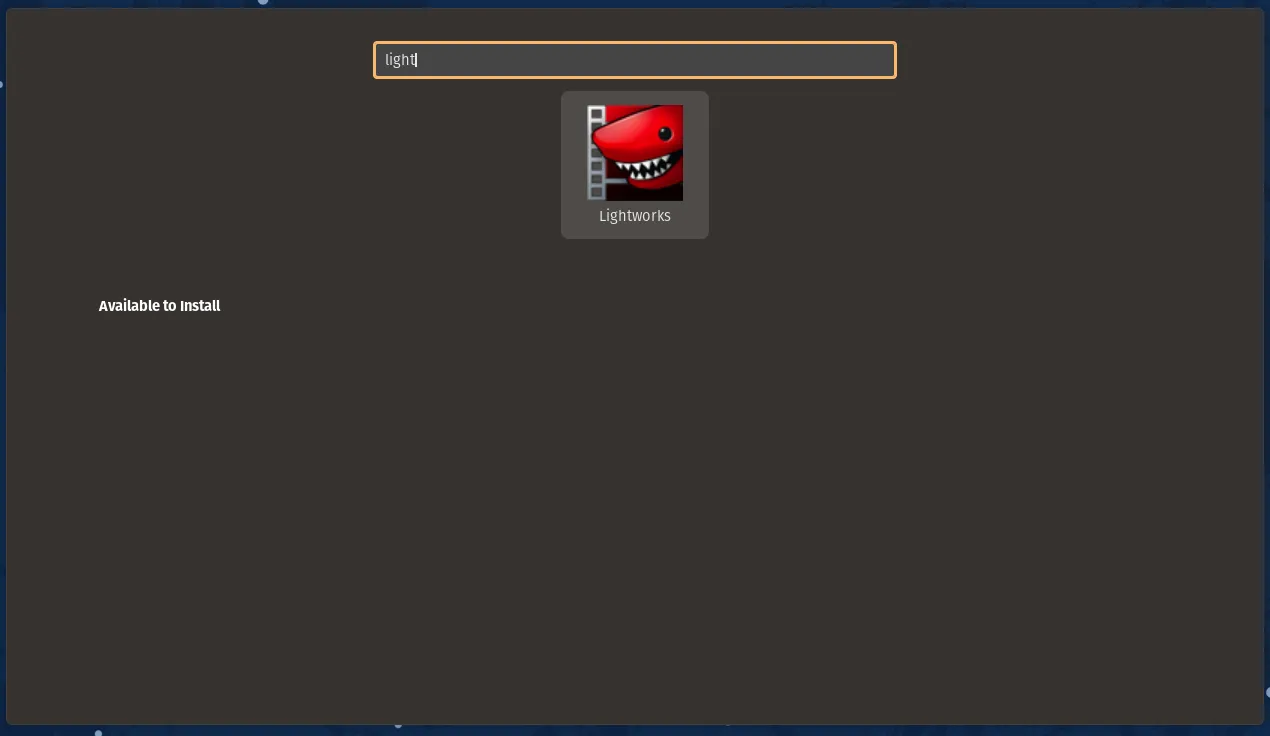
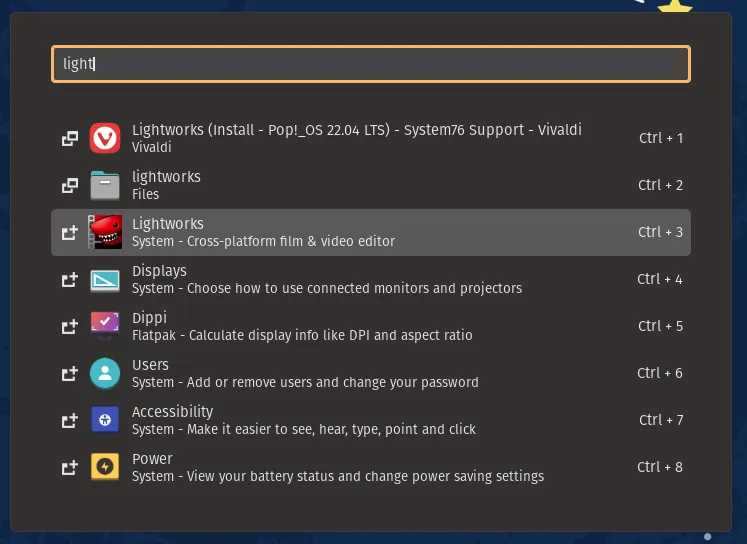
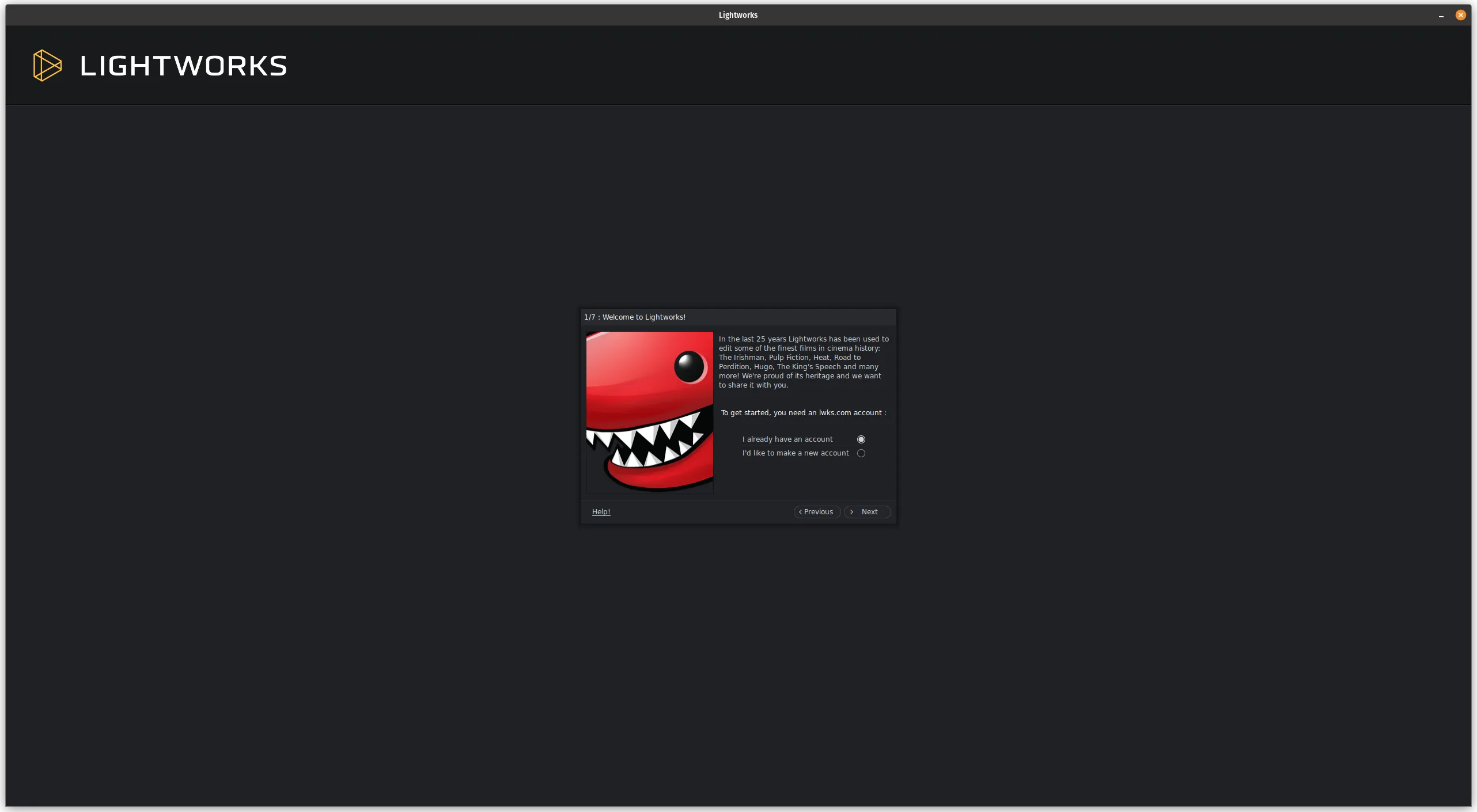
When you first launch the application you will need to sign into your Lightworks account.
Terminal Instructions
Section titled “Terminal Instructions”Once the .deb file is downloaded, instead of using Eddy, it can also be installed from a terminal by running the following commands:
cd ~/Downloadssudo apt install ./lightworks*.deb