

Mouse Customization
Graphical Software
Section titled “Graphical Software”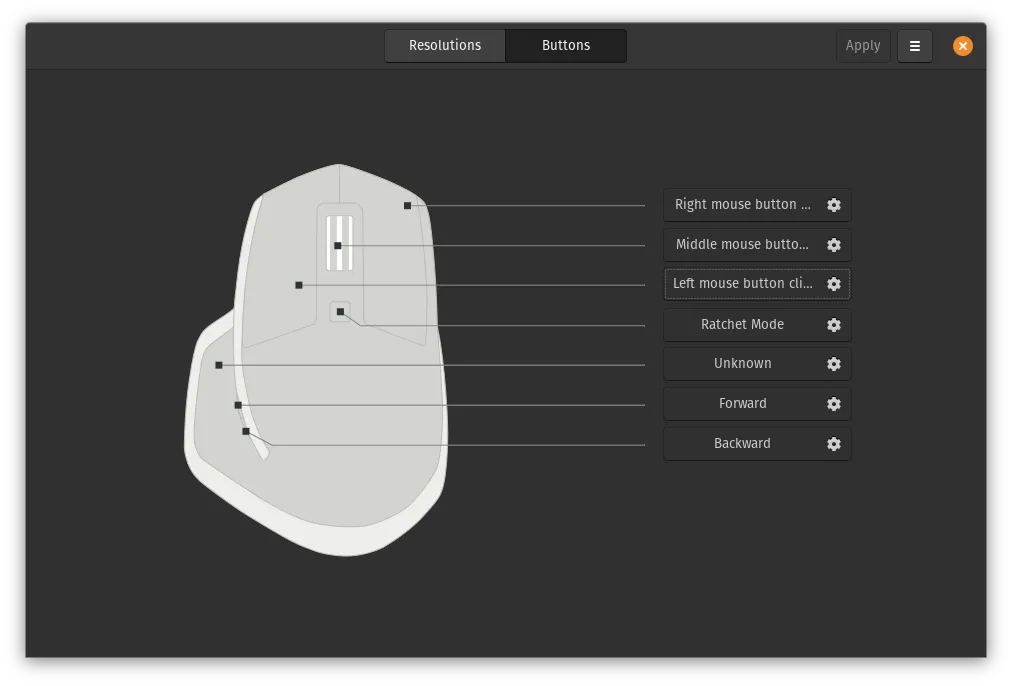
Piper is a frontend to the libratbag backend for setting custom actions to mouse buttons like the Logitech MX Master 3 (sold by System76). In this section we will be using that mouse as an example for using Piper. You can see the source code of Piper here.
Installing
Section titled “Installing”Piper can be installed from the Pop!_Shop on Pop!_OS and from the Ubuntu Software on Ubuntu.
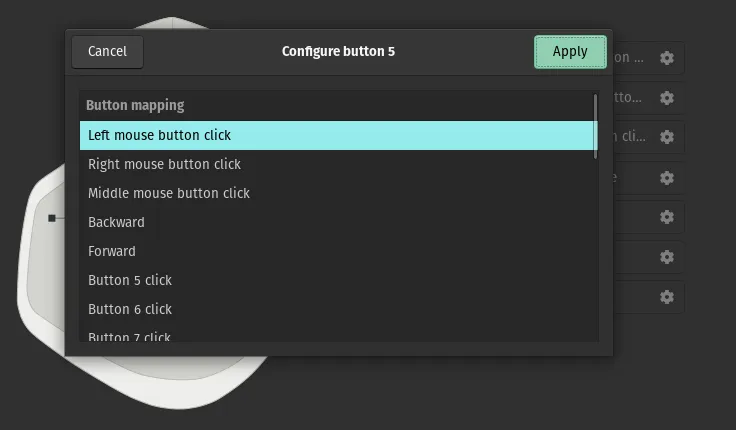
In this window the button that has been clicked can be reassigned to a differet function like changing the Left-click to the Right-click or swapping the Forward button to the Back button for web pages.
Solaar
Section titled “Solaar”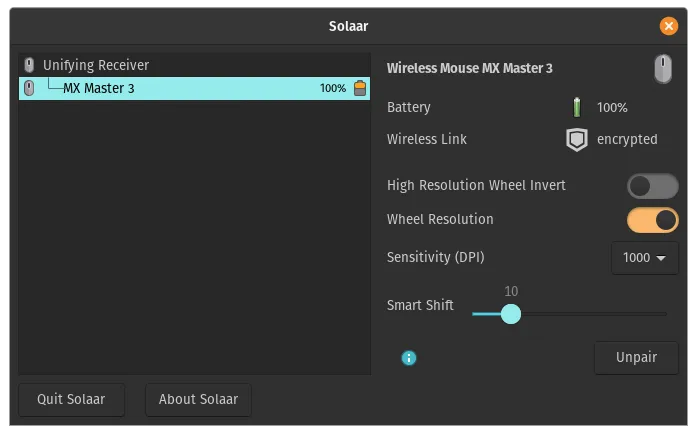
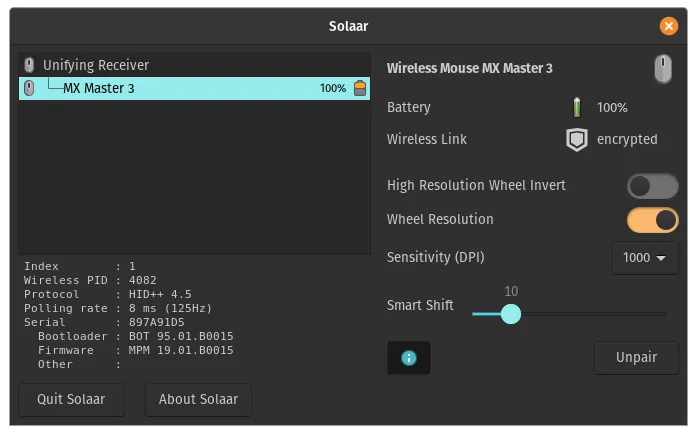
Solaar is a graphical tool for adding more devices to your Logitech USB Unify receiver. It also provides information on the following:
- Battery life
- Firmware and Bootloader version
- Serial number
- Sensitivity (DPI) settings
You can find the source code of Solaar here and more information about Solaar here.
Installing
Section titled “Installing”Solaar can be installed from the Pop!_Shop on Pop!_OS and from the Ubuntu Software on Ubuntu.
Command Line Software
Section titled “Command Line Software”xbindkeys
Section titled “xbindkeys”For using xbindkeys open a terminal with the following keys:
Pop!_OS : + T
Ubuntu : CTRL+ALT+T
Then install the following packages:
sudo apt install xbindkeys xautomationThen create the default config file for xbindkeys with this command:
xbindkeys --defaults > $HOME/.xbindkeysrcSetting custom actions
Section titled “Setting custom actions”Now let’s open the config file with this command:
gedit ~/.xbindkeysrcThen scroll down to the bottom of the file right below this line:
"xbindkeys_show" control+shift + qFrom here you can add your own custom actions like the ones below.
Examples
Section titled “Examples”Below are some examples that you can do:
# Refresh"xte 'key F5'" b:9 + controlThis will cause the forward mouse button and the Ctrl key to emulate pressing the F5 key. This is useful for refreshing a web page without moving your hand off the mouse.
# Workspace Up"xte 'keydown Control_L' 'keydown Super_L' 'key Up' 'keyup Super_L' 'keyup Control_L'"   b:9
# Workspace Down"xte 'keydown Control_L' 'keydown Super_L' 'key Down' 'keyup Super_L' 'keyup Control_L'"   b:8
This will cause the forward and back mouse button to emulate pressing the Ctrl++Up and Down. This is useful for switching workspaces very quickly while leaving your hand on the mouse.
Changes
Section titled “Changes”If any changes are made to the config file then xbindkeys need to be restarted with these commands:
killall xbindkeysxbindkeysBy default xbindkeys does not start on reboot and you will need to add it using the Startup Application Preferences.
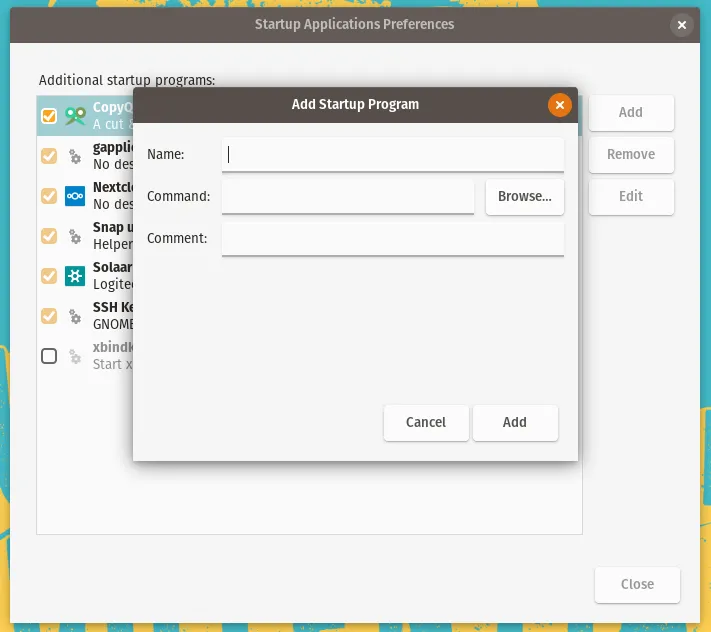
Once the application is opened then click the Add button then name the program to something like ‘xbindkeys’, enter the command for the application which is ‘xbindkeys’. Now click the Add button and your done!
Caveats
Section titled “Caveats”xbindkeys while browsing the web
Section titled “xbindkeys while browsing the web”Once the mouse buttons for forward and back are set to a different action they will no longer work in a web browser for going back and forth between web pages.