Support
Access BIOS/UEFI or Boot Menu
The BIOS/UEFI or boot menu can be accessed by holding specific keys down during boot. Refer to the table below for the keys on each model:
| Model | BIOS/UEFI key | Boot Menu key |
|---|---|---|
| Laptops: All Open Firmware models Pangolin (pang12 and above) |
ESC | ESC: Select One Time Boot (Open Firmware)or Save & Exit → Boot Override. |
| Laptops: Most proprietary firmware models |
F2 | F7 |
| Older laptops | Depends on the system | F1 |
| Thelio desktops | Del/F2 | F8/F11/F12 |
| Meerkat (mini) desktops | F2 | F10 |
If the listed keys don’t work, try holding each F1 through F12 key during separate reboots until the BIOS/UEFI appears.
Open Firmware Screenshots
Section titled “Open Firmware Screenshots”The following screenshots show the menus in System76 Open Firmware with Coreboot:
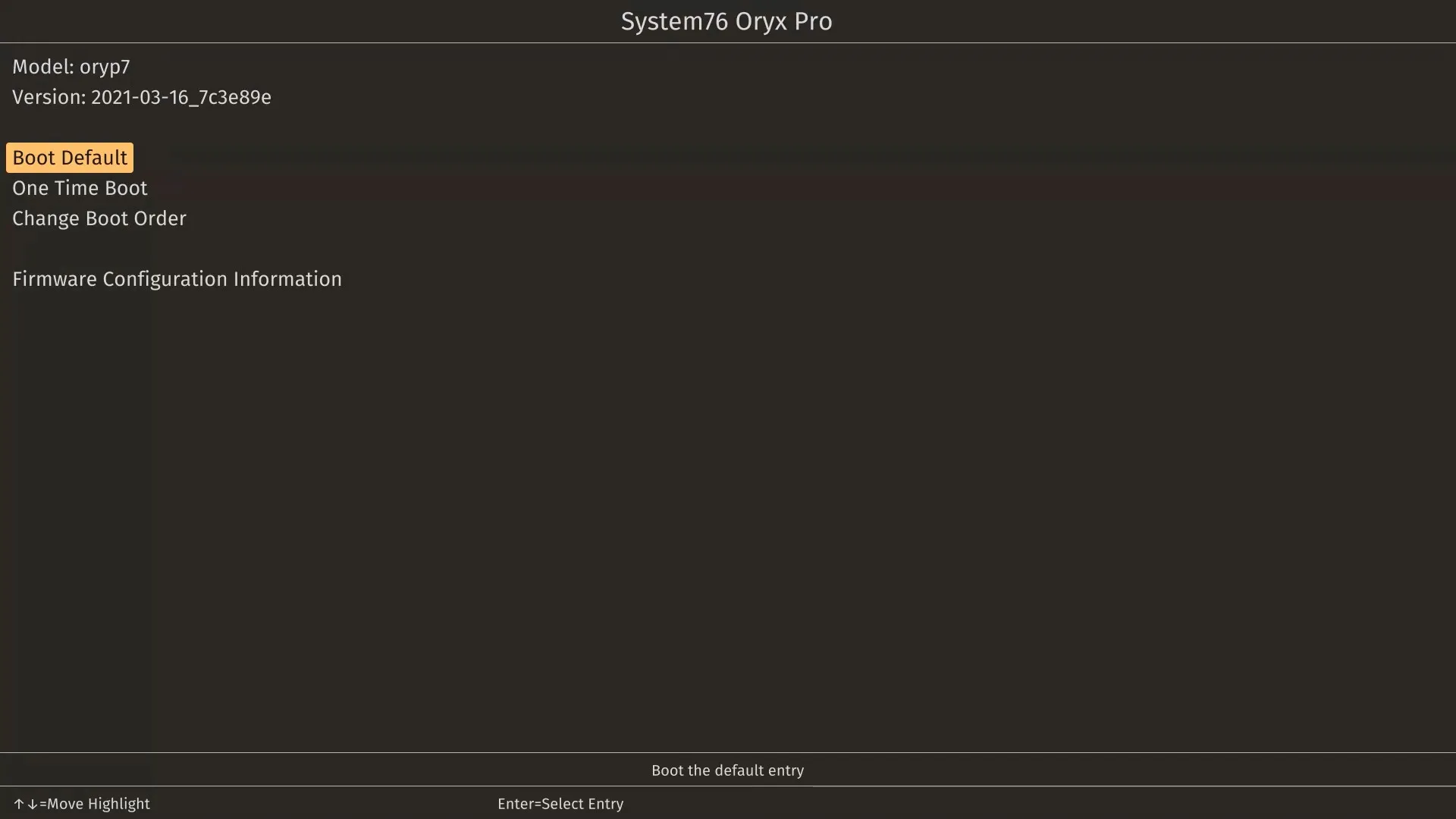
Main Menu
Section titled “Main Menu”Displays the computer model, firmware version, and available options.
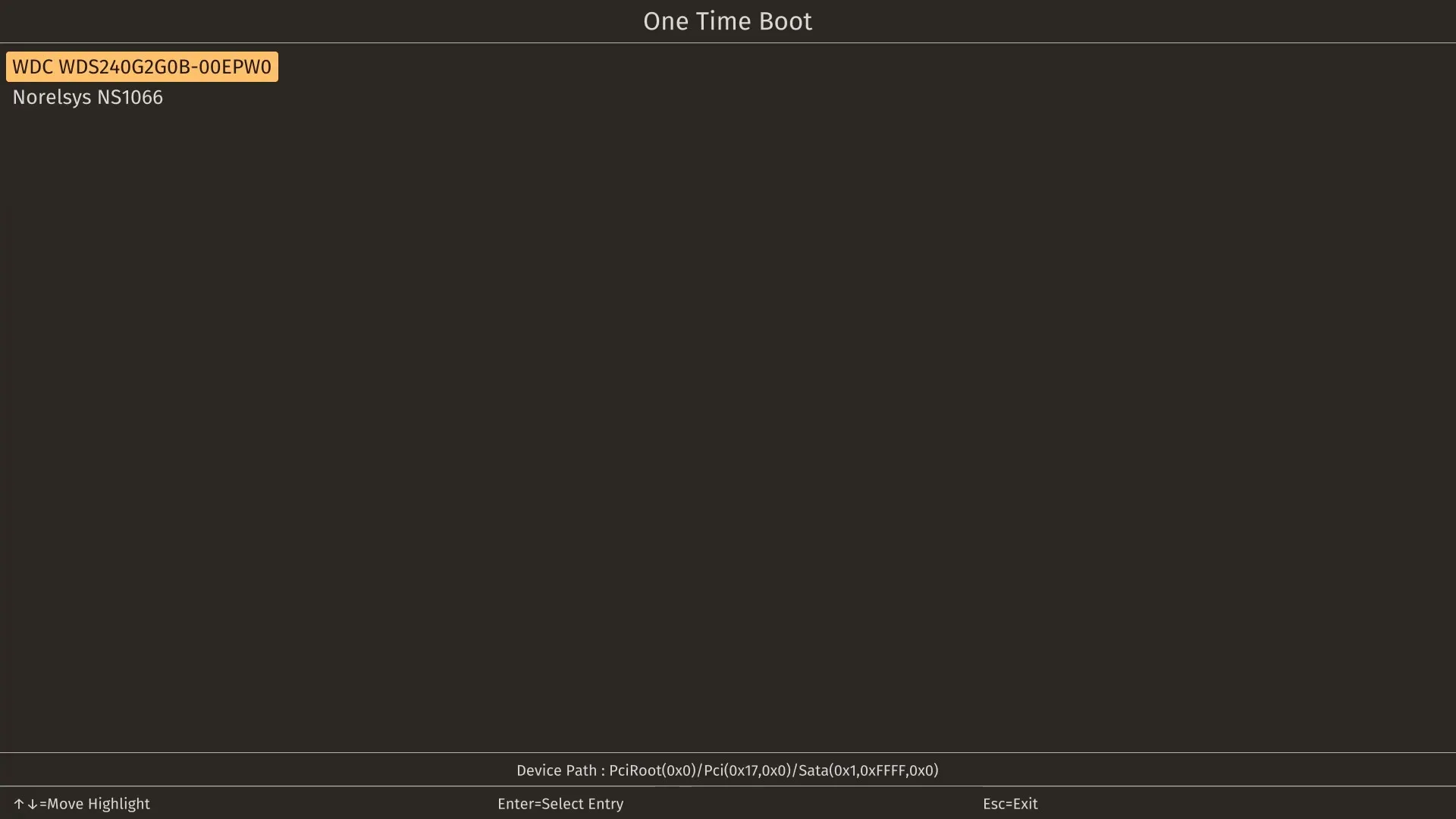
One Time Boot
Section titled “One Time Boot”Allows booting to a non-default boot device.
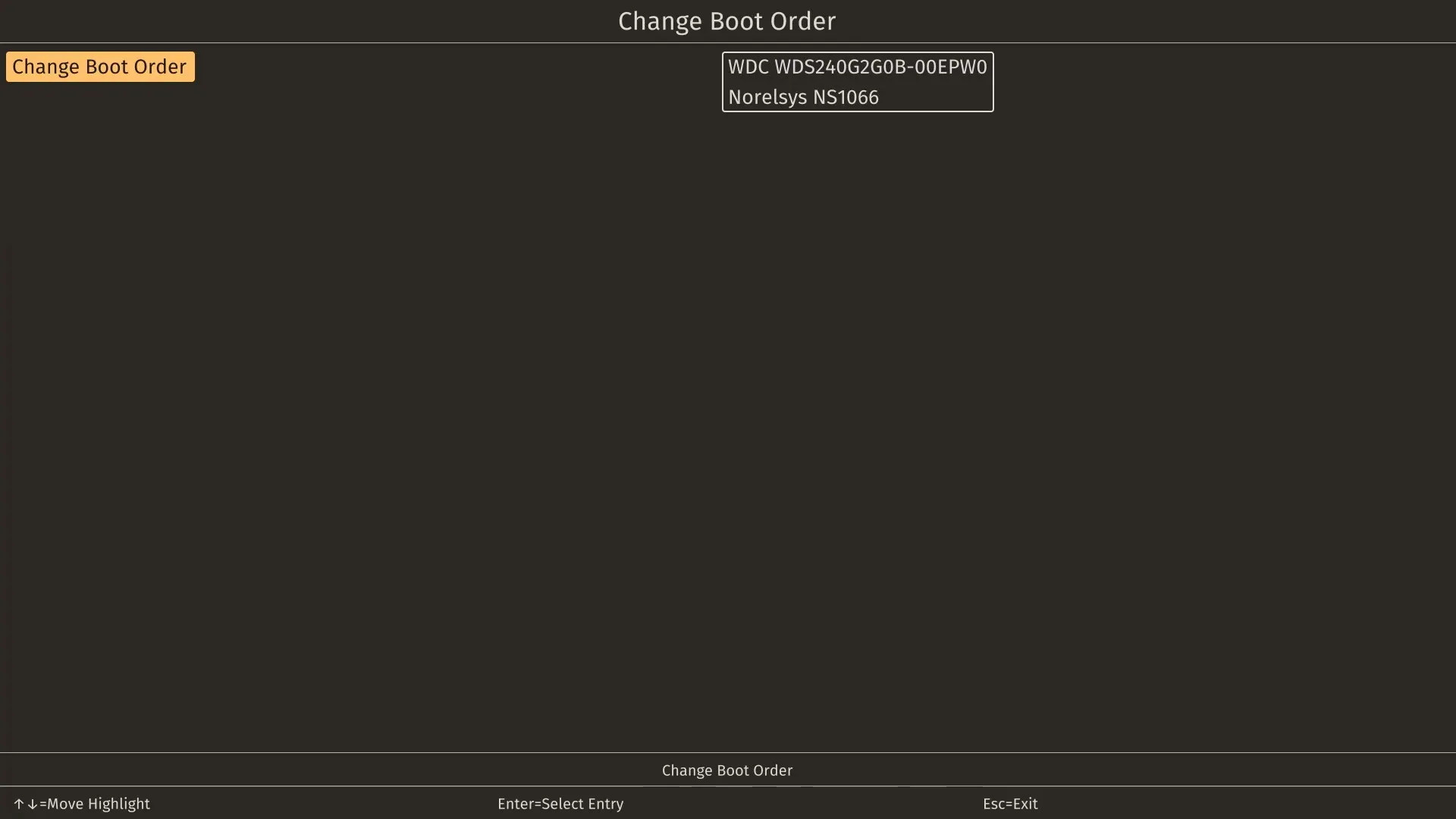
Change Boot Order
Section titled “Change Boot Order”Allows changing the order for selecting the default boot device.
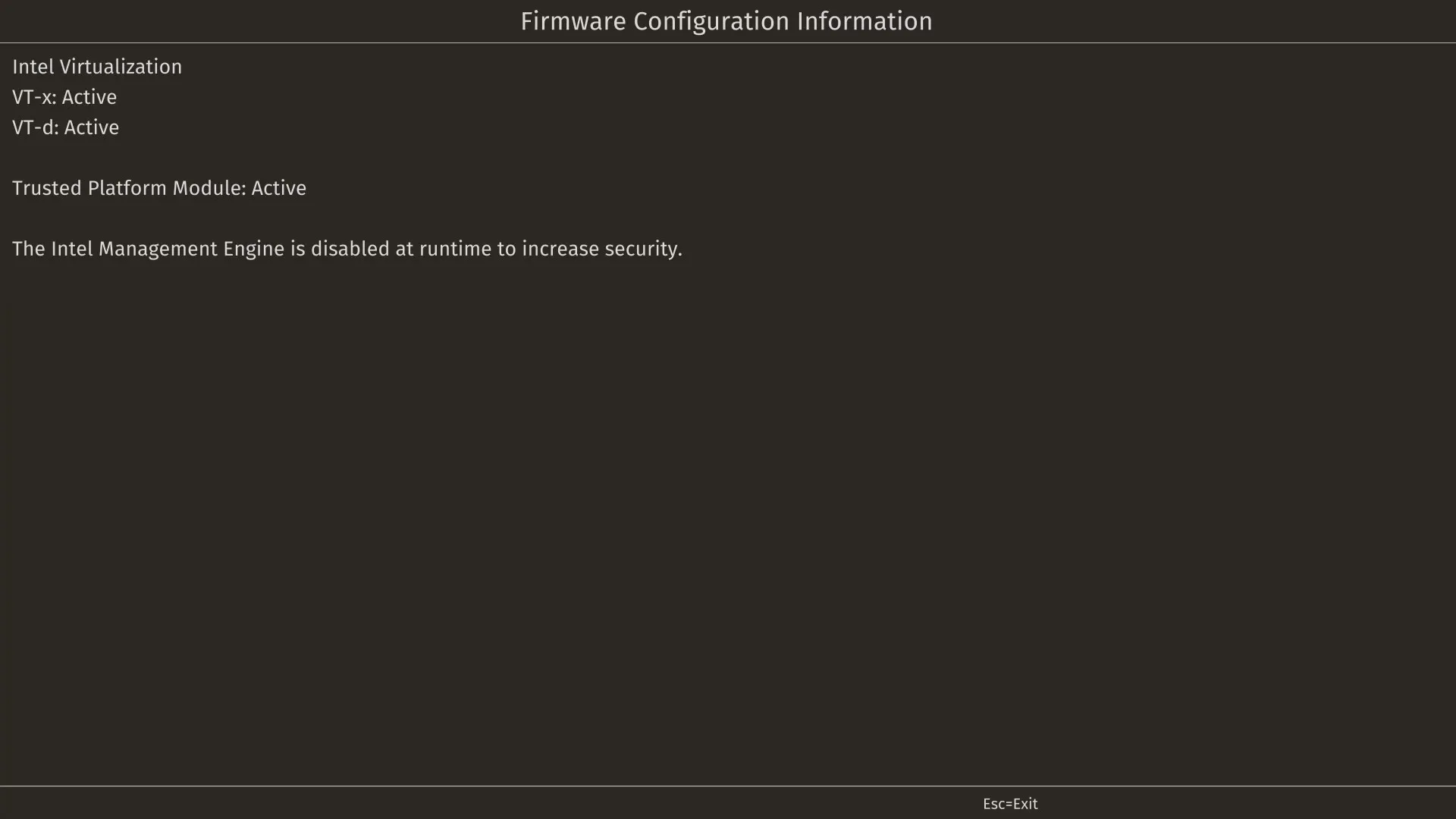
Firmware Configuration Information
Section titled “Firmware Configuration Information”Displays information about the firmware’s build-time configuration.