

Bluetooth Troubleshooting
Pairing and Removing Devices
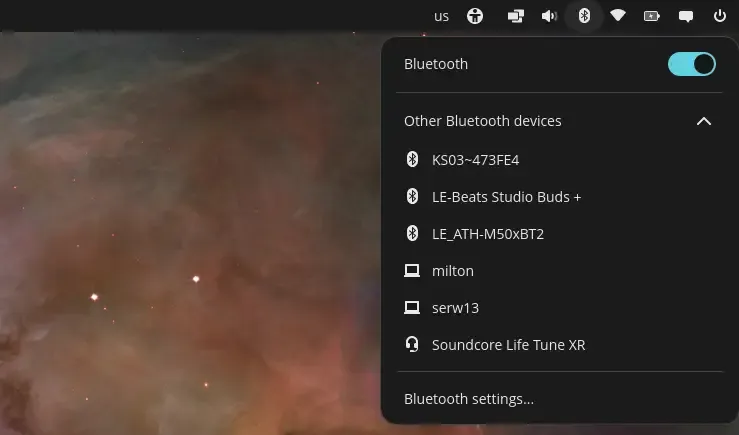
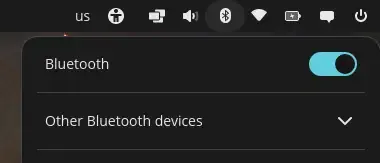
Section titled “Pairing and Removing Devices”To pair a new device, open the Bluetooth applet located near the top-right corner of the screen, expand the “Other Bluetooth devices” drop-down, and select the device you wish to pair with.
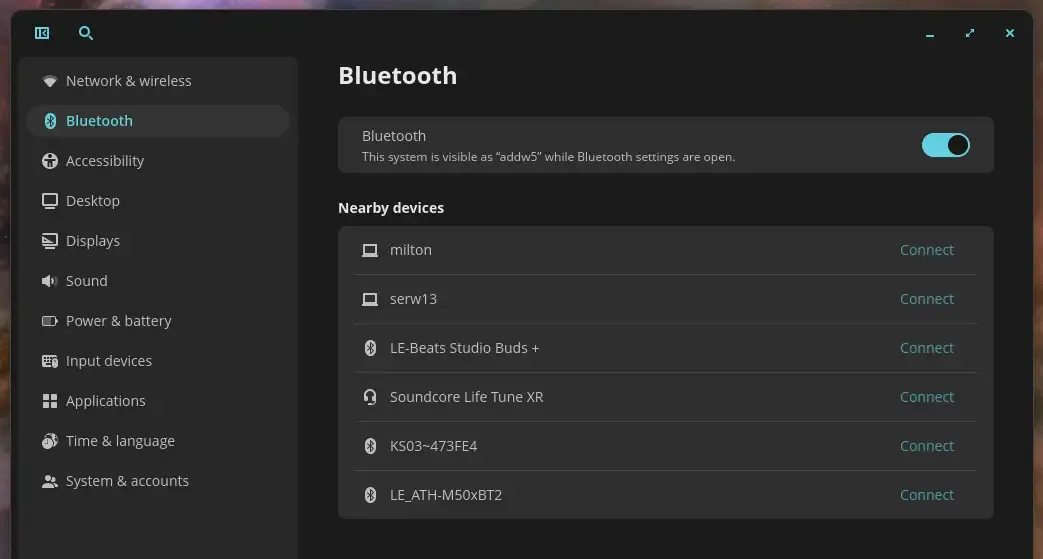
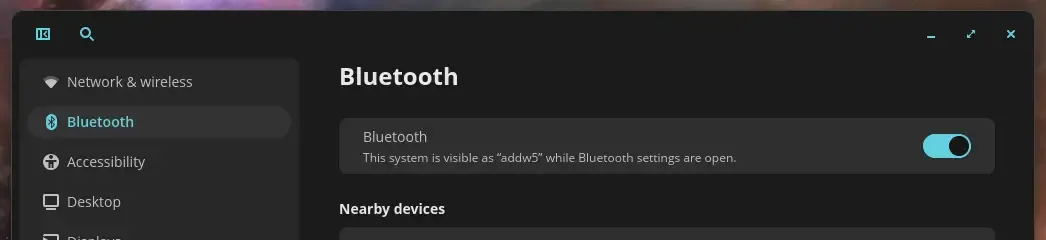
Alternatively, open the Settings app, navigate to the Bluetooth page, and select the device there.
Follow any prompts you see to confirm the connection (e.g. by entering a pairing code displayed on your device).
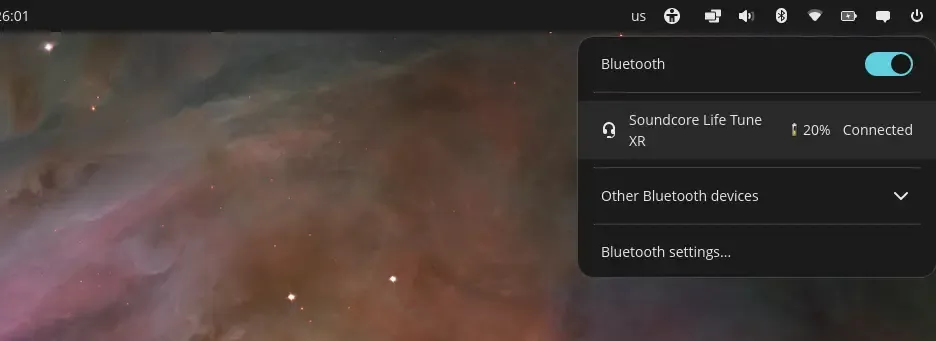
To temprarily disconnect from a device, click the device in the Bluetooth applet.
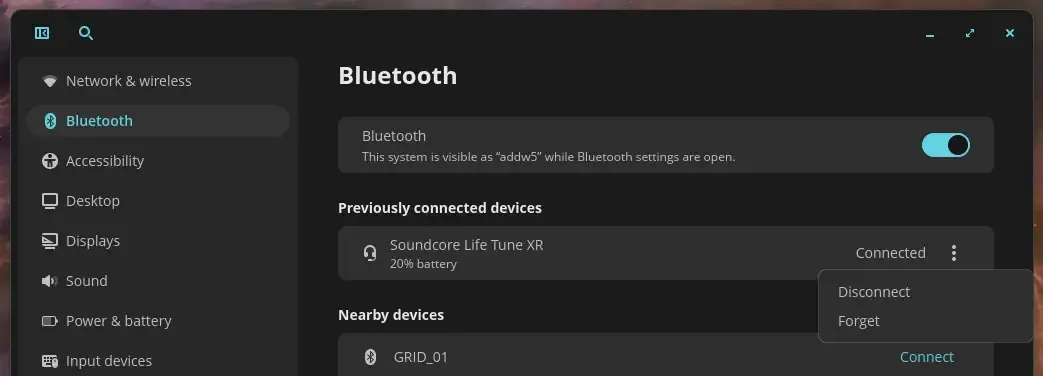
Alternatively, in the Settings app, click the three dots to the right of the device, and click Disconnect (to temporarily disconnect) or Forget (to unpair the device, requiring a manual re-pairing to use it again later).
Enabling Bluetooth
Section titled “Enabling Bluetooth”If Bluetooth isn’t working, first try toggling airplane mode on and back off. This can be done using a keyboard shortcut if your keyboard has one (look for a key with an airplane symbol, commonly Fn+F11 or Fn+F9 on System76 laptops). Otherwise, use the option at the top of the Wi-Fi menu near the top-right corner of your screen.
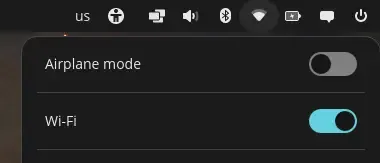
Next, make sure Bluetooth is enabled in the top bar, or in the Bluetooth page of the Settings application.
If Bluetooth still isn’t working, press Super+T to launch a Terminal, then check that the Bluetooth service is running with the following command:
sudo systemctl status bluetooth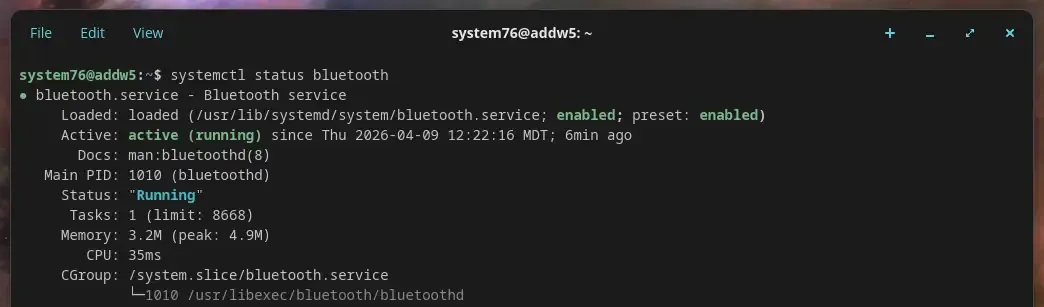
If it’s stopped, enable it to auto-start and immediately start it using the following command:
sudo systemctl enable --now bluetoothDesktop computer power reset
Section titled “Desktop computer power reset”Bluetooth issues on desktop computers can sometimes be fixed by powering off the machine and fully draining power from the capacitors. This method is not applicable to laptop computers since they have a built-in main battery.
- Shut down the computer.
- Unplug the computer.
- Wait 60 seconds.
- Plug back in and power on the computer.
Using Bluetooth Manager (blueman)
Section titled “Using Bluetooth Manager (blueman)”A third-party program called Bluetooth Manager can sometimes pair and trust Bluetooth devices better than the default Bluetooth settings. Install it with this command:
sudo apt install bluemanAfter installing the above package, fully shut down the machine and then power it back on, rather than rebooting. This ensures the hardware completely resets.
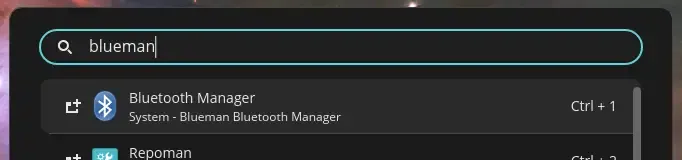
Open Bluetooth Manager by pressing Super and searching for “blueman”:
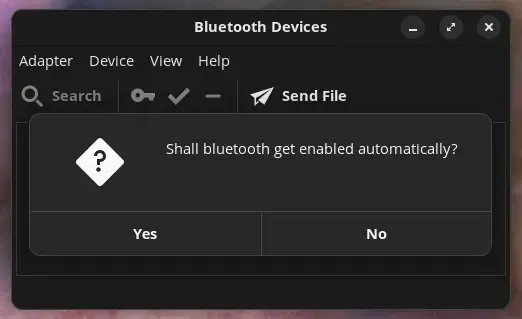
On first launch, you may be asked if Bluetooth should be enabled automatically. Choose Yes.
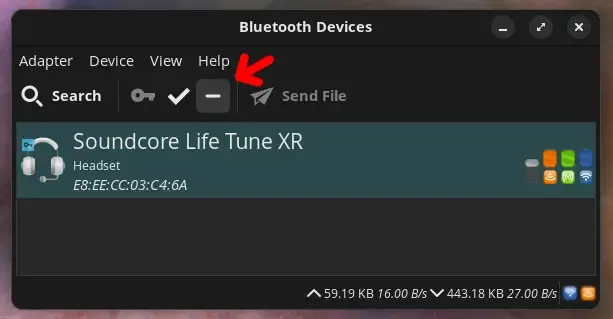
If the device is already paired, start by removing it to allow for a fresh connection. You can do this by selecting the deivce and clicking the - button.
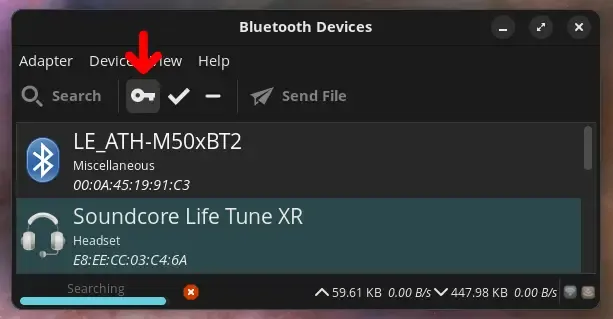
Next, click the Search button, select your device from the list, and click the key icon to pair it again:
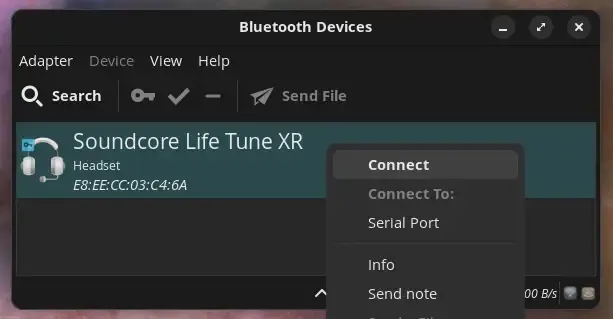
Finally, right-click your paired device and select Connect to connect to it:
Using bluetoothctl
Section titled “Using bluetoothctl”The bluetoothctl program offers control, flexibility, and efficiency through precise management of Bluetooth devices via the terminal. For troubleshooting, bluetoothctl provides direct feedback and logs, which can help identify connection issues, detect devices, or configure settings in real time. It’s also useful for headless or remote setups where a user interface might not be available.
To get started, ensure Bluetooth is unblocked by running sudo rfkill unblock bluetooth in a terminal, then run bluetoothctl to enter the Bluetooth control tool.

If you have multiple Bluetooth controllers, you can list them with the list command, show information about them with show <MAC address>, and select one to use with select <MAC address.
Power the controller on and scan for available devices to connect to using the following commands:
power onscan onDevices with human-readable names (such as a product name) will show them after the MAC address. To pair with a device, use the trust <MAC address> command. Use devices to see a list of paired devices.
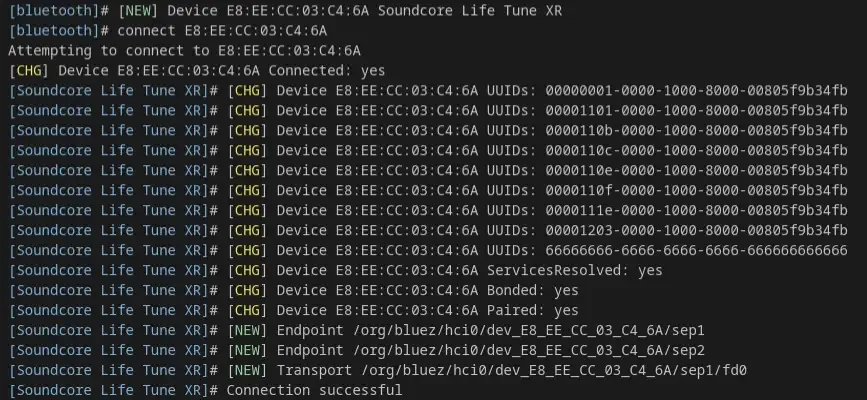
Finally, connect with the device using the connect <MAC address> command. A Connection successful message will appear if the connection succeeds.
Further Troubleshooting
Section titled “Further Troubleshooting”Check TLP Settings
Section titled “Check TLP Settings”If tlp is installed, then there may be settings interfering with Bluetooth functionality. Edit this file and disable any WiFi and Bluetooth power saving features:
sudo nano /etc/tlp.confBluetooth Version
Section titled “Bluetooth Version”Computers with newer Bluetooth versions will generally work with accessories built for older Bluetooth versions, but accessories requiring newer Bluetooth versions may not work on computers with older Bluetooth versions.
You can check your computer’s Bluetooth version by installing and running the inxi tool:
sudo apt install inxiinxi -EThe Bluetooth version for each wireless card will be displayed at the end of the Report line. For example, if the output says bt-v: 5.2, then your computer supports Bluetooth 5.2 (and below).
Signal Interference
Section titled “Signal Interference”Bluetooth uses the same bandwidth as the 2.4Ghz Wi-Fi band, and in many computers, it uses the same wireless card and antennas as the W-Fi. If you’re in an area crowded with other Wi-Fi networks or devices, the interference can impact Bluetooth performance and range.
Device-Specific Differences
Section titled “Device-Specific Differences”Every Bluetooth device is different. They use the same or similar protocols, but the printed circuit boards (PCBs) are specific to each device, and the firmware they run is often custom-designed and closed-source. Many devices are not tested against Linux systems by their manufacturers.
Some devices, such as Apple or Sony headphones, may utilize patentend technologies that aren’t available on all computers or operating systems. That doesn’t mean these devices won’t work, but does mean their behavior or performance may vary.
Audio Input/Output
Section titled “Audio Input/Output”Several audio protocols exist for handling audio steaming over Bluetooth:
- A2DP (Advanced Audio Distribution Profile): This protocol allows high-quality stereo audio streaming. However, with some devices, it only supports audio in one direction at a time (e.g. speakers only, no microphone).
- HSP (Bluetooth Headset Protocol) and HFP (Hands-Free Protocol): These protocols allow bidirectional audio streaming (e.g. speakers and microphone at the same time), but are limited to lower-quality, mono audio.
You can try a different device profile by navigating to Settings -> Sound -> Device Profiles and using the drop-down next to your device.
Controlling Audio
Section titled “Controlling Audio”The default Settings app allows you to select one input or output device for all applications. You may want only certain applications to play through a Bluetooth speaker. PulseAudio Volume Control provides a more advanced GUI interface for routing audio in this manner. To install it, run this command:
sudo apt install pavucontrolThere will be a drop-down in the Playback tab for each of your applications that’s outputting sound, which you can use to select which set of speakers (e.g. built-in or Bluetooth) that application’s sound will play through.
OS & Kernel Versions
Section titled “OS & Kernel Versions”As the Linux kernel develops, support for more devices are added. Sometimes, Bluetooth devices will work better in a different kernel version.
Running software updates and rebooting can ensure you’re using the most recent available software for Bluetooth support.
Linux Firmware Packages
Section titled “Linux Firmware Packages”Sometimes, newer Linux firmware packages will contain bux fixes that aren’t yet in the standard software repositories. Newer Linux firmware packages can be downloaded from here:
https://mirrors.kernel.org/ubuntu/pool/main/l/linux-firmware/
Then, they can be installed with this command (filling in the version numbers in the filename as appropriate):
sudo dpkg -i linux-firmware_#.###.#_all.debRebooting is required to load the newly installed firmware.
Configuration Issues
Section titled “Configuration Issues”Beyond forgetting and re-pairing deivces, you can check if any local configuration files are causing problems with a device by creating a test user or booting from a live disk to see if Bluetooth works in either case. If it does, config files in your normal user account may need to be deleted.
File Transfer
Section titled “File Transfer”Sometimes, additional programs need to be installed for mobile device file transfer to work. Install the Object Exchange (OBEX) packages with this command:
sudo apt install obexfs obexftpThen connect (pair) to the device and see if file sending works.
On GNOME environments (such as Pop!_OS 22.04 and below), you may need to enable the Personal File Sharing option in Settings for file receiving to work.
Other Useful Commands
Section titled “Other Useful Commands”Logging
Section titled “Logging”To show kernel logs related to Bluetooth:
sudo dmesg | grep -i BluetoothTo monitor Bluetooth events (try leaving this command running while pairing or using a device to see any error messages or failures):
sudo btmonBlocks
Section titled “Blocks”The rfkill utility shows whether Bluetooth or Wi-Fi are blocked in software or hardware. Generally, this information corresponds to whether airplane mode is enabled, but it can be useful to check separately in case of bugs in the airplane mode GUI or other components.
To check if Bluetooth or Wireless LAN (Wi-Fi) are blocked:
rfkill listTo unblock Bluetooth:
sudo rfkill unblock bluetoothTo unblock all wireless types:
sudo rfkill unblock allKernel Modules
Section titled “Kernel Modules”To show what Bluetooth kernel modules (drivers) are loaded:
lsmod | grep bluetoothTo manually reload the Bluetooth USB kernel module:
sudo rmmod btusbsudo modprobe btusbResetting Bluetooth Devices
Section titled “Resetting Bluetooth Devices”Resetting the Bluetooth device profiles will require re-pairing all devices:
sudo rm -r /var/lib/bluetooth/This can help if your Bluetooth audio device is stuck on an HSP/HFP profile and won’t switch to A2DP mode.
Get Support for Ongoing Bluetooth Issues
Section titled “Get Support for Ongoing Bluetooth Issues”If you own a System76 computer and you’re still experiencing Bluetooth problems after troubleshooting with the above steps, open a support ticket for additional assistance.
Bluetooth compatibility can depend on a variety of hardware and software factors. While Bluetooth often works flawlessly, certain devices may never be trouble-free with a particular computer or OS, while other devices may start working with software updates at a later date.