Active Directory Domain
Pop!_OS and Ubuntu can be joined to an Active Directory domain, which allows users to log in with their existing network credentials.
-
Install the necessary packages:
Terminal window sudo apt install sssd heimdal-clients msktutilWhile installing those packages, you will be prompted for the following information. These are sample responses. Our domain is called “system76.local” and our Active Directory server is called “adserver” in this example:
Terminal window Forest name: SYSTEM76Domain controller hostname: ADSERVER.system76.localAdministrative server for your Kerberos realm: ADSERVER.system76.local -
Move the default Kerberos configuration file to a backup, and create a fresh file to use:
Terminal window sudo mv /etc/krb5.conf /etc/krb5.conf.defaultsudo nano /etc/krb5.confEdit the /etc/krb5.conf file with the following contents:
[libdefaults]default_realm = SYSTEM76.LOCALrdns = nodns_lookup_kdc = truedns_lookup_realm = true[realms]SYSTEM76.LOCAL = {kdc = ADSERVER.system76.localadmin_server = ADSERVER.system76.local} -
Initialize Kerberos and generate a keytab file. The first command requires the username of a domain administrator, and our computer’s hostname is “pop-os” in this example:
kinit administratorklistmsktutil -N -c -b 'CN=COMPUTERS' -s POP-OS/pop-os.system76.local -k my-keytab.keytab --computer-name POP-OS --upn POP-OS$ --server adserver.system76.local --user-creds-onlymsktutil -N -c -b 'CN=COMPUTERS' -s POP-OS/pop-os -k my-keytab.keytab --computer-name POP-OS --upn POP-OS$ --server adserver.system76.local --user-creds-onlykdestroy -
Move the keytab to the /etc/sssd directory, and configure SSSD:
Terminal window sudo mv my-keytab.keytab /etc/sssd/my-keytab.keytabsudo nano /etc/sssd/sssd.confThe SSSD configuration file should contain the following:
[sssd]services = nss, pamconfig_file_version = 2domains = system76.local[nss]entry_negative_timeout = 0#debug_level = 5[pam]#debug_level = 5[domain/system76.local]#debug_level = 10enumerate = falseid_provider = adauth_provider = adchpass_provider = adaccess_provider = addyndns_update = falsead_hostname = pop-os.system76.localad_server = adserver.system76.localad_domain = system76.localldap_schema = adldap_id_mapping = truefallback_homedir = /home/%udefault_shell = /bin/bashldap_sasl_mech = gssapildap_sasl_authid = POP-OS$krb5_keytab = /etc/sssd/my-keytab.keytabldap_krb5_init_creds = trueAfter saving, set the appropriate permissions on that configuration file:
Terminal window sudo chmod 0600 /etc/sssd/sssd.conf -
Configure PAM:
Terminal window sudo nano /etc/pam.d/common-sessionLook for the line that contains “session required pam_unix.so” and add this line immediately below it:
session required pam_mkhomedir.so skel=/etc/skel umask=0077After saving that file, restart SSSD:
Terminal window sudo systemctl restart sssd -
Add the domain administrator to the local sudo group:
Terminal window sudo adduser administrator sudoThen, test a login with the domain administrator:
Terminal window su -l administrator -
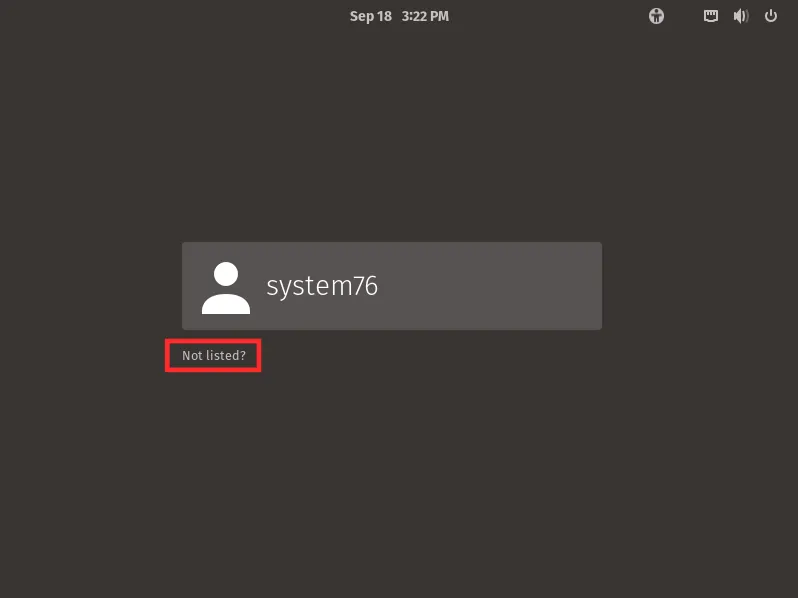
Reboot the computer. At the login screen, you can click the “Not listed?” link, and type the username of any domain user. After logging in with a domain user for the first time, that user will appear on the login screen’s user list.