Ubuntu Basics
The Ubuntu operating system provides all the features you would expect from a sophisticated desktop.
Getting to Know the Ubuntu Desktop
Section titled “Getting to Know the Ubuntu Desktop”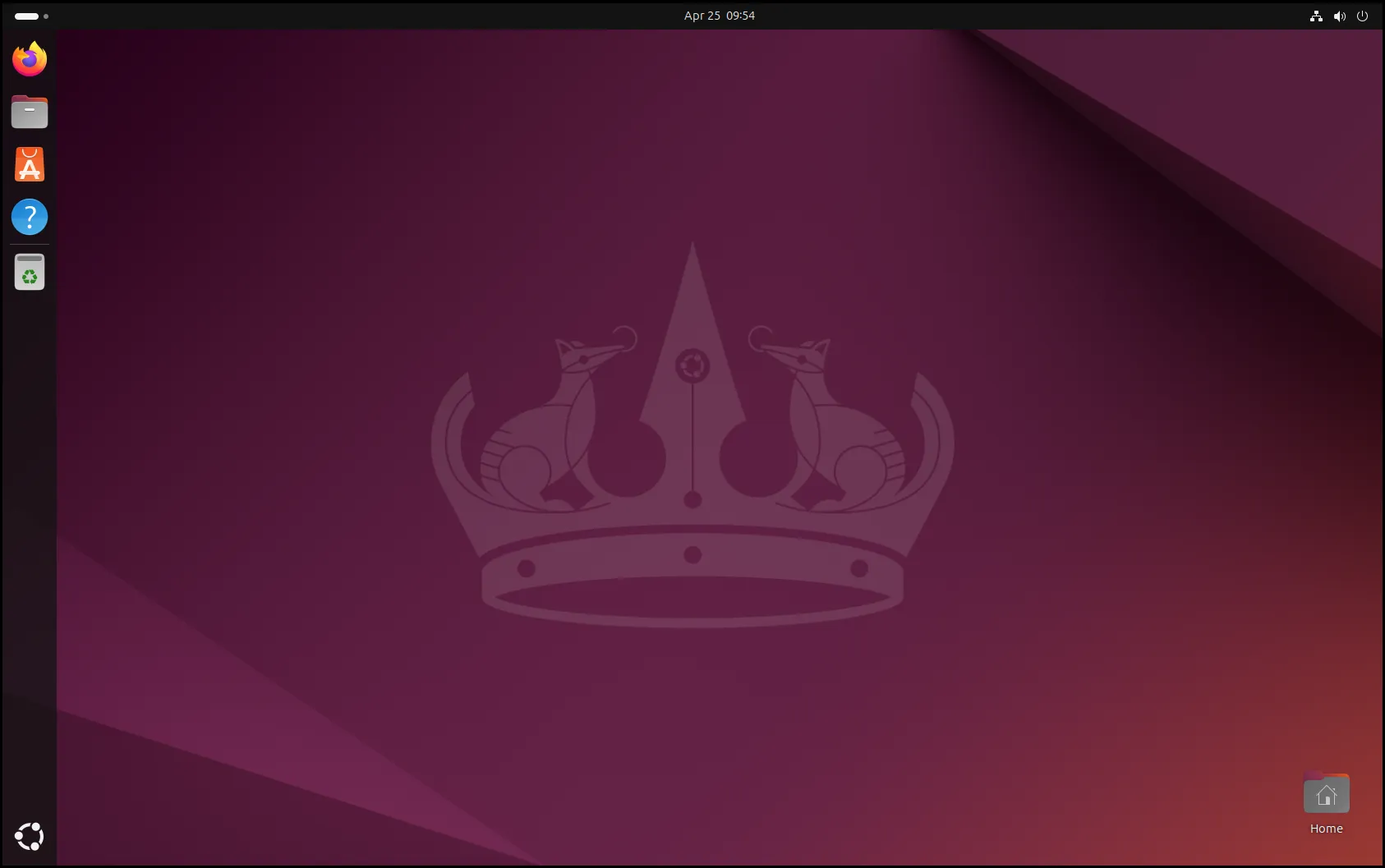
Use the Dock on the left side of the screen to start your favorite apps. You can switch between running apps by clicking on their icons. Right click an icon in the Dock to show a menu of actions– actions include adding or removing application icons from the Dock, opening new windows or tabs, switching between multiple windows of the same app, and more.
Show Applications
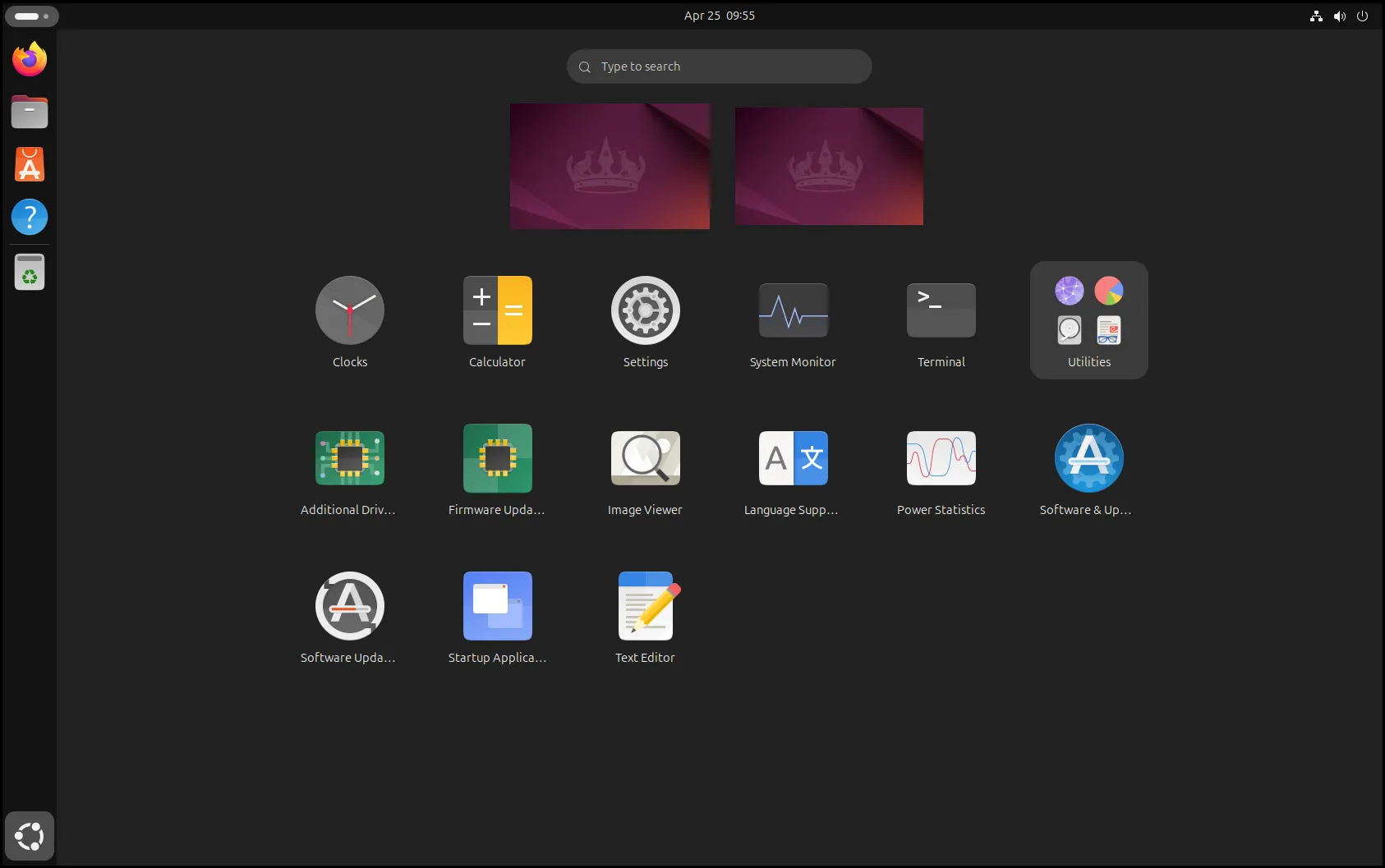
Section titled “Show Applications”Clicking on the Ubuntu logo in the lower left corner of the screen (on the Dock) will show you all of your installed applications in an app drawer grid. This screen can also be accessed by pressing + A, + A or Super + A.
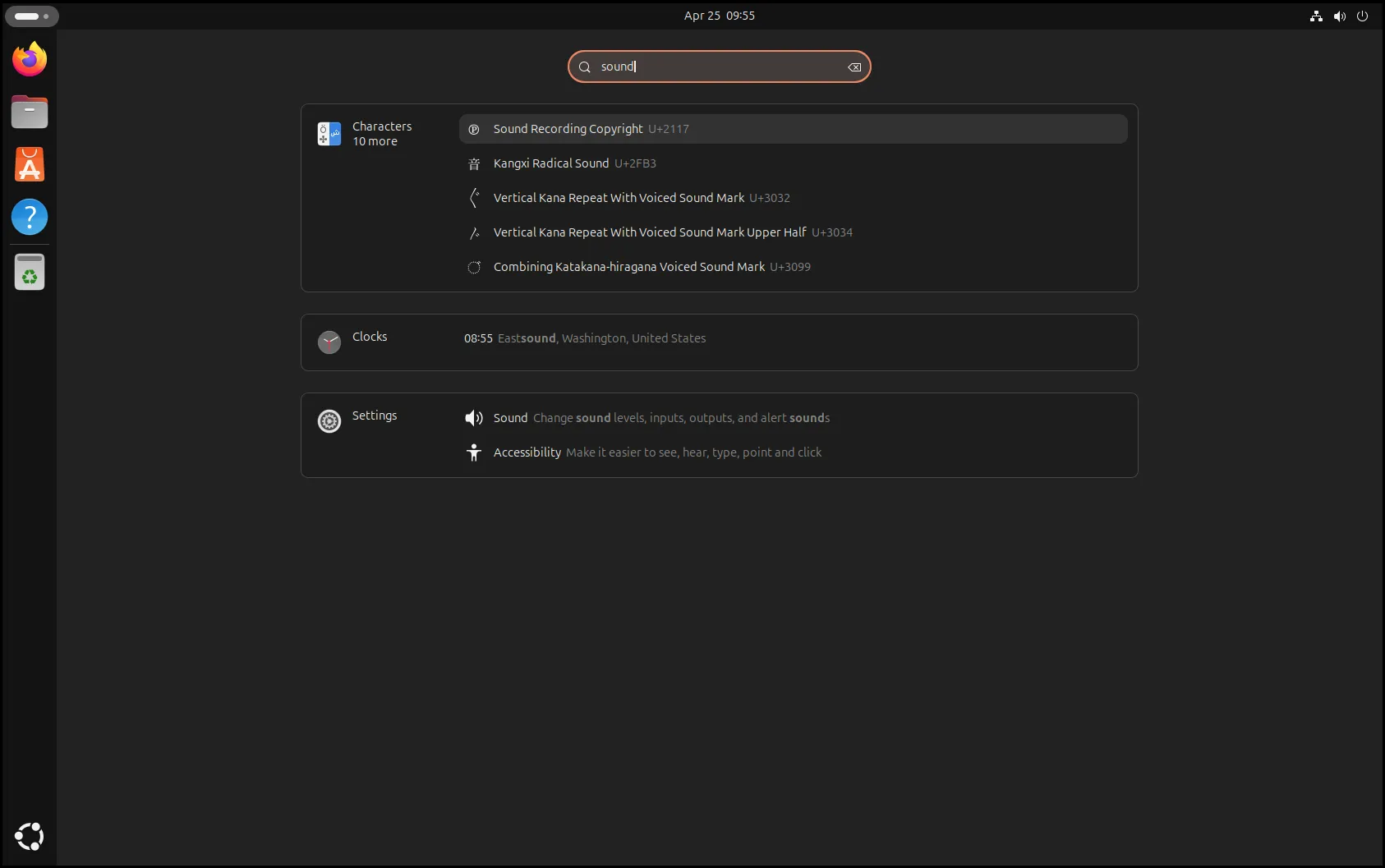
Start typing to search your computer for installed programs, files, and available applications in the App Center.
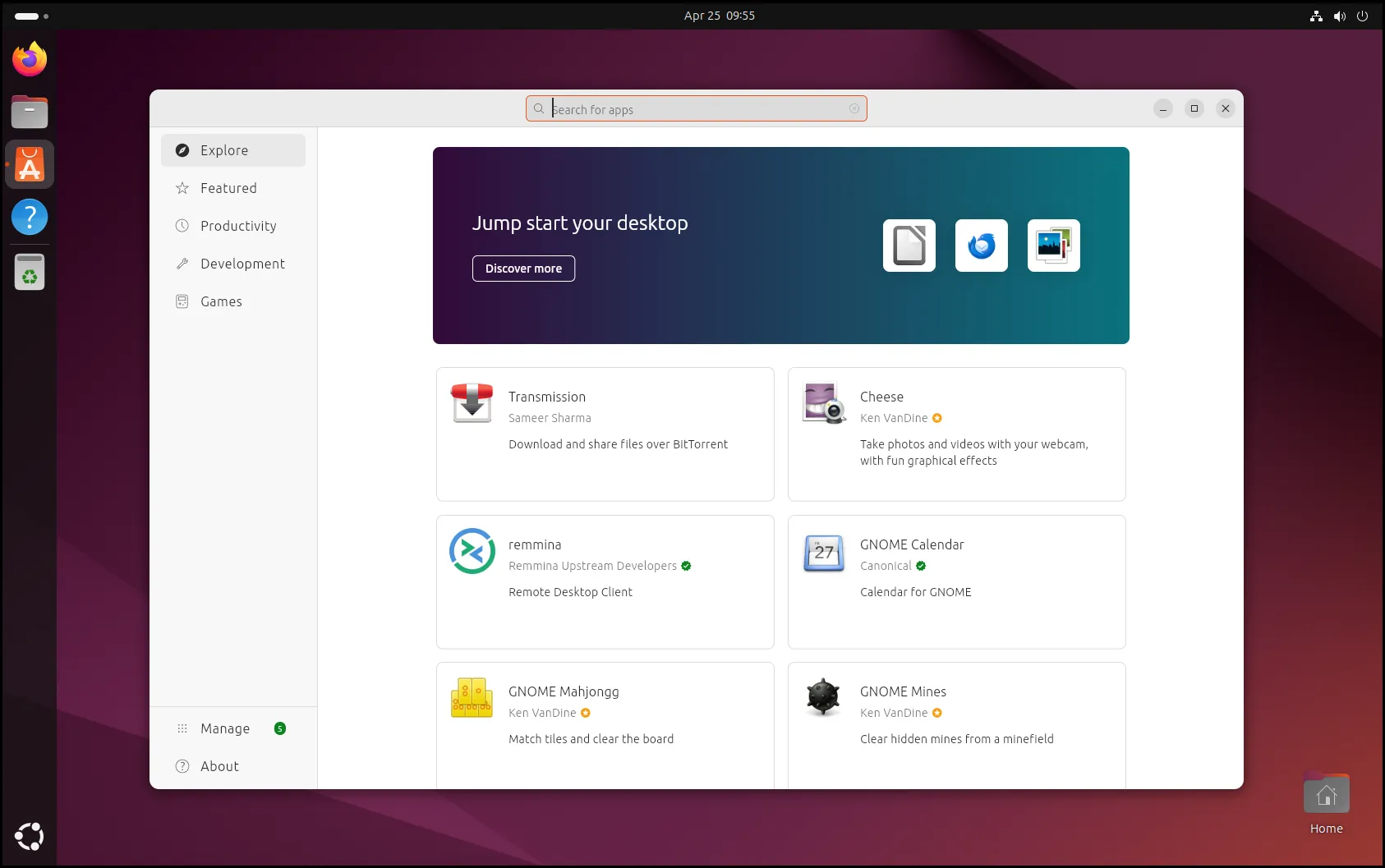
Ubuntu App Center
Section titled “Ubuntu App Center”Clicking on the orange briefcase icon in the Dock opens the App Center. This application provides a GUI frontend for installing applications and updates.
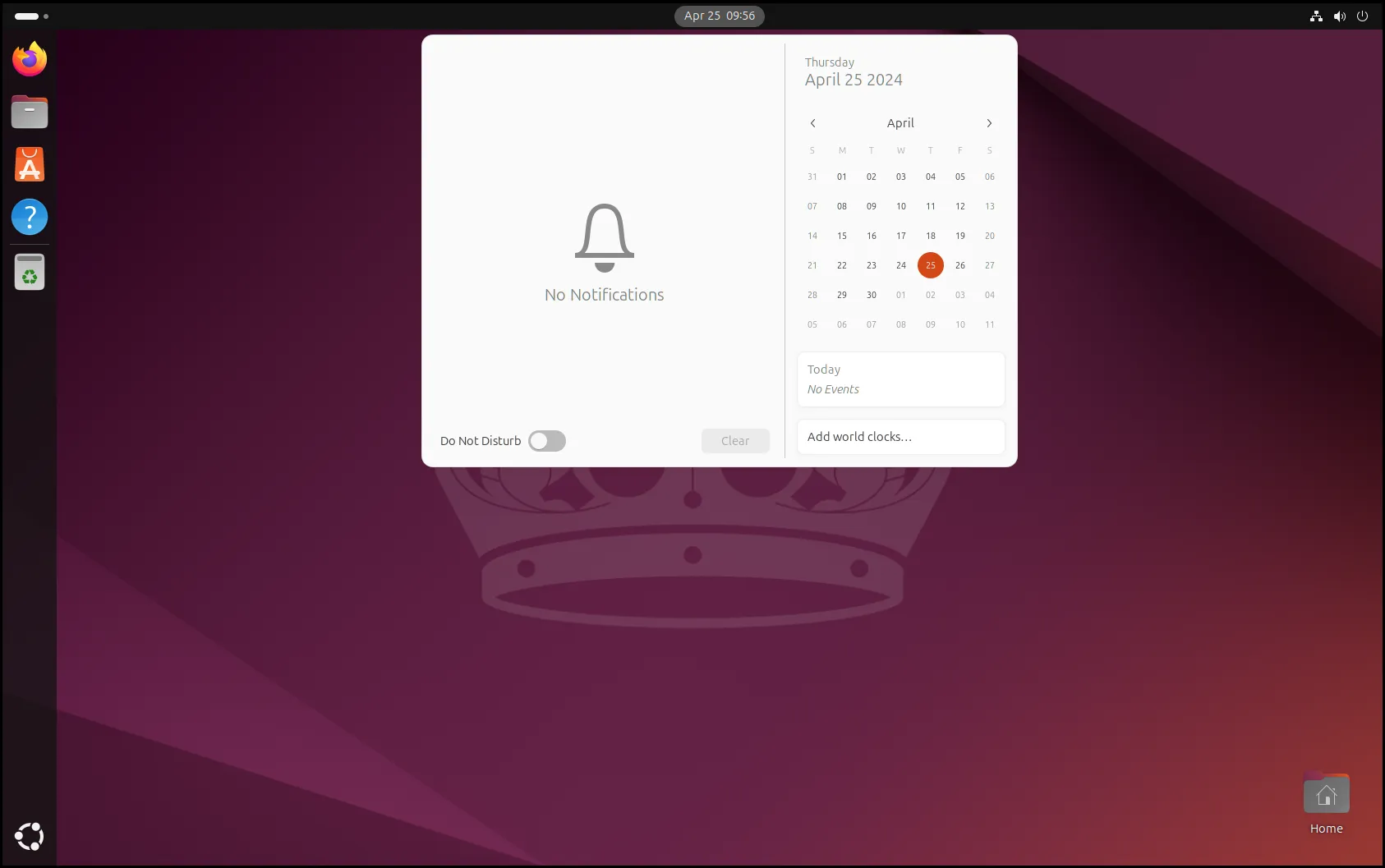
GNOME Notifications
Section titled “GNOME Notifications”The date and time appear in the top middle of the screen. Clicking the date and time opens a drop-down menu containing a calendar and notifications.
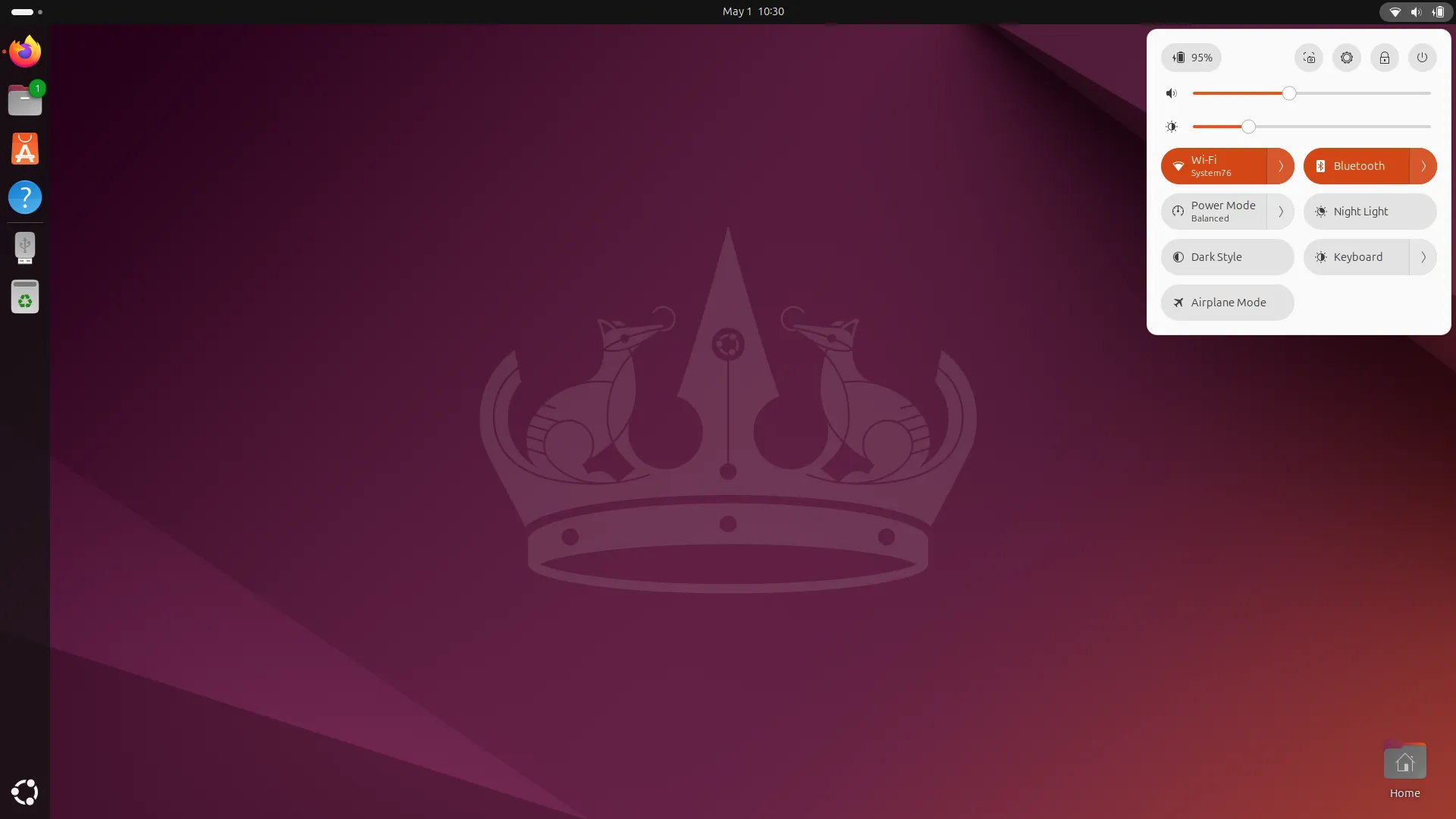
Top Right Menu
Section titled “Top Right Menu”The top right menu offers shortcuts for networking, battery/power, and shutdown commands.
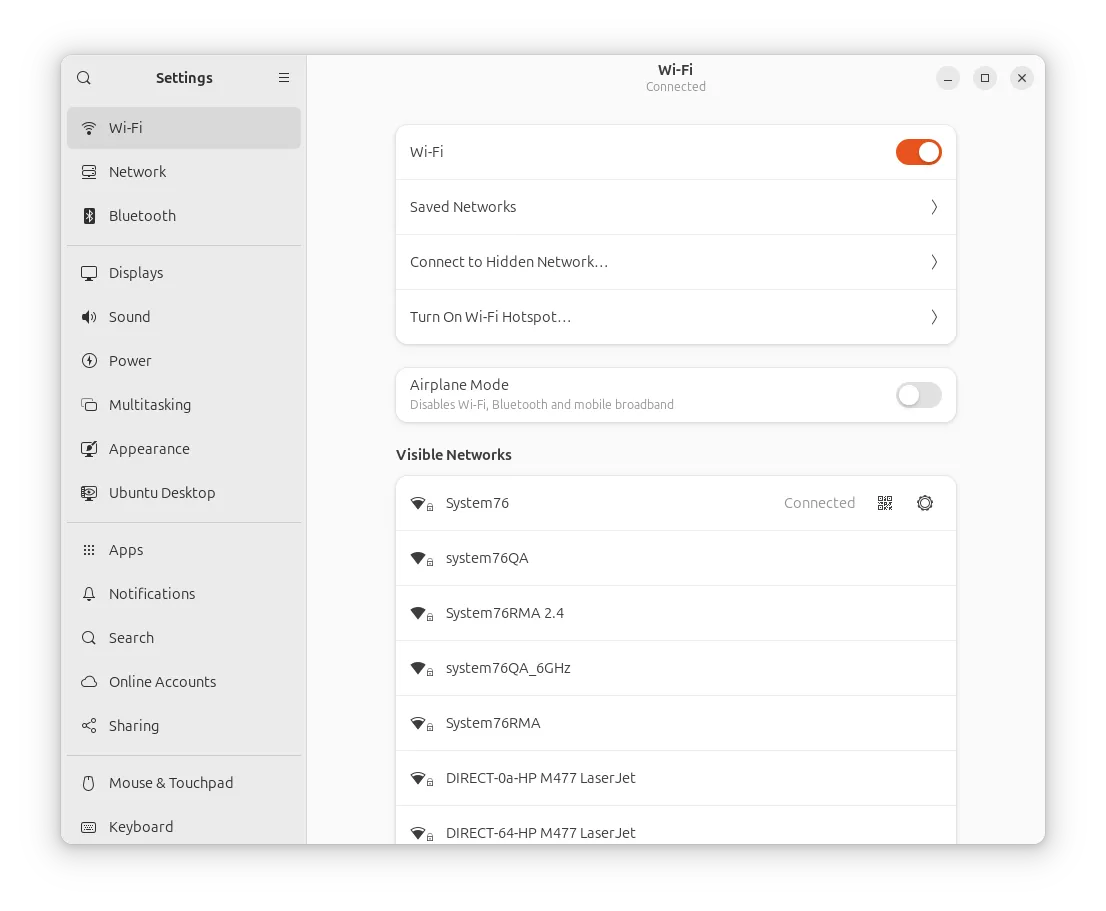
System Settings
Section titled “System Settings”This can be accessed though the top right menu using the gear icon or by searching for ‘settings’ in the app drawer grid.
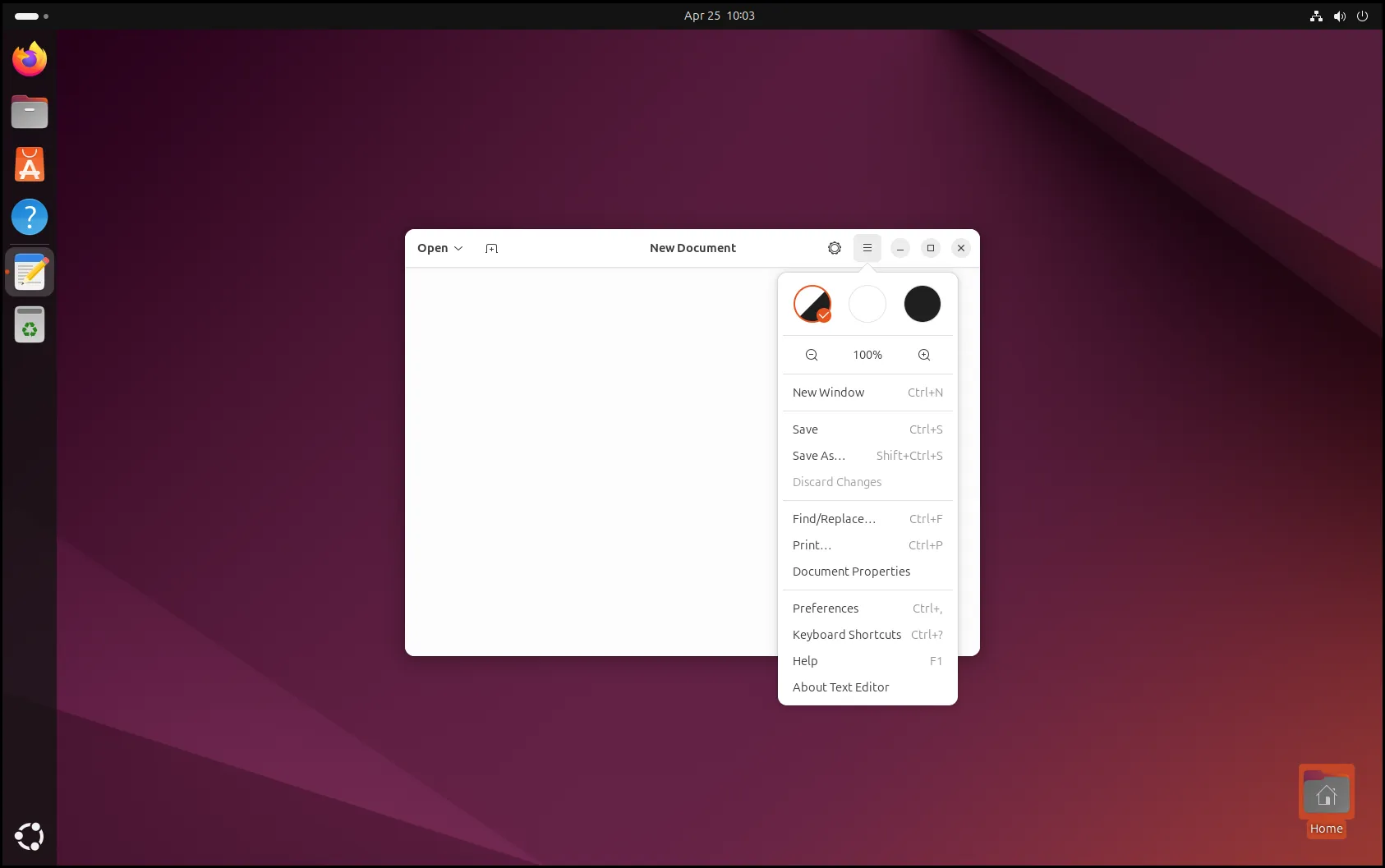
Application Window Menu
Section titled “Application Window Menu”Many applications also have in-window menus for adjusting settings, switching to full-screen, etc. The application menu button is often shown as three lines (commonly known as the “hamburger menu”).