Transferring Photos From Your Phone to Pop!_OS
From Pixel/Android to Pop!_OS
Section titled “From Pixel/Android to Pop!_OS”Changing the USB Preference
Section titled “Changing the USB Preference”When you connect your Android device to your computer, a notification will appear about USB Preferences. Swipe down from the top of your screen to reach this notification:
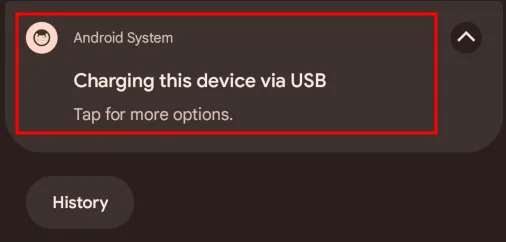
Once you tap on the notification, the following screen will appear:
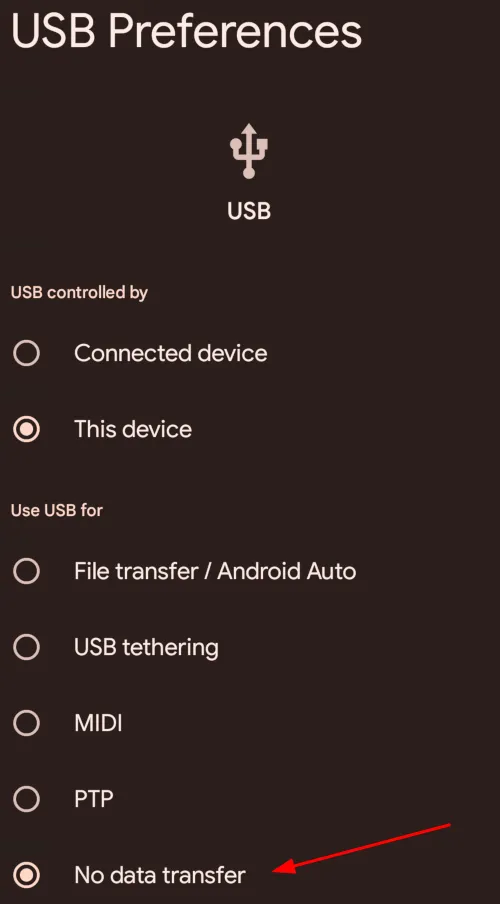
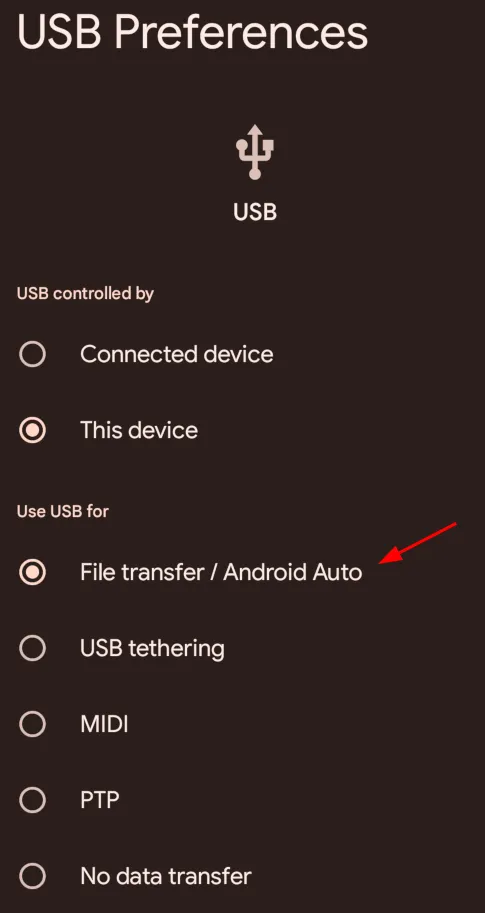
Select “File transfer / Android Auto”:
Open the Files Application
Section titled “Open the Files Application”Next, open the Files application. The name of your Android device should appear in the left pane of the file browser.
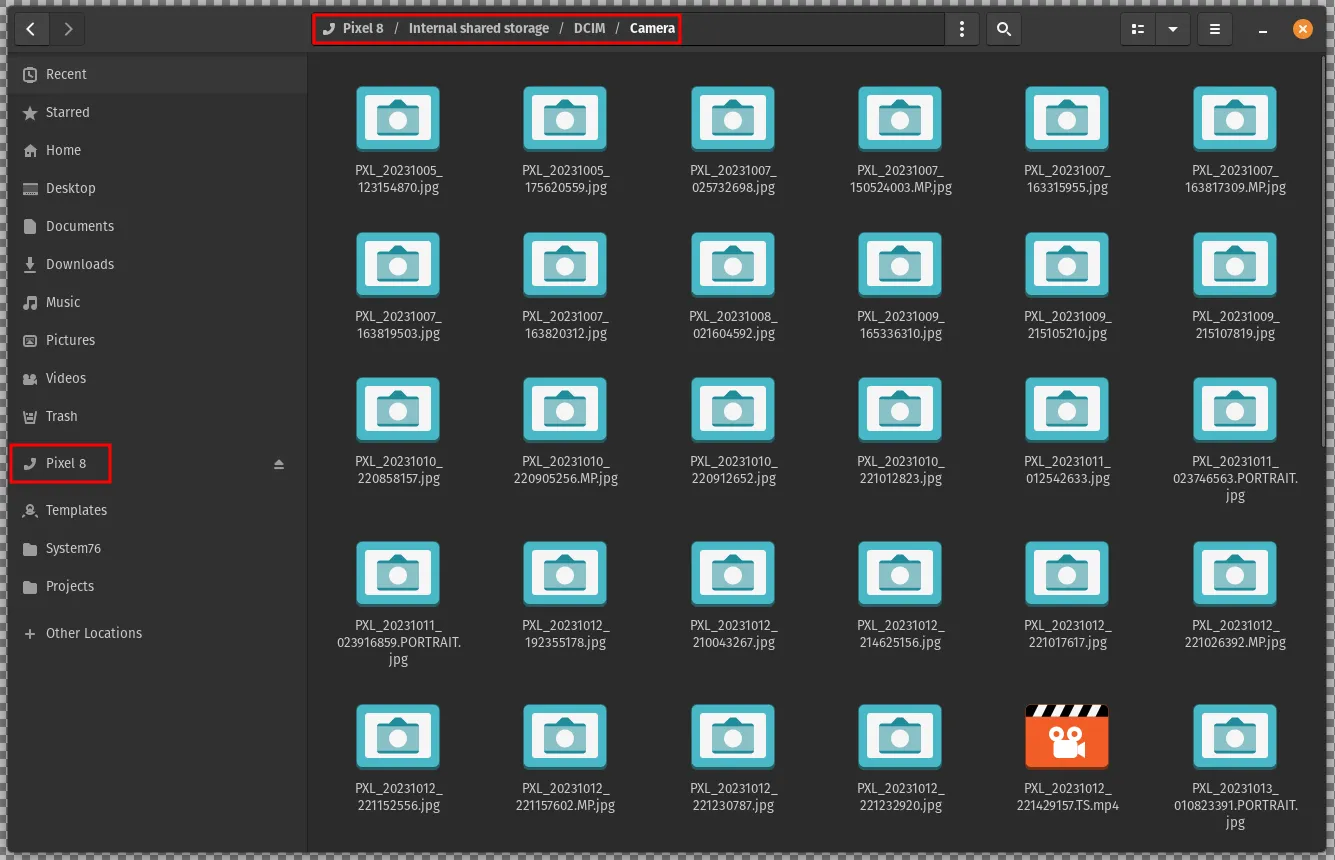
Click on the device’s name to explore the device’s filesystem.
From iPhone to Pop!_OS
Section titled “From iPhone to Pop!_OS”Trusting the Computer in iOS
Section titled “Trusting the Computer in iOS”Your iPhone will only allow filesystem access to a trusted computer. When you first connect your iPhone to your computer, a prompt will appear and ask if you want to trust the computer:
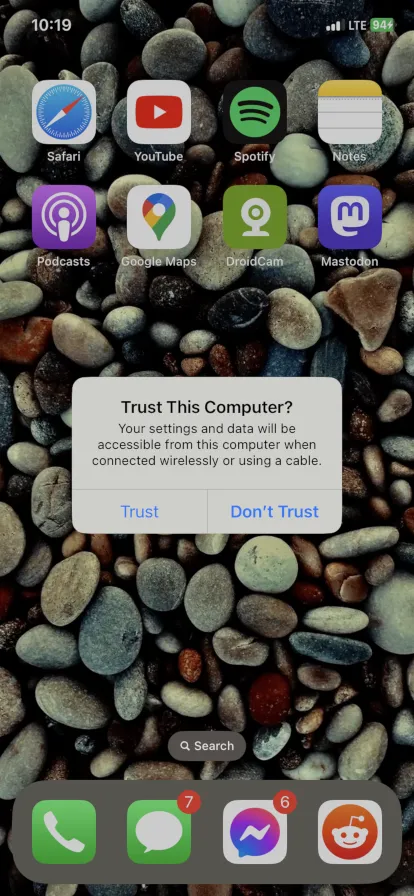
Open the Files application
Section titled “Open the Files application”Next, open the Files application and click on the iPhone item in the left pane of the window. This will take you into the iPhone’s filesystem.
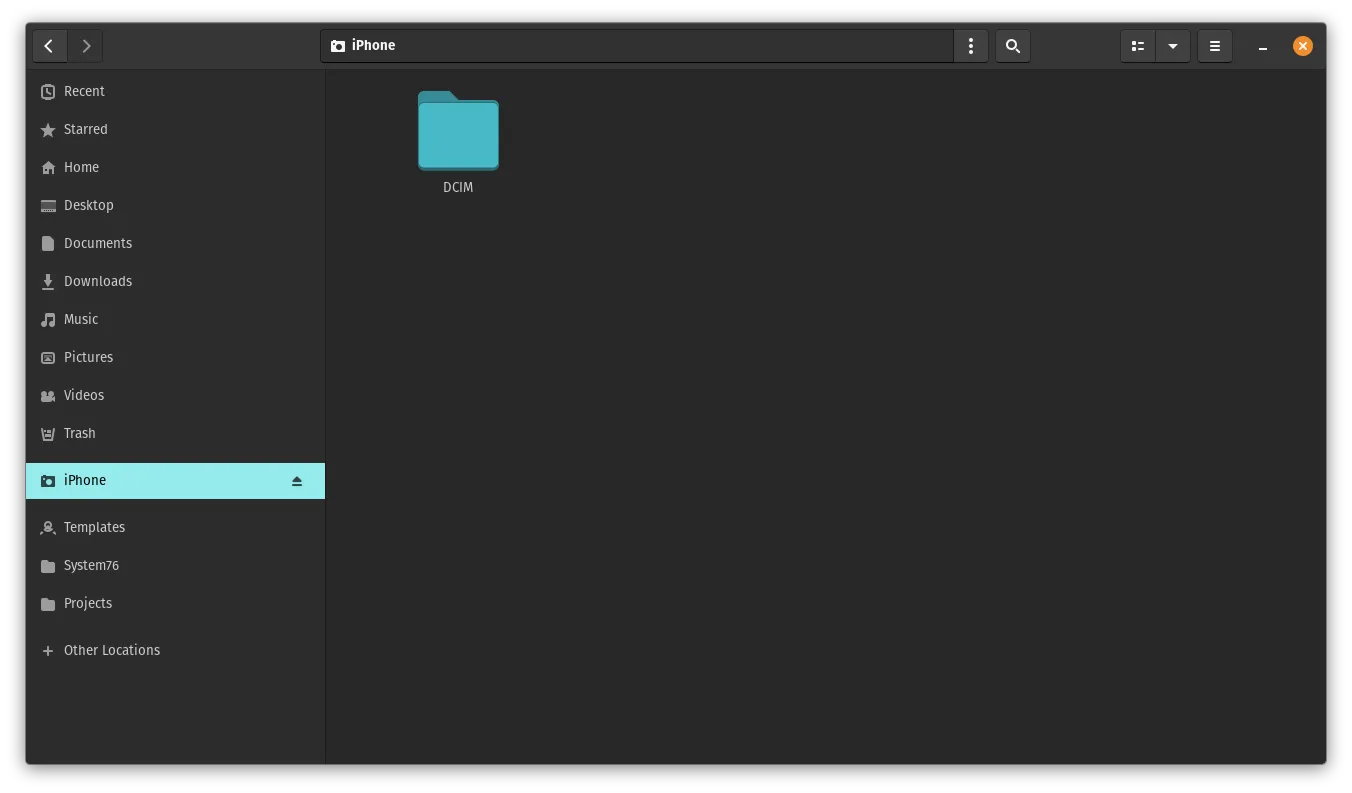
Open the DCIM Directory
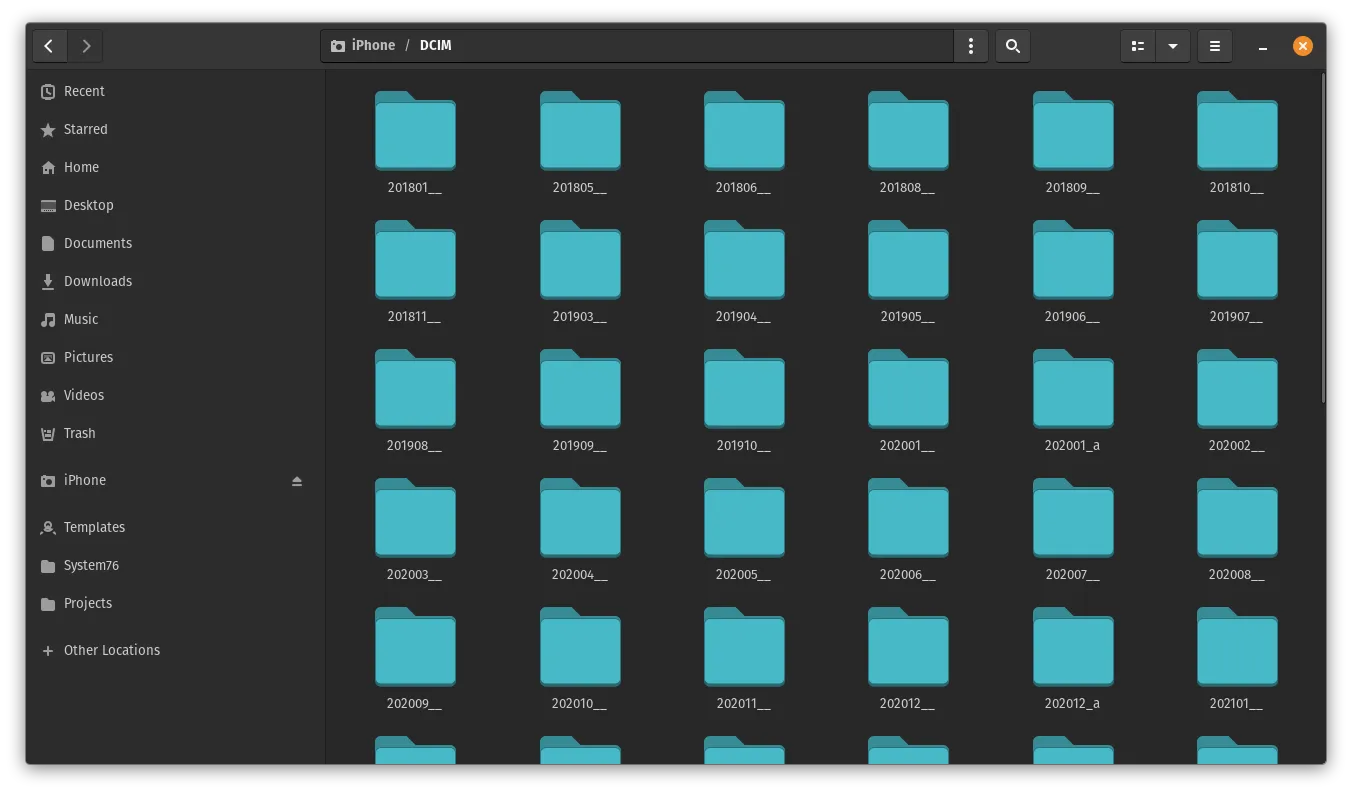
Section titled “Open the DCIM Directory”The directories inside DCIM are named with the year and month of when the photos inside were taken. For example, “201801__” contains photos that were taken in January of 2018.