

Linux Terminal Basics
The Terminal is an interactive, text-based interface for your Operating System. When you type a command, you’re basically telling your computer to do something very specific. Many commands will print information to the screen. Some will ask for input, and others may just return you to a prompt.
The quickest way to install, remove or update applications is through the Terminal. The Terminal is also referred to as the shell, command line, prompt, or command prompt.
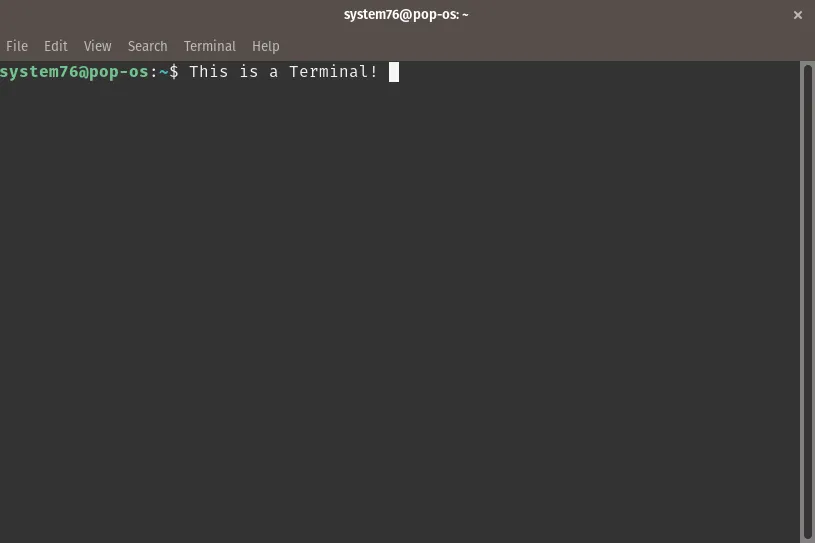
To open a Terminal, tap the Super Key , to search your computer and type the word Terminal.
A box like the one below will appear:
Navigating The Terminal
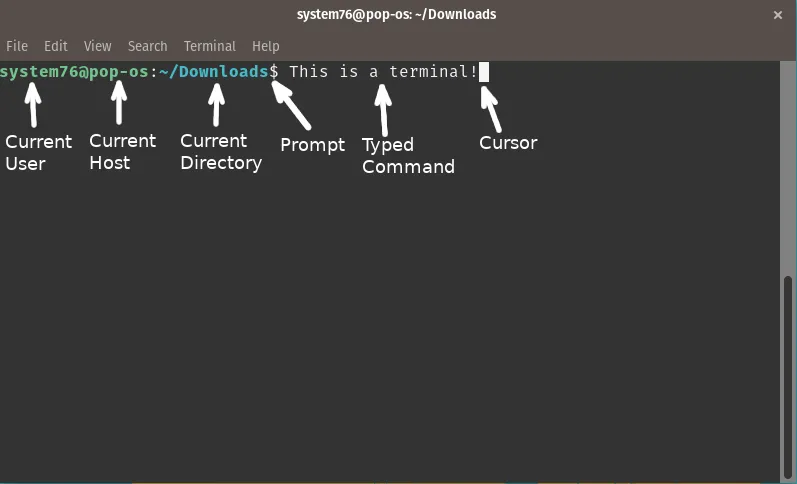
Section titled “Navigating The Terminal”It might not look like much, and at first glance there might not appear to be much information, but the Terminal is one of the most powerful tools at your disposal. Take a look:
| Section | Description |
|---|---|
| Current User | The username of the person currently logged in to this Terminal. |
| Current Host | The hostname of the system currently in use by the Terminal. Unless you’ve connected to a remote machine via SSH, this will be the same name as your computer. |
| Current Directory | The current folder that this Terminal resides in. Commands entered and files modified are scoped to this folder, unless providing an absolute path to another file or folder, or if the command is available in the user’s $PATH. Basically, the Terminal can only see into this folder. A tilde (~) indicates the user’s home directory. |
| Prompt | Anything entered after this symbol is interpreted as a command. |
| Typed Command | Anything that is typed into the Terminal is shown after the prompt. |
| Cursor | A visual indicator of the user’s current position in the Terminal. |
As you change folders and move throughout your computer, the prompt will change in response. In many cases, you won’t need to move around to run a command.
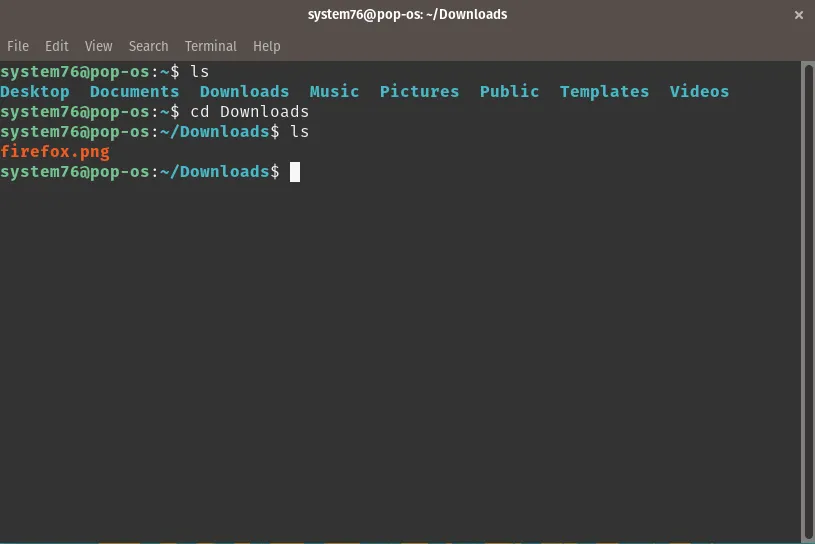
To list all files and folders in the current directory, type ls. To change directories (folders), type cd [directory name]. To go back up a directory type cd ... To return to your home directory from any location in the filesystem, type cd. At any time, you can press the Tab key to have the Terminal guess the completion for your entry, or twice to show all possibilities.
Running Elevated Commands
Section titled “Running Elevated Commands”In most cases, the Terminal prevents you from damaging your system by requiring authentication or elevated privileges to run certain commands. For example, to check for updates you will need to prepend the command apt update with sudo. Below is an example of the same command, ran once without sudo and once with.
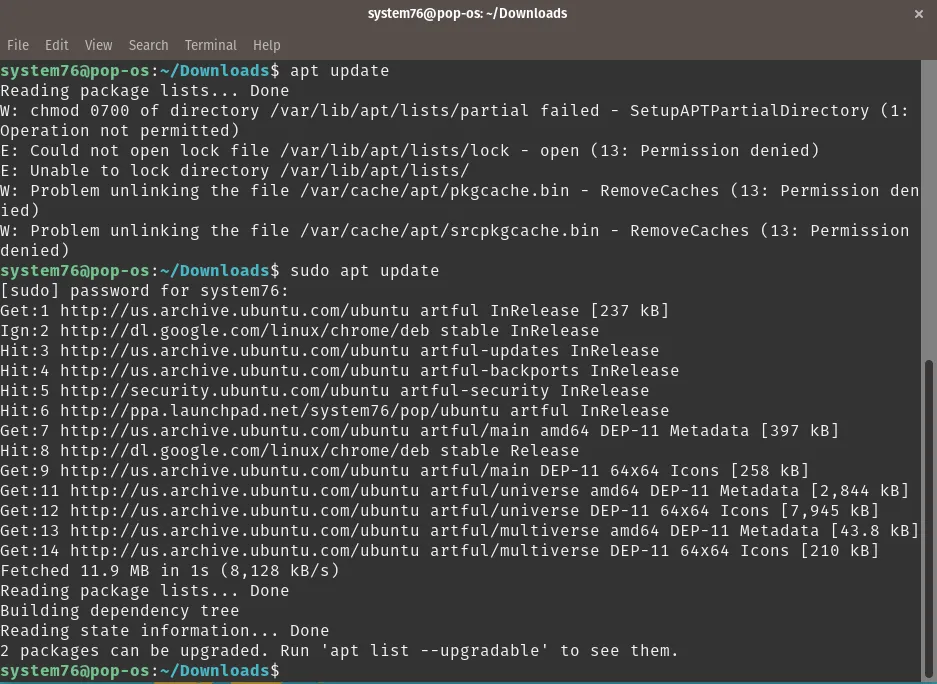
When you run a command with sudo in front of it, you’ll be prompted for your password. When typing your password, you won’t see anything. Just enter your password and then press Enter. If it’s entered incorrectly, the Terminal will let you know and give you another chance to enter your password.
Useful Commands
Section titled “Useful Commands”sudo apt updateThis command will tell your system to search for potential updates and advise if there are any available, but this command does not install them.
sudo apt upgradeThis command will download and apply any updates to your System76 computer.
sudo apt full-upgradeThis command will upgrade your packages and installs or remove packages to resolve dependencies so everything is up-to-date.
sudo apt install [application]This will install a particular application and its dependencies on your computer.
sudo apt purge [application]This will remove a program and its configuration files from your computer.
sudo apt policy [application]This will list information about the package. Such as where it is coming from, the version and if an updated version is available.
man sudoThe man command is short for manual. You can type the man command in front of any command that you want more information about.