

Drives - Map a Network Drive
If you have a storage location on a network drive, you can easily map the location using Files in Pop!_OS.
Navigate to Other Locations
Section titled “Navigate to Other Locations”Open Files and click on “Other Locations” on the left side overview. It should open a window similar to the one below:
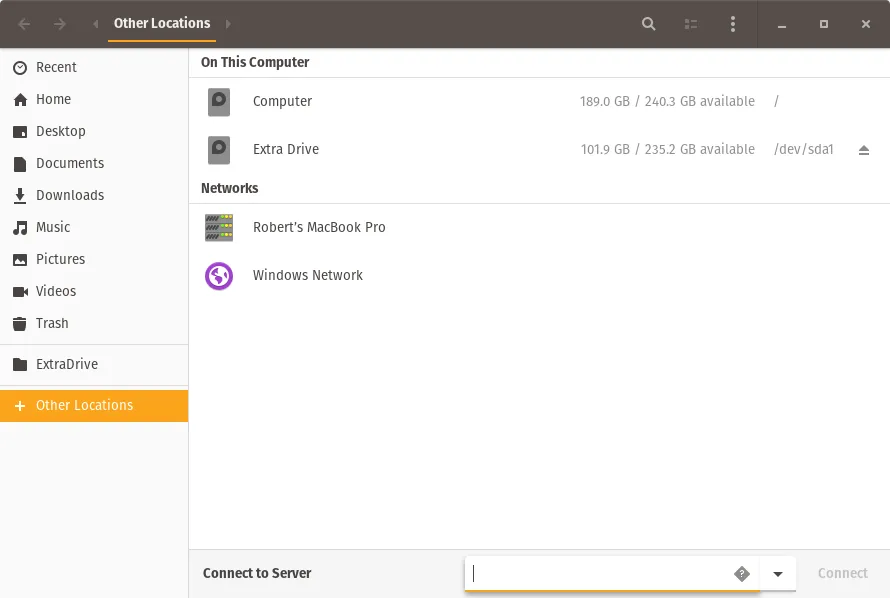
Connect to server
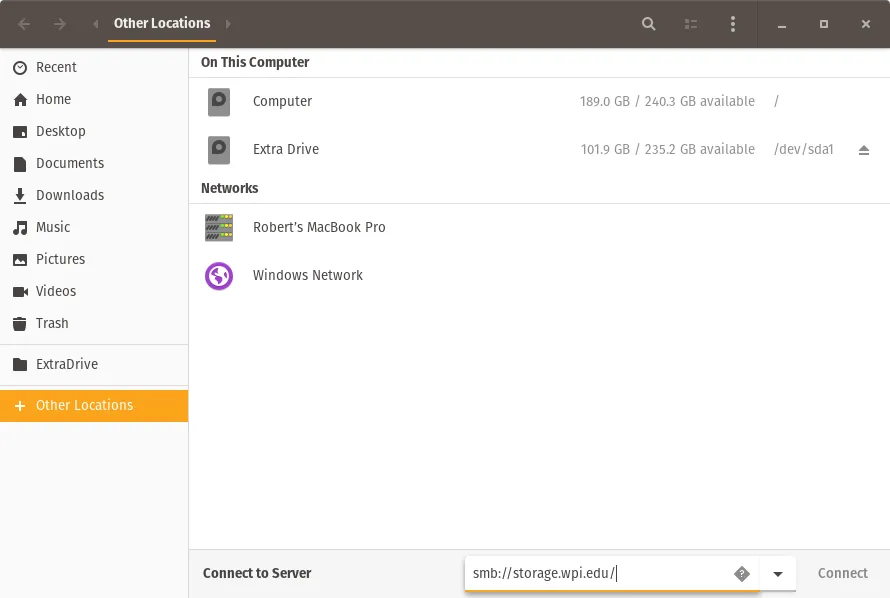
Section titled “Connect to server”Enter the address of the server into the box which says “Enter server address…” with one of the following prefixes appended to the beginning of the address.
| Available Protocols | Prefix |
|---|---|
| AppleTalk | afp:// |
| File Transfer Protocol | ftp:// or ftps:// |
| Network File System | nfs:// |
| Samba | smb:// |
| SSH File Transfter Protocol | sftp:// or ssh:// |
| WebDAV | dav:// or davs:// |
The image below shows a Samba connection to the server storage.wpi.edu:
Enter your username, domain, and password
Section titled “Enter your username, domain, and password”On the dialog that pops up, enter your account information for the server, then select how it will be remembered by Files. The window looks similar to the one below:
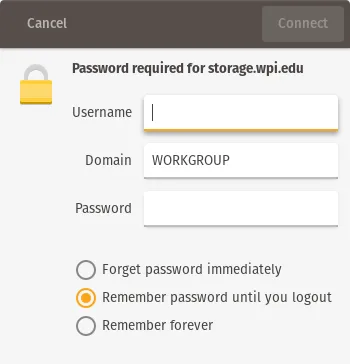
Once this is done, hit “Connect” in the top right and you can access the files on the network drive.
You can also navigate to your newly mounted drive using the Terminal:
cd /run/user/1000/gvfs/To open your mount in a new Terminal session, right-click the folder and select Open in Terminal.
This article was contributed by kylecorry31.