

Install Ubuntu
Important Disclaimer - Please Read
Section titled “Important Disclaimer - Please Read”Ubuntu releases beyond 24.04 are not fully tested, but certain packages are made available in the system76-dev/stable PPA on Launchpad.
NOTE: Oryx Pro (oryp2) Touchpad On our second generation Oryx Pro (oryp2), the System76 driver is required for the touchpad. Please use the keyboard or an external mouse for the initial install steps and until the driver is installed.
Recent Upgrade Issues
Section titled “Recent Upgrade Issues”If your recently upgraded system does not boot, it can often be recovered. If you see a flashing underscore on the screen after booting, then it’s likely that Ubuntu’s bootloader (GRUB) was not properly updated. To restore it, see Repair the Bootloader.
Create Install Media
Section titled “Create Install Media”First, you’ll need to create bootable USB you can restore or install Ubuntu with.
Boot From Install USB
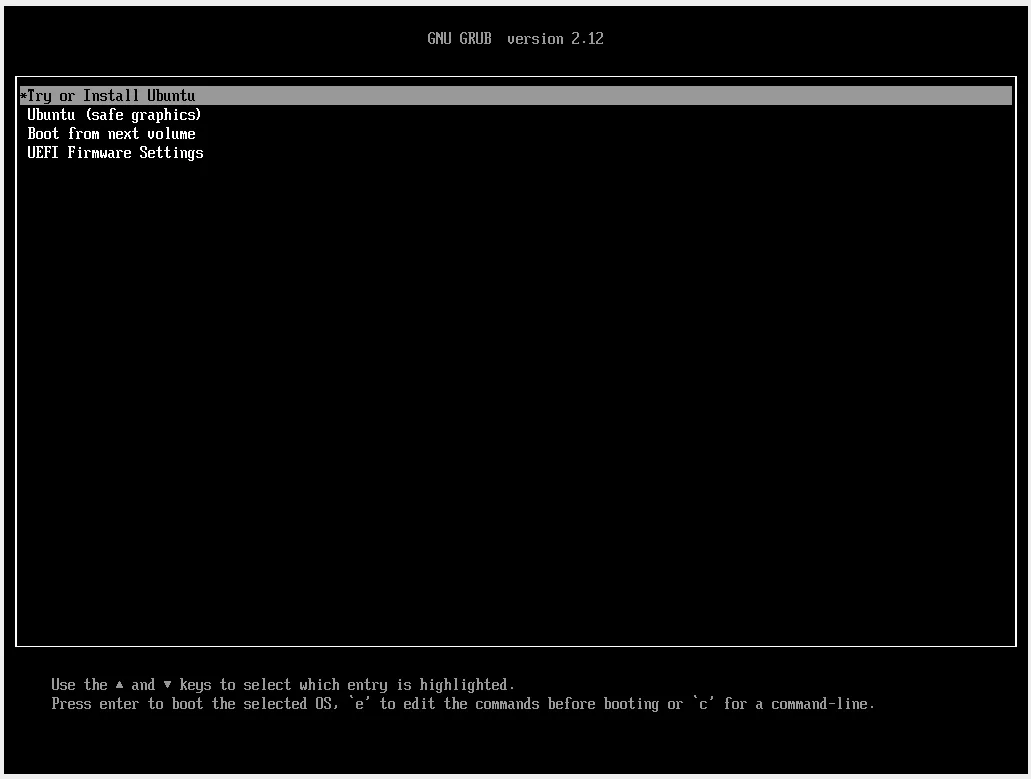
Section titled “Boot From Install USB”Once you have the disk made, reboot your system. You’ll need to tell the computer to boot from the Live Disk by accessing the Boot Menu using the key combos in this article. Once you see the GRUB screen, select Try or Install Ubuntu by pressing the Enter key.
Language and Keyboard layout
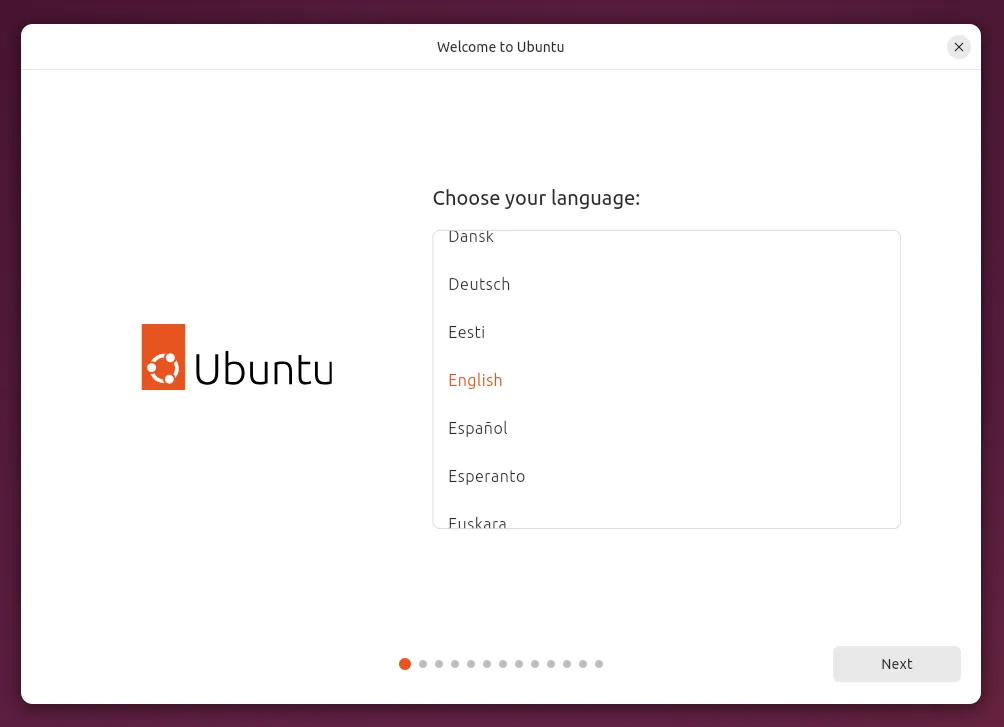
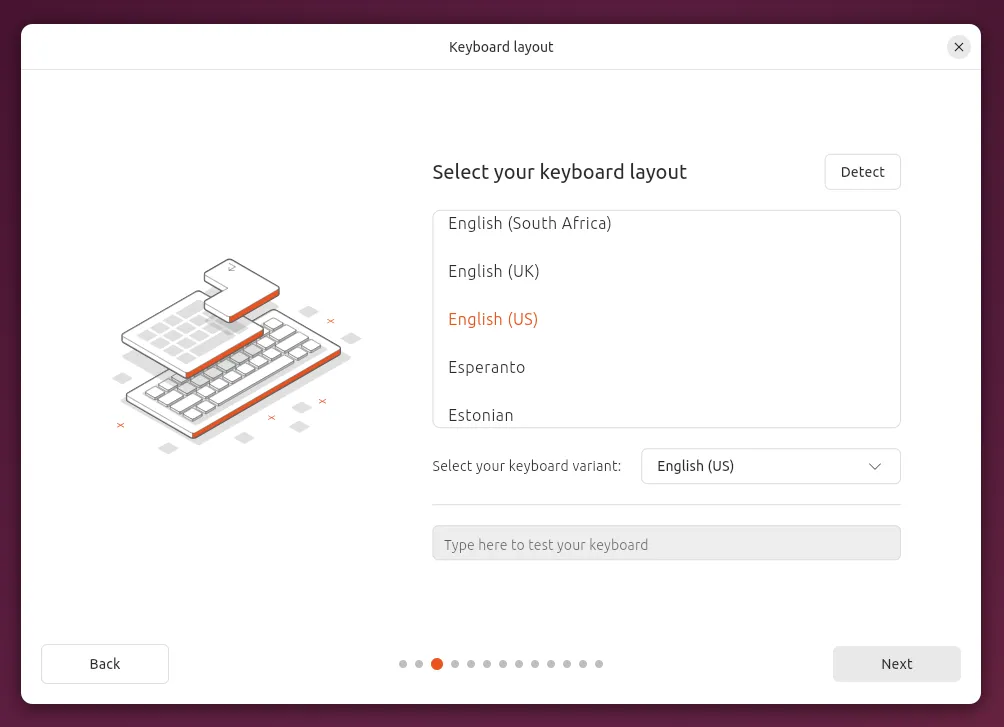
Section titled “Language and Keyboard layout”Once Ubuntu starts and the installer auto-launches, you will be asked to select your language, any accessibility features that you may need, your keyboard layout, and network connectivity.
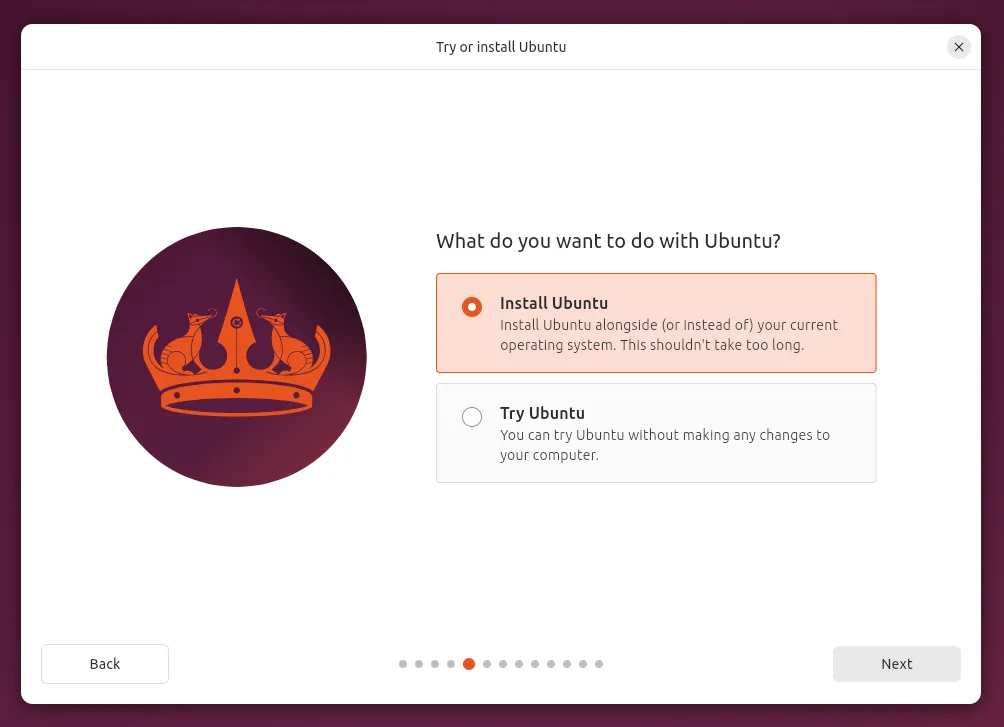
Next, you will be asked to Try Ubuntu without installing or to Install Ubuntu. If you are attempting to restore a broken operating system, please choose Try Ubuntu.
If all of your files are backed up, or if you are installing from scratch, pick the Install Ubuntu option to continue with the installation.
IMPORTANT NOTE: System76 recommends backing up all important files from your computer. The Ubuntu installation process will wipe any data on the drive that is selected for the installation.
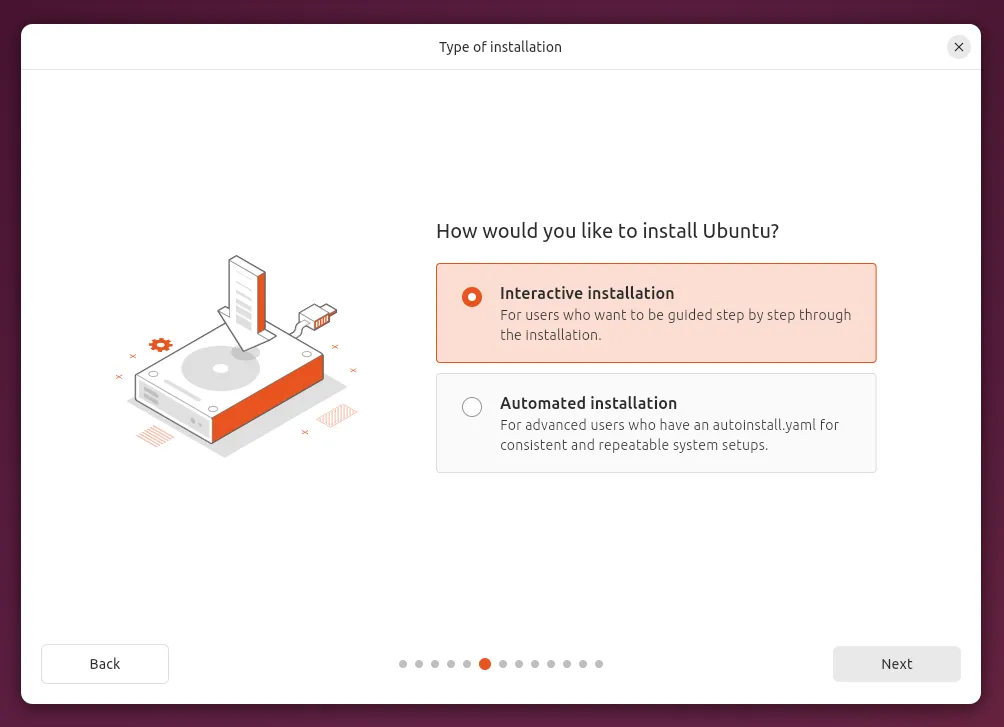
When asked how you’d like to install, choose the Interactive installation type to enter your preferences through the GUI.
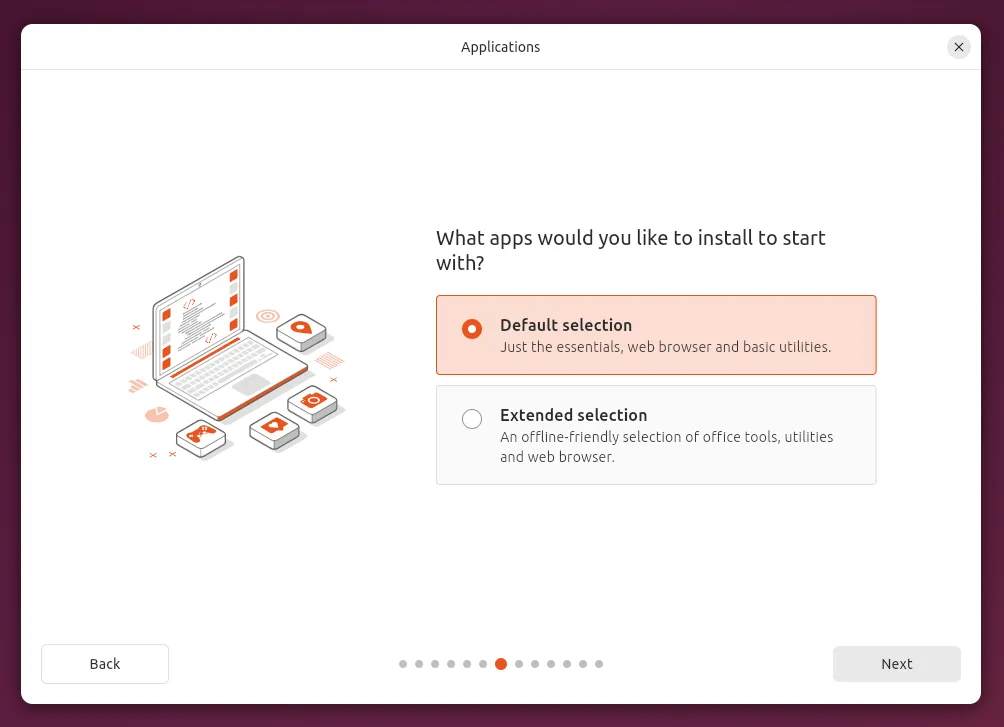
The Default selection of applications will suffice for most installations, while the Extended selection includes additional apps such as the LibreOffice suite and more. Those applications can be installed once the installation is finished if the Default selection is used instead.
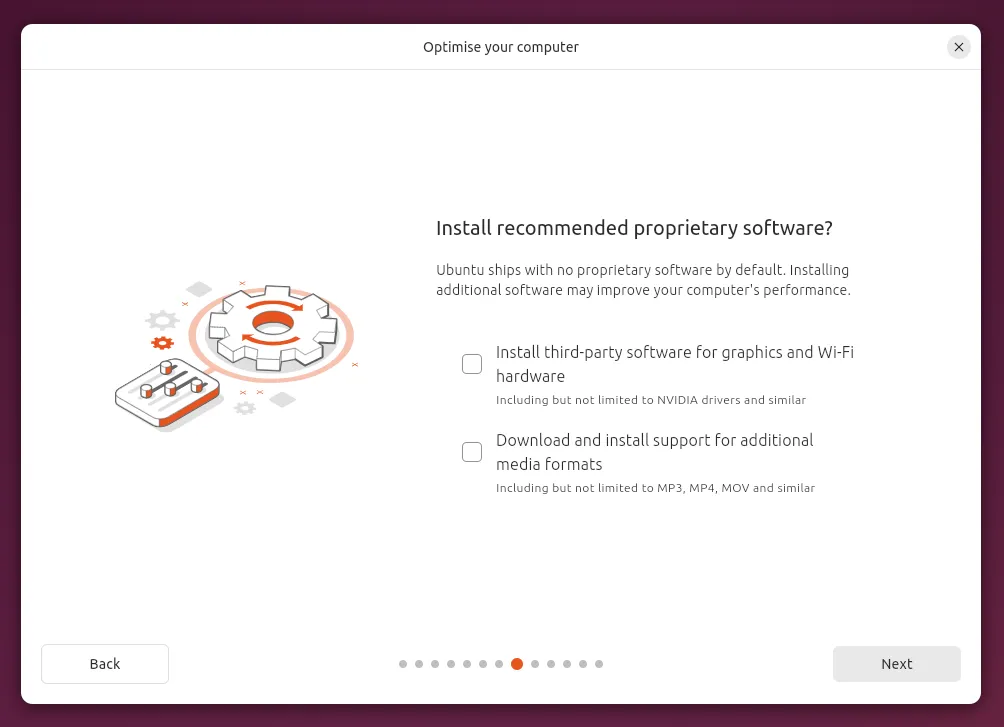
Next, you will be asked whether to install several categories of proprietary software. Let’s break down what each of the options offer in regards to hardware and software support:
- Install third-party software for graphics and Wi-Fi hardware
This installs proprietary (non-free) drivers to provide the best Wi-Fi/Bluetooth and GPU support (mainly for NVIDIA graphics, as AMD and Intel graphics are supported natively by the Linux kernel).
- Download and install support for additional media formats
This installs packages for playing media files such as MP3, MP4, and other formats that may require non-free codecs.
Install Ubuntu
Section titled “Install Ubuntu”Disk setup
Section titled “Disk setup”| Option | Action |
|---|---|
| Install Ubuntu alongside… | To allow you to add an additional operating system to your computer. Choose this option if you already have an operating system, such as Windows or another version of Linux, and would like to also install Ubuntu. The existing operating system’s partition size will need to be reduced before installing Ubuntu in the extra space. This option won’t show up if you don’t have an existing OS installed that is compatible with this feature. |
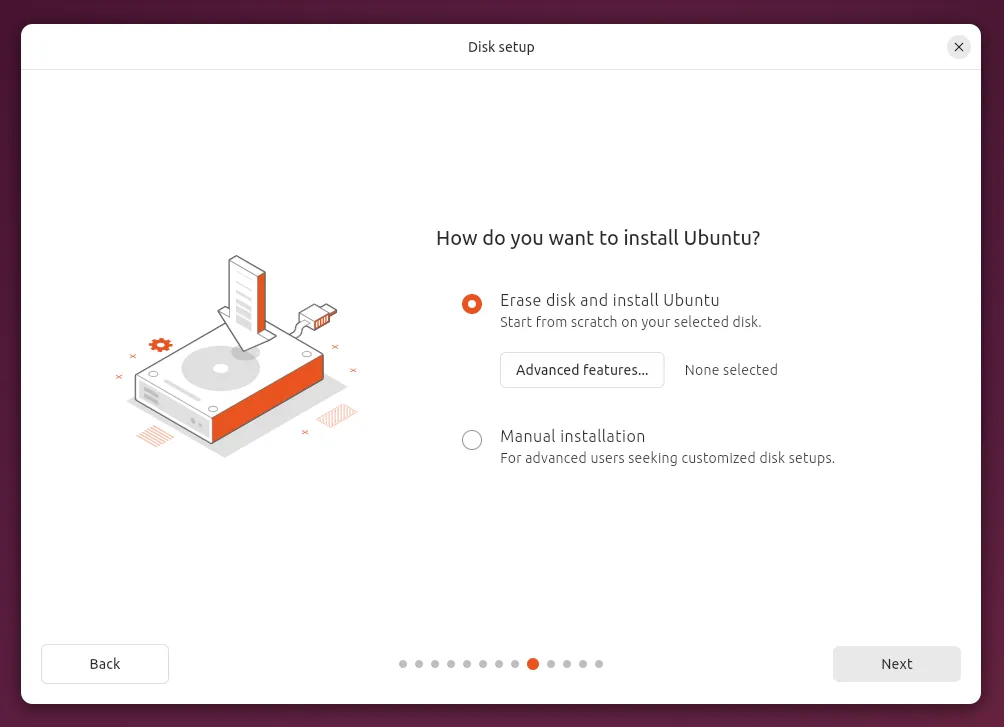
| Erase disk and install Ubuntu | To erase everything on the hard drive and install Ubuntu. The is the most destructive of the options, and will guarantee a clean slate. This option also has to be selected if you would like to encrypt the entire drive. To encrypt the drive, select Advanced features… and then choose Use LVM and encryption. |
| Manual installation | To do a manual installation of the partitions. This can be used to customize the partition layout and put specific directories on separate partitions or disks. |
Advanced Features
Section titled “Advanced Features”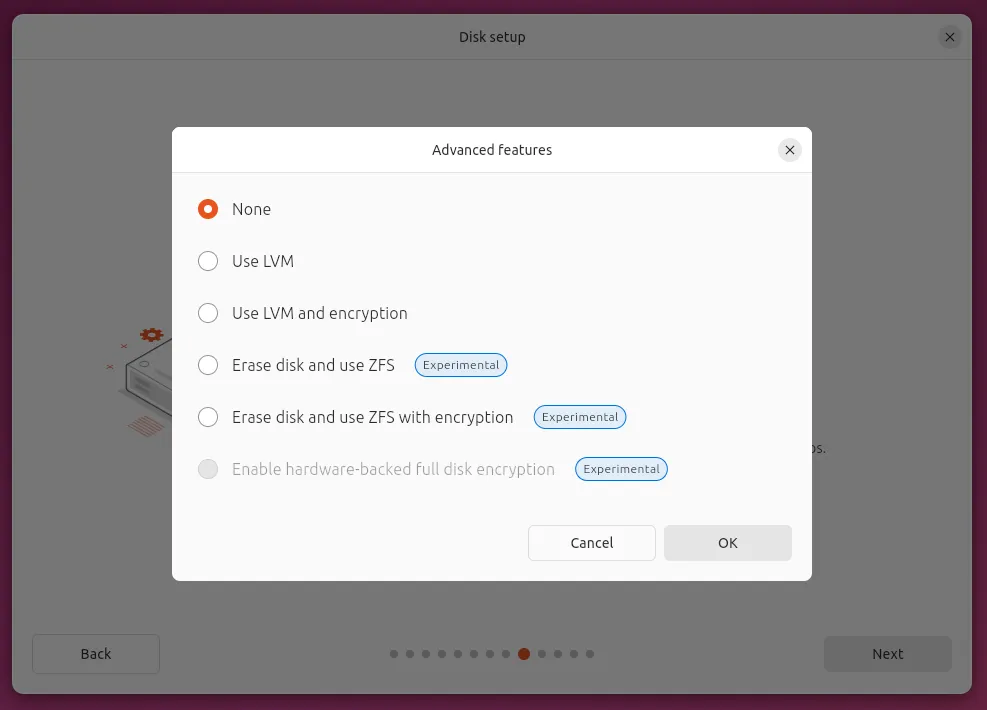
Disk encryption
Section titled “Disk encryption”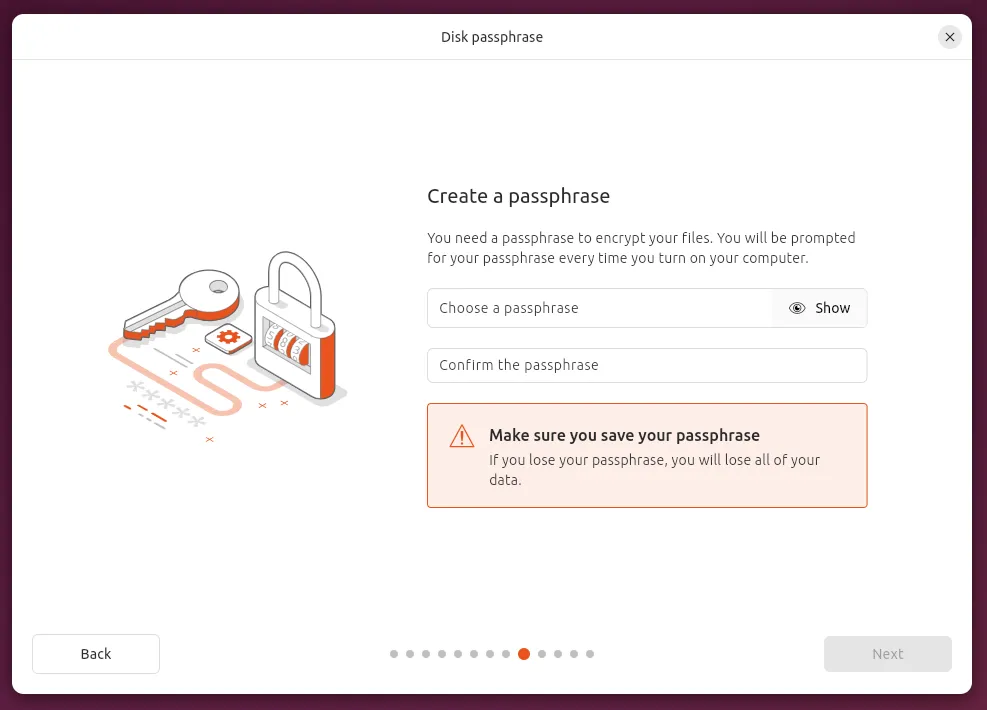
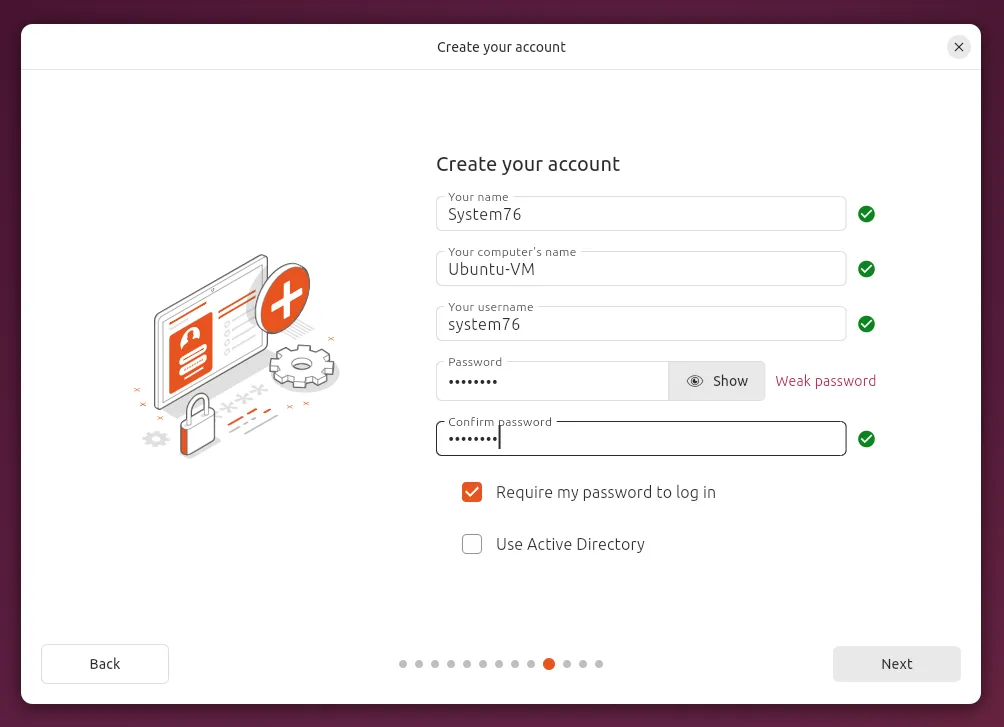
User creation
Section titled “User creation”This is when you will create your first user account for your new installation of Ubuntu.
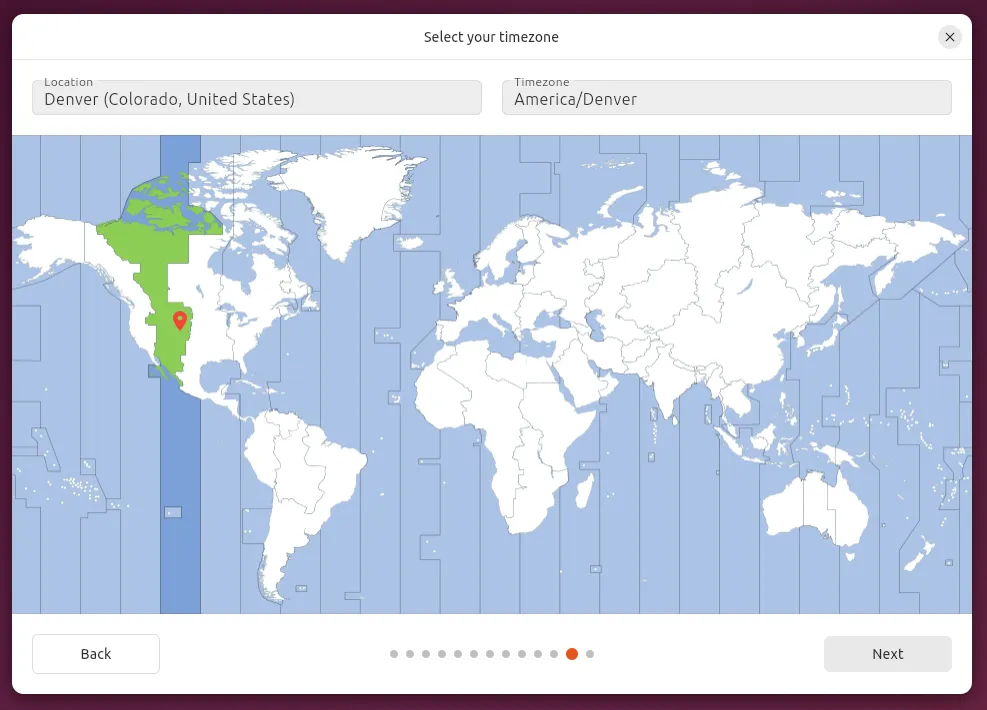
Location
Section titled “Location”This option will set your timezone.
Write changes to disk
Section titled “Write changes to disk”This is the last chance to cancel the installation without affecting any preexisting data on your storage drive(s).
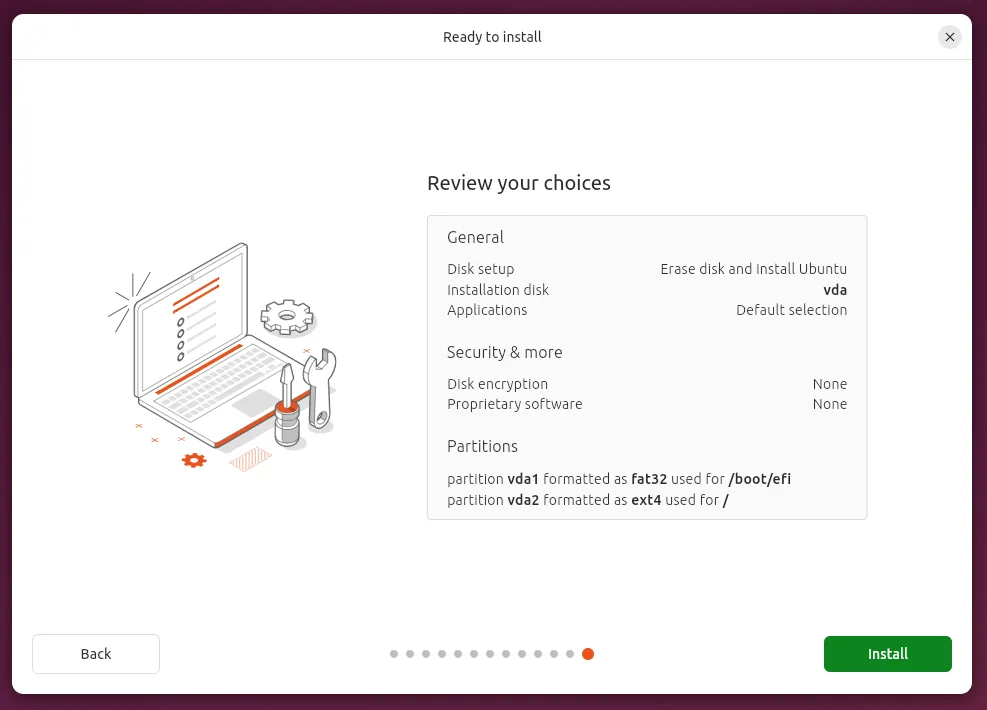
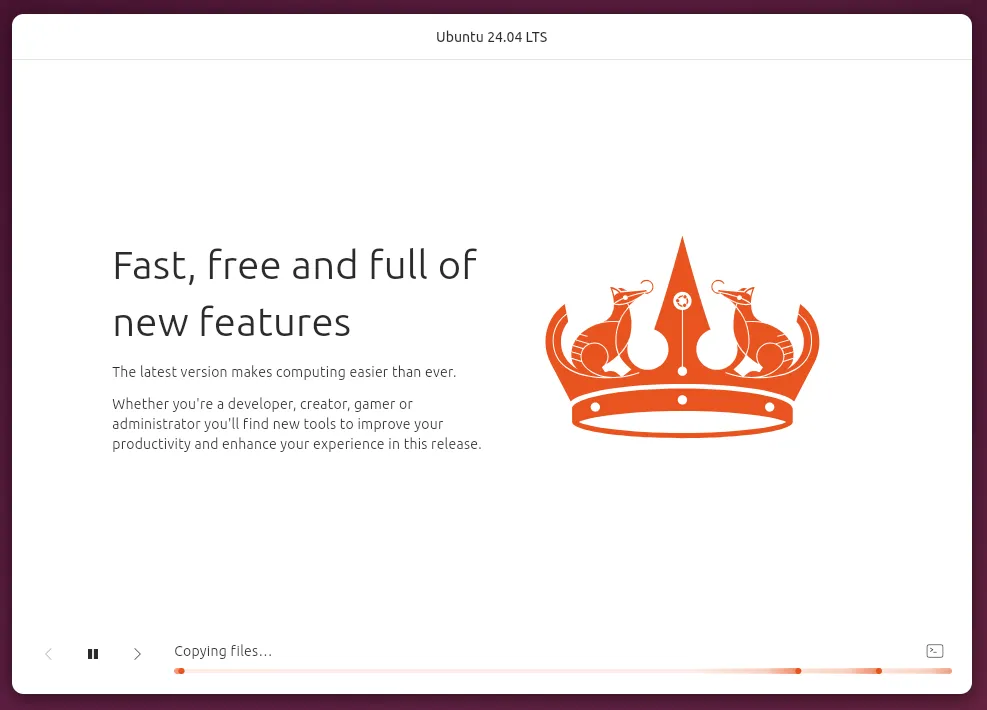
Slideshow
Section titled “Slideshow”While the system is installing, this page will show you a few of the preinstalled applications and what they are used for, as well as ways to get involved with the Ubuntu community.
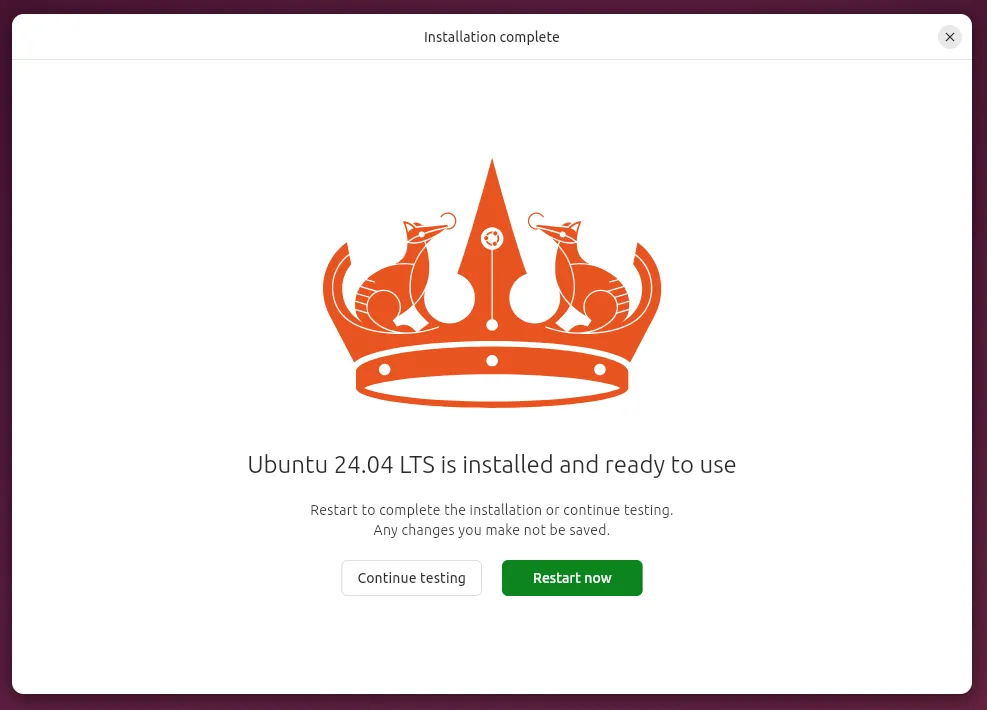
Restart
Section titled “Restart”Once the installation is finished, the system will prompt you to reboot.
Remove Install Media
Section titled “Remove Install Media”Before completing the reboot, the system will prompt you to make sure the install media has been removed.
First Boot
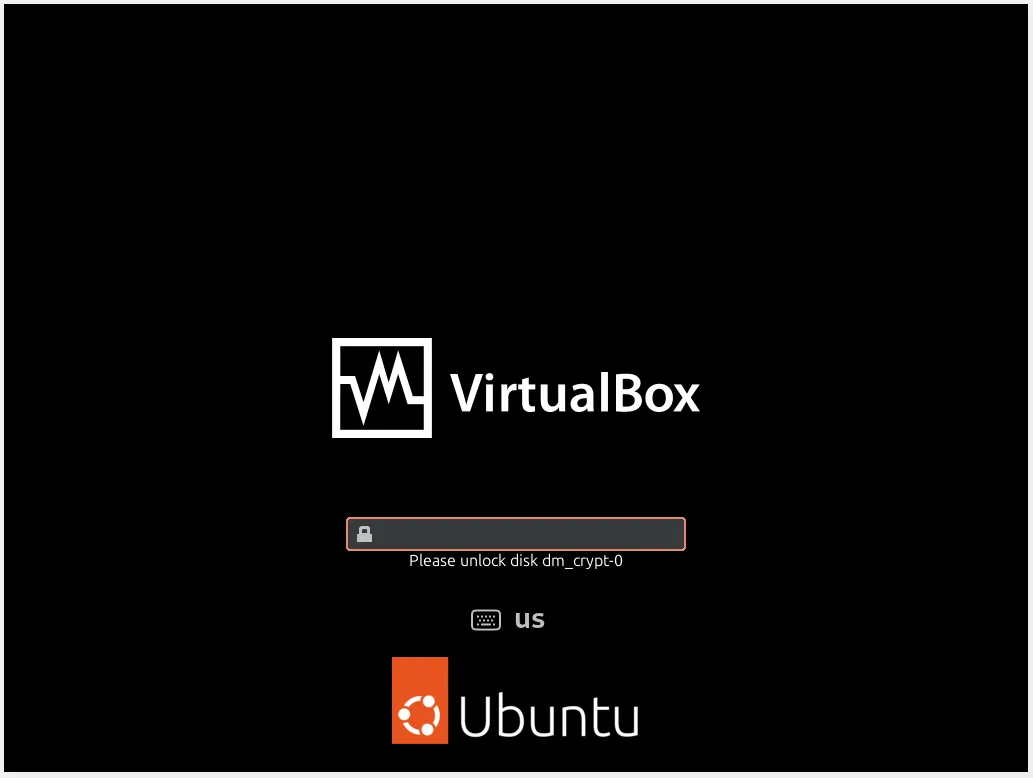
Section titled “First Boot”Decrypt Drive
Section titled “Decrypt Drive”If you chose to encrypt your drive, this screen will be shown on reboot. Enter the decryption passphrase and press Enter.
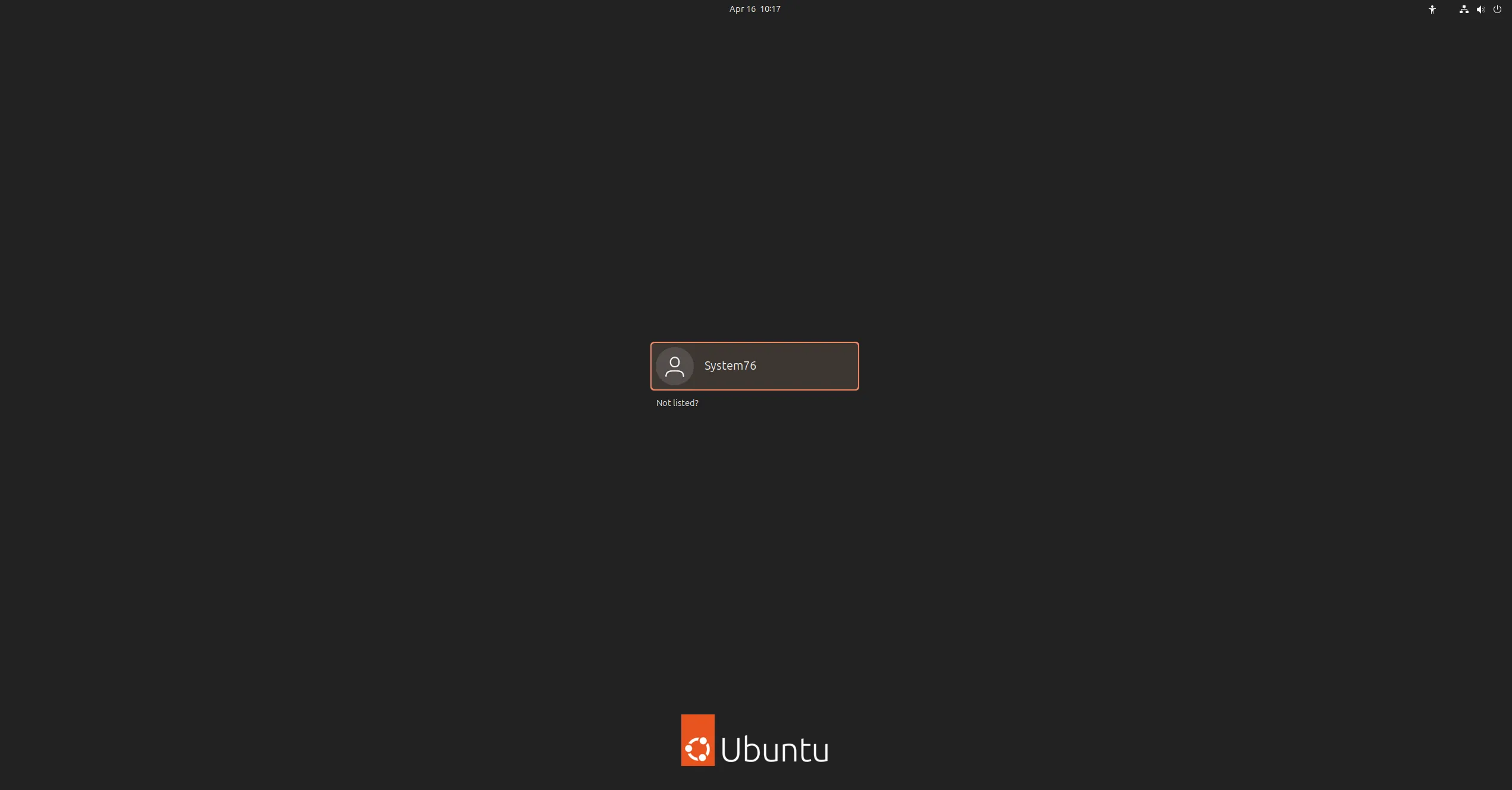
Login Screen
Section titled “Login Screen”Select your user from the login screen and enter your user account’s password, then press Enter.
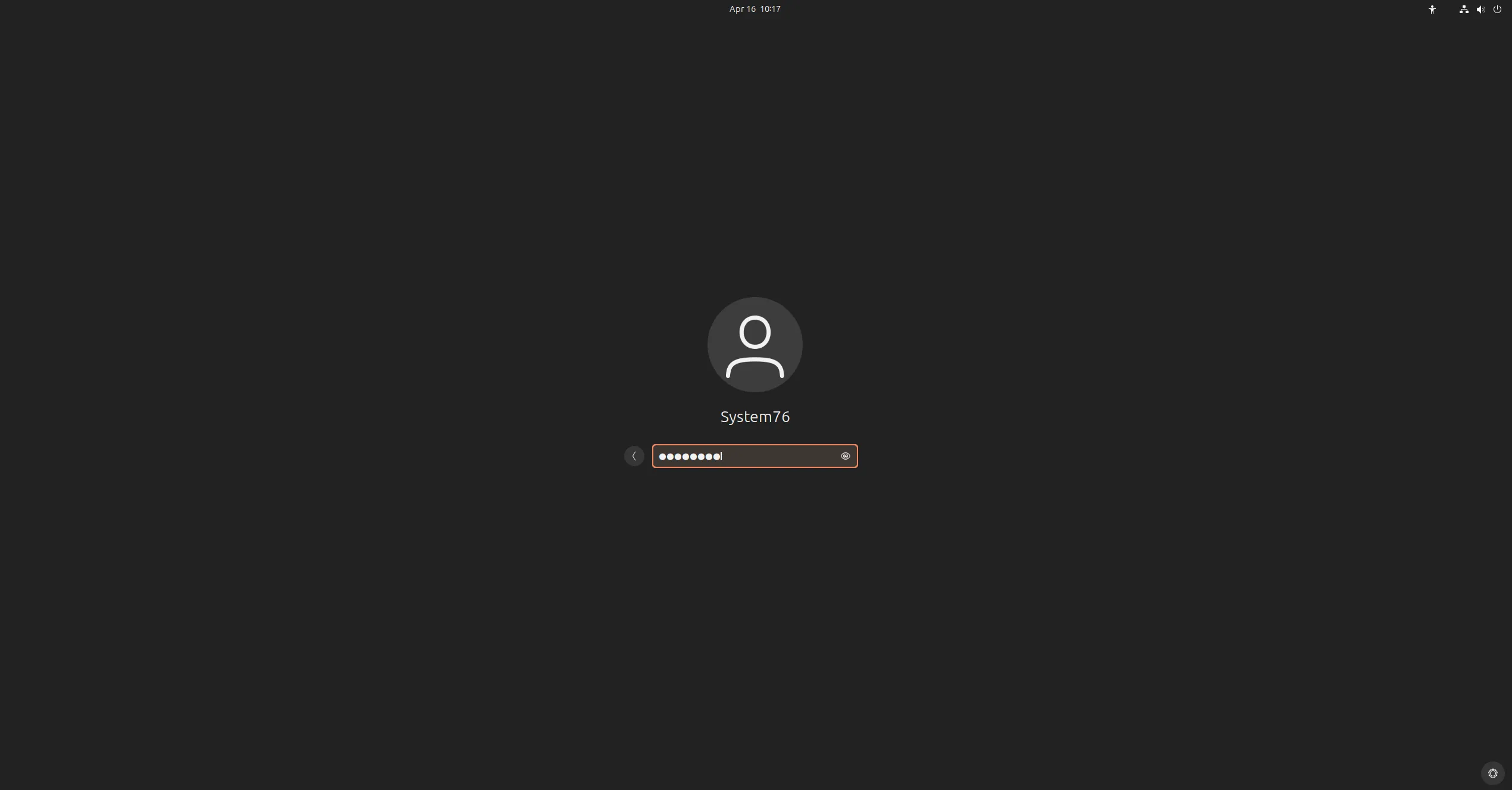
On the first login, the system will automatically display a wizard to select some additional settings.
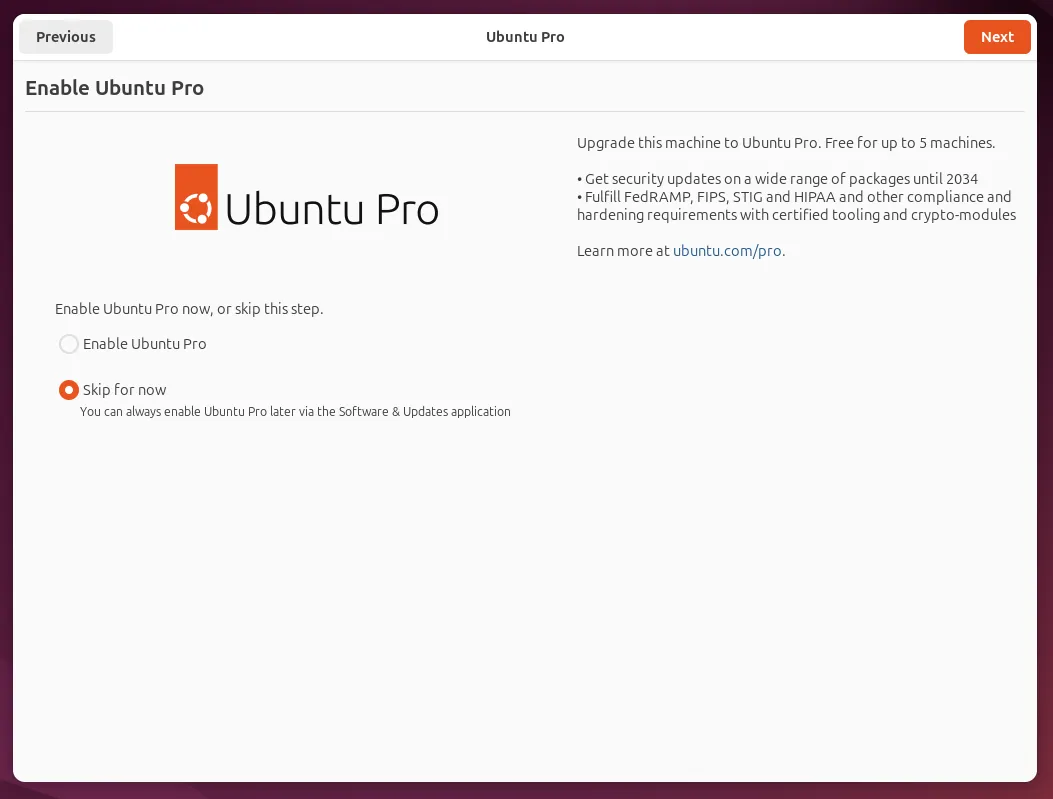
Ubuntu Pro
Section titled “Ubuntu Pro”Canonical offers Ubuntu Pro for free on up to 5 machines, but it is not required to use Ubuntu and its features, and it does not change the user experience.
Telemetry
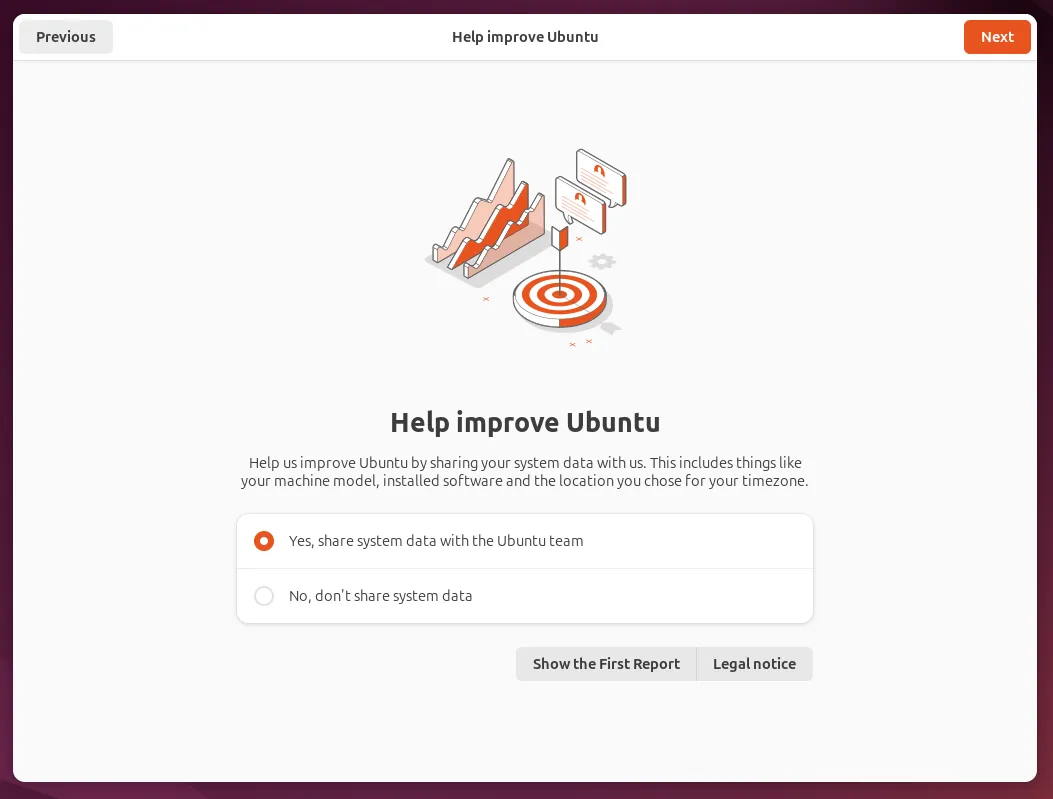
Section titled “Telemetry”Canonical asks you if you would like to send some system information to them to improve Ubuntu. Opting in or out of this option will not affect your Ubuntu features or experience.
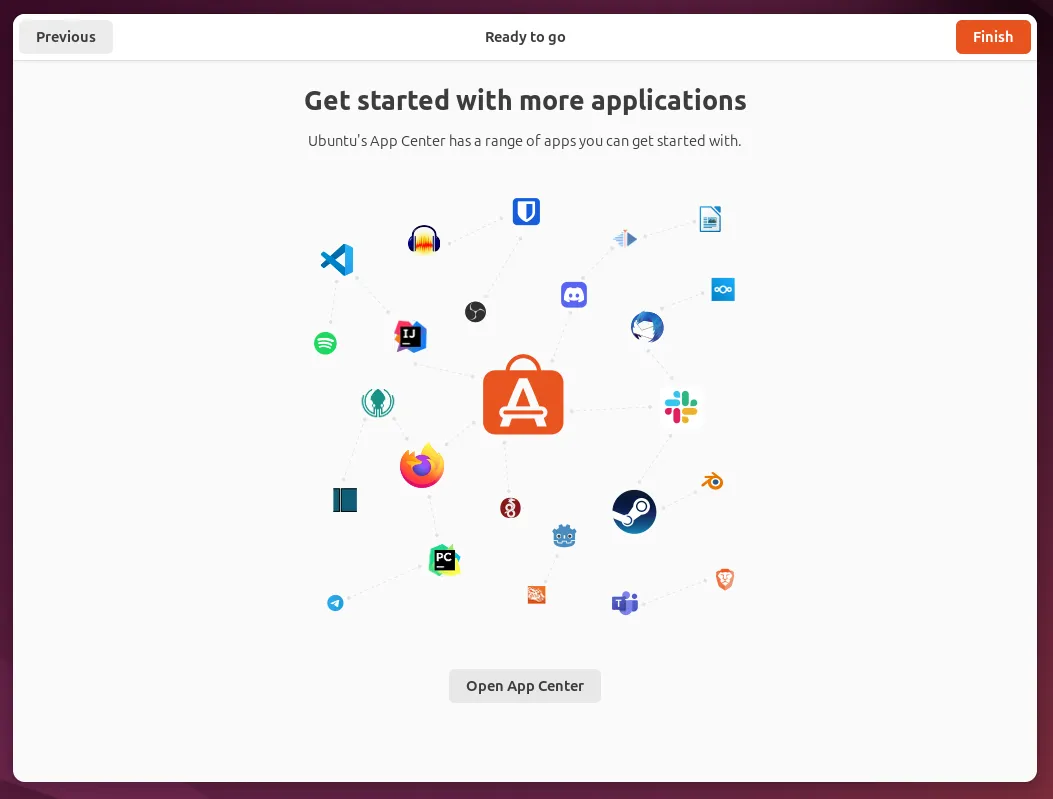
Ready to Go
Section titled “Ready to Go”Congratulations, Ubuntu is now installed on your system!
Available Updates
Section titled “Available Updates”Often after a fresh install, some packages will have been updated since the ISO file was created. If there are new updates available, you’ll see a dialogue box like this pop up:
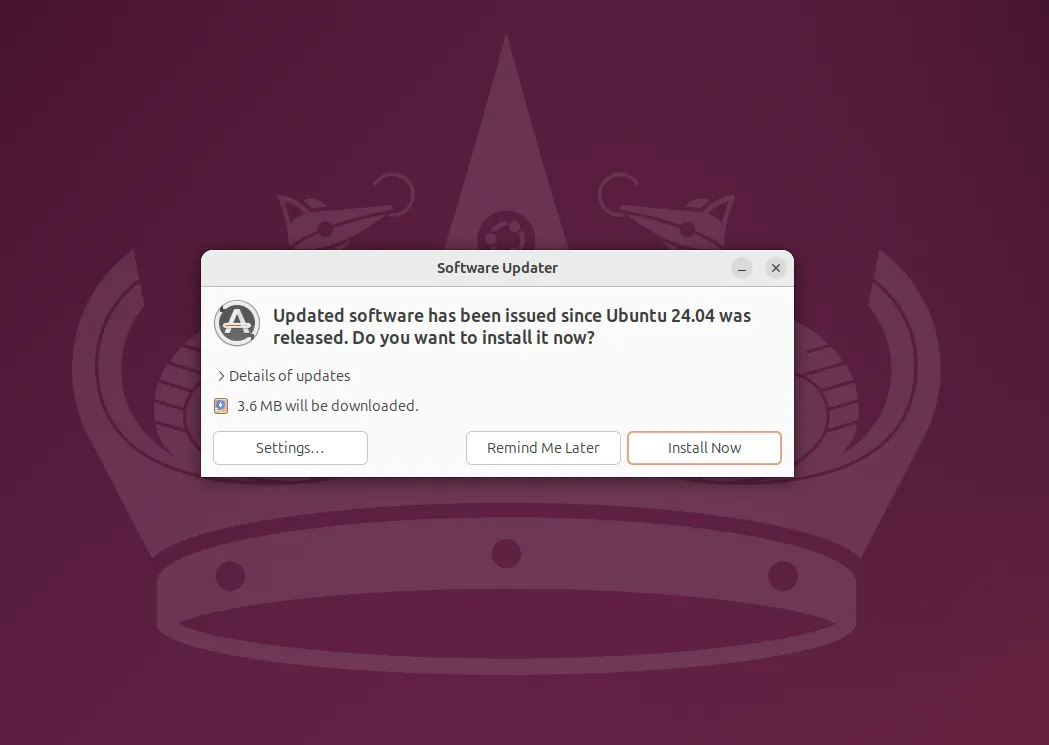
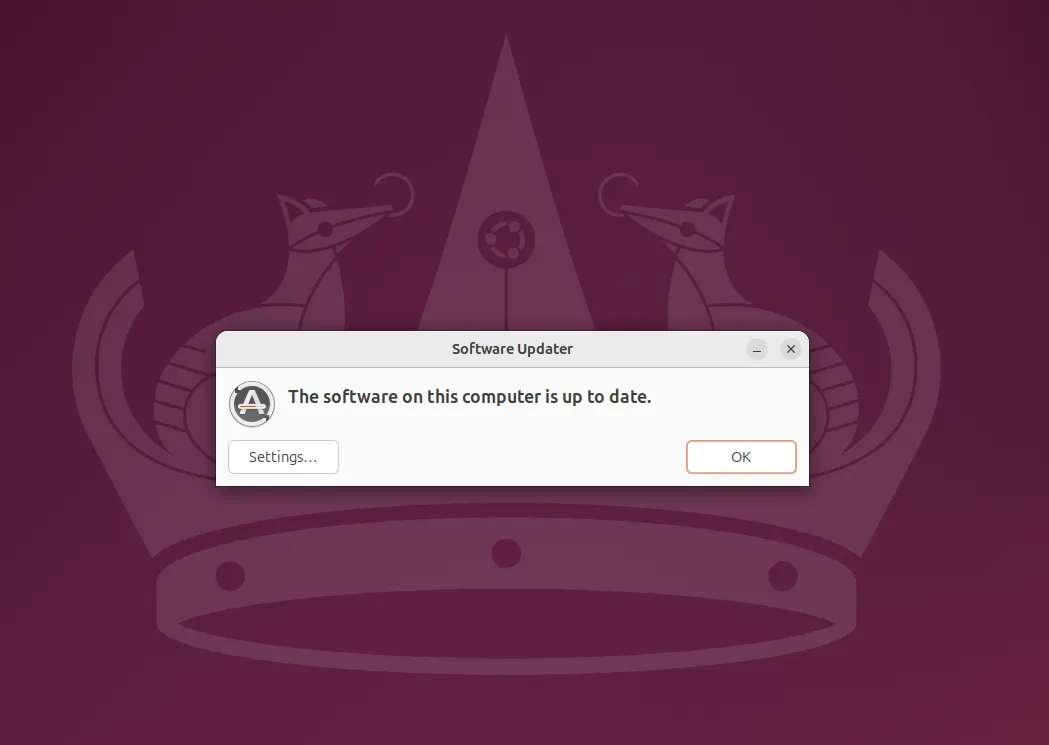
You can opt to install the updates later, or install them now by clicking Install Now. You may be prompted to reboot after the updates have finished installing.
Install System76 & NVIDIA Drivers
Section titled “Install System76 & NVIDIA Drivers”Once you’ve installed Ubuntu, you’ll need to download and install the System76 Driver; if you ordered a system with a discrete NVIDIA graphics card (or if you add one later on), you’ll also need to install the NVIDIA graphics drivers. See Install the System76 Driver for instructions.