

Closing Frozen Applications and Desktops
Closing Frozen Processes, Applications, and Desktops
Section titled “Closing Frozen Processes, Applications, and Desktops”Linux offers many methods to stop hanging or frozen processes. The System Monitor application provides a GUI with features similar to the Windows Task Manager, running xkill allows users to close programs with a mouse click, and the kill command can end single or multiple processes from the Terminal.
Caution: Suddenly terminating processes can result in unwanted data loss or system stability issues.
Close Specific Applications or Windows
Section titled “Close Specific Applications or Windows”Using System Monitor (GUI)
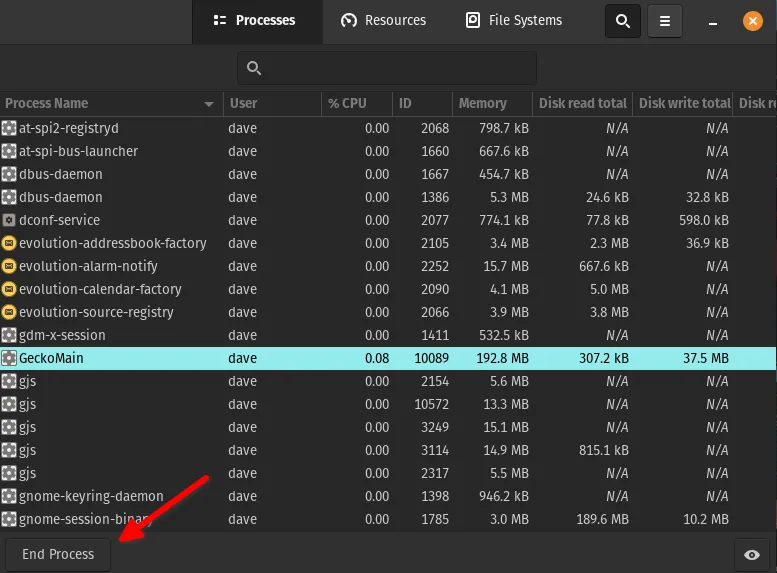
Section titled “Using System Monitor (GUI)”The System Monitor application comes prepackaged in Pop!_OS. This tool provides a GUI and functionality similar to the Windows Task Manager.
- Press Super and type
system monitor, then hit Enter. - Locate frozen and hanging applications.
- Select the application and click End Process.
Using xkill (GUI)
Section titled “Using xkill (GUI)”Launching xkill allows users to click and force close applications.
- Press Alt + F2.
- Type
xkilland hit Enter.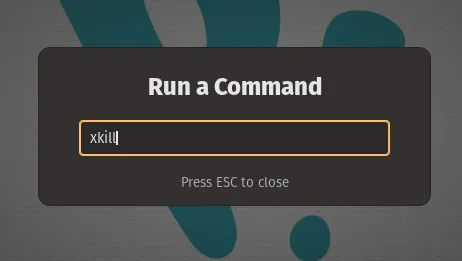
- The cursor will turn into a small ‘x’. Left click any window to kill the process associated with that window.
Using the kill Command (CLI)
Section titled “Using the kill Command (CLI)”The kill command provides several methods to terminate a process:
- SIGTERM (15) - Sends the “terminate” command to a PID (default)
- SIGSTOP (19) - Sends the “stop” command to pause a process
- SIGKILL (9) - Sends the “kill” command to a PID (destructive)
kill takes arguments in the form of a Process ID (PID). The pidof command will display the PID(s) associated with any running process.
- Press Super + T to launch a terminal session.
- Use the
pidofcommand to get the PIDs of a process, and a pipe with the xargs command to input them into the kill command, which uses the default SIGTERM (15) method:Terminal window pidof firefox | xargs kill - If the program remains unresponsive, use the SIGKILL (9) option to force the program to close:
Terminal window pidof firefox | xargs kill -9
End All Running Processes
Section titled “End All Running Processes”Users can bypass a frozen desktop environment by entering TTY mode. This method will use the kill -9 -1 command, which kills all processes as allowed by the user account. Users can alternatively use kill -15 -1 which sends a less destructive SIGTERM (terminate) request to running processes.
- Press Ctrl + Alt + F5 to enter
TTYmode. - Enter the user name and password for the account.
- Type the following command and hit Enter.
Terminal window sudo kill -9 -1 - Enter the password for the user account.
- The login screen will appear when the process completes. The desktop environment will load upon login.