

Support
Zoom-in or Enlarge Desktop
Zoom in or Enlarge Desktop
Section titled “Zoom in or Enlarge Desktop”- Open the Settings application by pressing Super and type the word ‘Settings’
- Click ‘Displays’
- Toggle the ‘Fractional Scaling’ setting to the on position
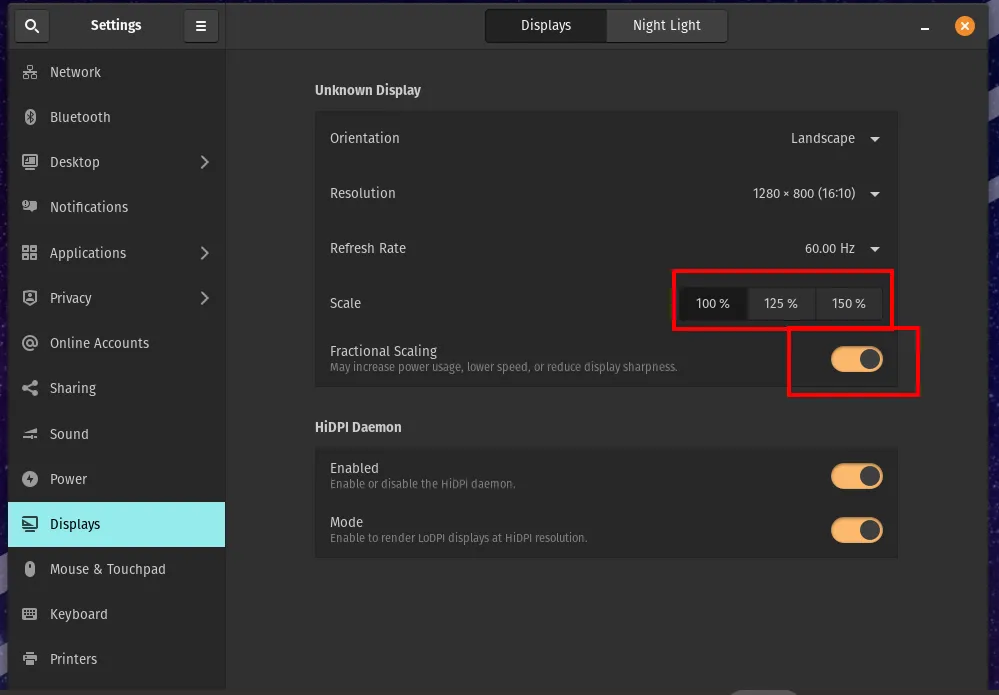
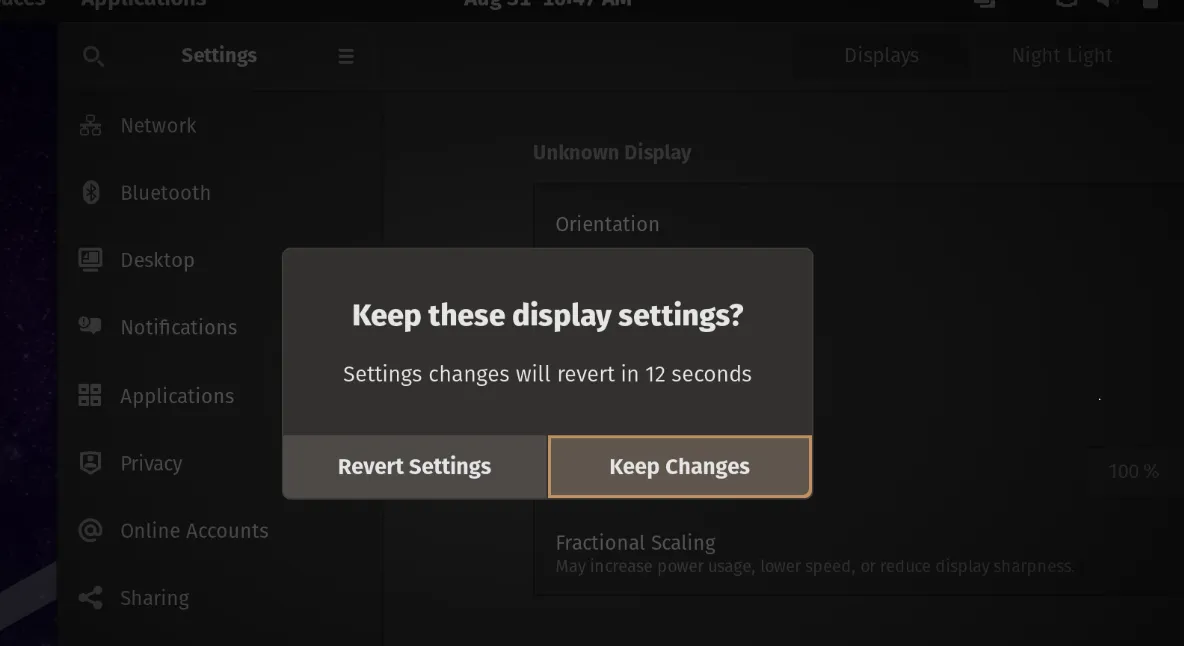
- Zoom percentages will appear and be available to choose. Choose the option then click the dialogue to apply the settings
Zoom in or Enlarge Active Window
Section titled “Zoom in or Enlarge Active Window”- Click anywhere within the active window.
- Press Ctrl + +
- Continue pressing the + to enlarge the text within the window
Magnify Desktop as you Move the Mouse
Section titled “Magnify Desktop as you Move the Mouse”- Open Settings application by pressing Super and type the word ‘Settings’
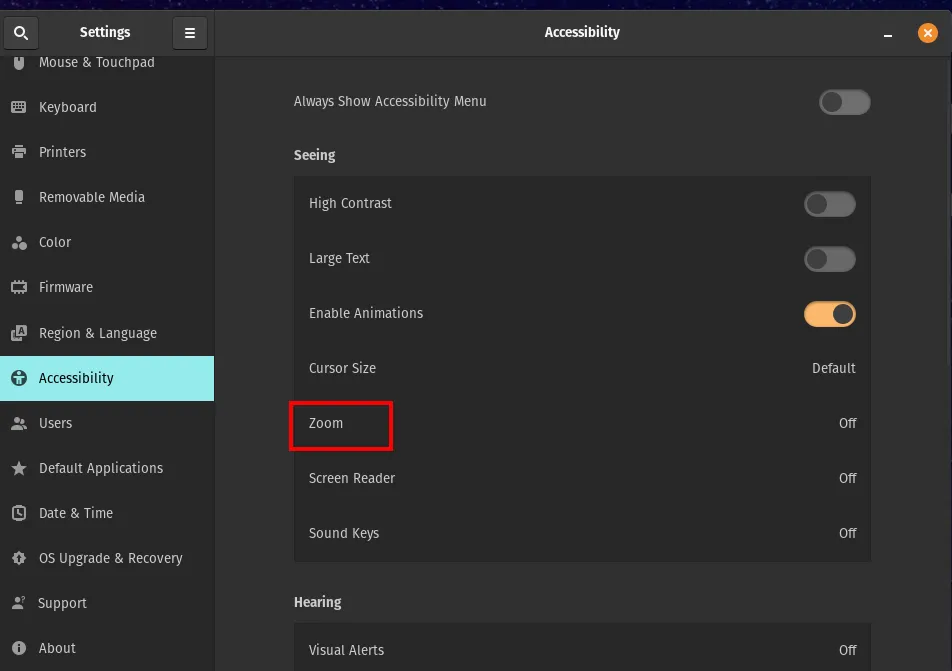
- Select the ‘Accessibility’ option
- Click the ‘Zoom’ option
- Adjust your magnification settings in increments. 2.0 is a good starting point
- Select ‘Follow Mouse cursor’
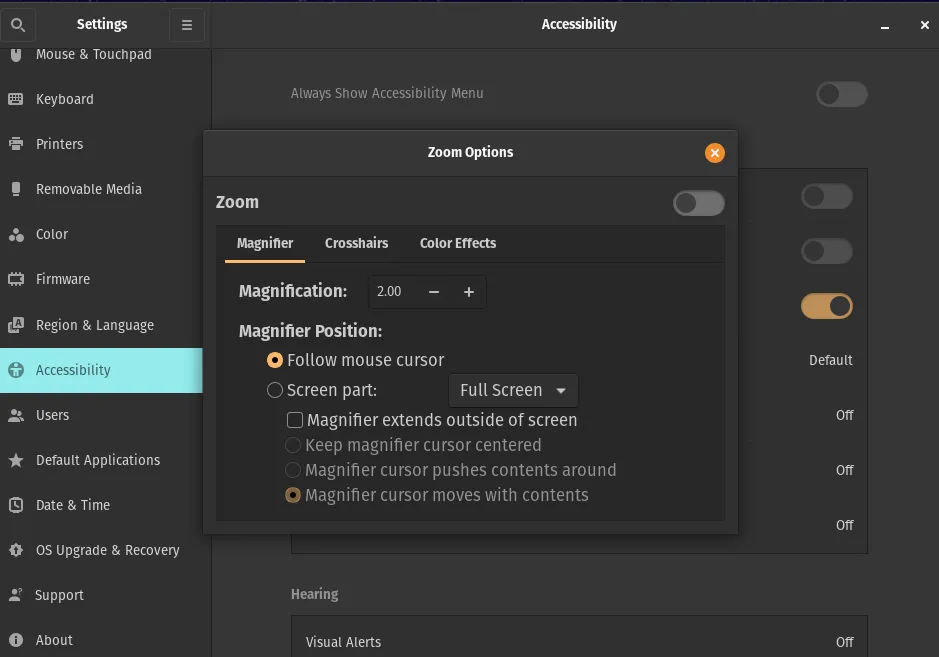
- Toggle the ‘Zoom’ setting to the ON position