

Battery Life Improvements
Pop!_OS does a lot to conserve the battery life of your laptop just by default, but there’s additional things to be aware of that can stretch that battery life even longer. Choosing the right options to match your work or play style can help keep you away from the wall socket.
Adjusting Screen Brightness
Section titled “Adjusting Screen Brightness”One of the largest consumers of laptop power is the display backlight. Up to 10% more battery life can be gained by reducing display brightness. Our laptops don’t currently have an ambient light sensor, but brightness can be adjusted manually via the System Menu (see screenshot below) or with the keyboard shortcuts for each individual laptop model, which can be found on the “External Overview” pages of each model’s technical documentation.

Changing Power Profiles
Section titled “Changing Power Profiles”Pop!_OS comes preloaded with the system76-power package, which allows you to select Power Profiles through the System Menu, as shown in the image below. Changing power profiles does not require rebooting the laptop. This screenshot is from a laptop that has switchable NVIDIA graphics, and a laptop that has only Intel graphics will not have those options.
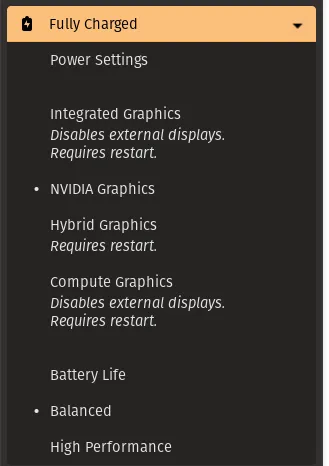
The system will default on each startup to the Balanced setting, which is usually preferred even when connected to AC power as it helps keep the system running cool and quiet. When maximum performance is needed, the High Performance setting will uncap everything and let the system run as hot and power-hungry as it wants, which can dramaticaly reduce battery life and may also increase the noise made by the system fan(s).
The Battery Life setting will do a number of things to improve battery life, including reduce the screen brightness (which can be turned back up as described above if desired), reduce the maximum speed of the CPU (and any GPUs if present), aggressively control how applications are allowed to use the CPU and GPU, and much more under the hood.
Switching Graphics Settings
Section titled “Switching Graphics Settings”The settings for the graphics modes on laptops that have switchable NVIDIA graphics are outlined in detail on their own support document, but to summarize:
- Integrated Intel graphics mode will provide increased battery life at the cost of 3D performance, and some laptops will not support external displays in that mode.
- Hybrid graphics allow you to choose to use the more powerful NVIDIA GPU when needed, but applications will default to using the lower-power Intel graphics.
- NVIDIA graphics mode runs everything on the NVIDIA GPU for maximum perormance, and will use the most battery.
- Compute mode reserves the NVIDIA GPU for tasks that don’t output graphics to the screen, like machine learning or data crunching processes.
Switching graphics modes does require restarting the laptop, which will use up some battery life in the process, so it’s recommended that the graphics mode be switched before disconnecting from the AC adapter.
Disabling Unused Wireless Devices
Section titled “Disabling Unused Wireless Devices”Wi-Fi and Bluetooth are wireless technologies that use up a small amount of power even when they’re not being used, as they monitor for wireless network activity. If you’re not using them, disabling either Wi-Fi or Bluetooth can improve battery life, and the Airplane Mode setting will disable both for maximum savings. They can be disabled individually via the Wi-Fi and Bluetooth panels in the Settings application by toggling the switch at the top of the window, and Airplane Mode is available underneath it on the Wi-Fi settings panel:

Monitoring System Performance
Section titled “Monitoring System Performance”Pop!_OS has a number of different options for monitoring the CPU and GPU use of processes and applications. The more CPU and/or GPU a program is using, the more battery life it will consume as well. If a system’s battery isn’t lasting as long as expected, it can be useful to see what the system is doing to go through the charge more quickly.
Using powertop
Section titled “Using powertop”powertopis a tool for generating reports about what applications and hardware are using the most power, as well as providing live monitoring of the system. It can be installed by running this command in the terminal:
sudo apt install powertopAnd the following command will generate a report:
sudo powertop --html=report.htmlThe report.html file can be opened in a web browser and will outline what processes and hardware used the most power during its testing. It also has recommended settings on the “Tuning” page, which may or may not have undesireable side effects; the commands on the “Tuning” page to change those settings are temporary and will be cleared if the system is rebooted. Caution is suggested when trying these suggestions.
Running the command in the terminal without any parameters like this:
sudo powertopwill start powertop in an interactive monitoring mode. Use the Tab key to navigate between pages, and the arrow keys to scroll. This output shows the same information from the HTML report, but is updated in real-time.
Using the System Monitor
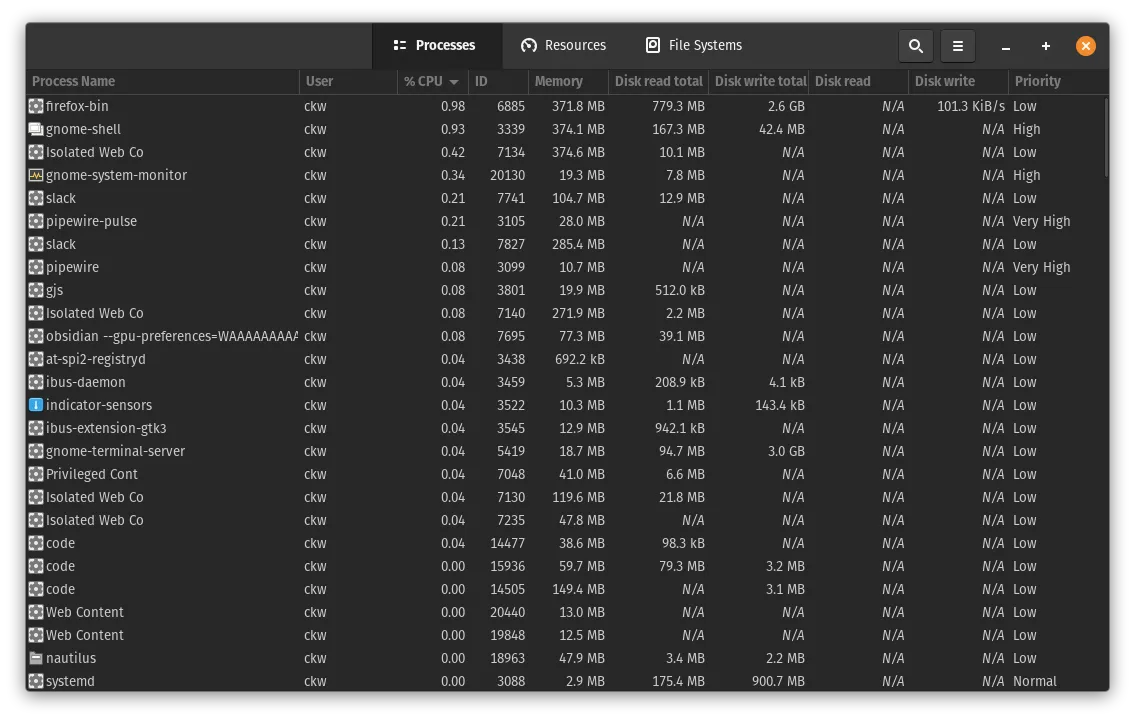
Section titled “Using the System Monitor”The GUI application named System Monitor is installed by default on Pop!_OS, and is a GUI tool for watching system proceses. By clicking on the column labeled “CPU”, so that the arrow is pointing down, it will sort the processes by how much CPU time they’re using. This can be useful for finding a process that’s running the background and keeping the CPU busy.
Using top and Variants
Section titled “Using top and Variants”Pop!_OS comes pre-installed with a tool for the terminal called top, which is the standard Linux tool for monitoring system processes. It’s like the System Monitor, except it’s text-only (so it uses fewer system resources itself), and it automatically sorts the processes by their CPU usage.
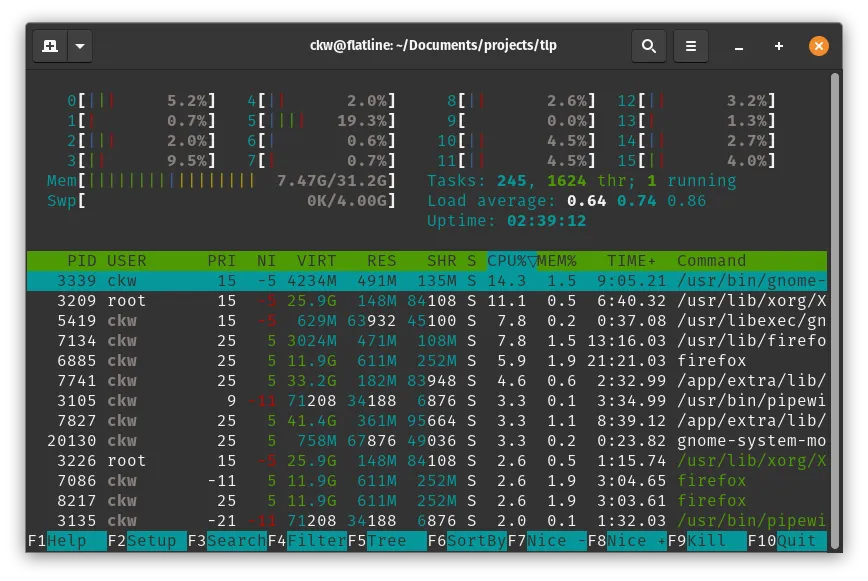
Other popular tools along the same lines include htop, which provides more details, such as how much each individual CPU core is bring used, and it’s generally preferred over plain top for troubleshooting purposes since it’s much more capable. You can install it via the terminal with this command:
sudo apt install htopand run it in the terminal with the command:
sudo htopHere’a a screenshot of it running on a system with eight physical cores and sixteen threads:
NVIDIA GPUs: Using nvtop
Section titled “NVIDIA GPUs: Using nvtop”NVIDIA GPUs can be monitored with a tool called nvtop. It can be installed from the terminal with this command:
sudo apt install nvtopand then run in the terminal with the command:
nvtopIt’s recommended that you expand the terminal window horizontally, as nvtop can show additional information (like video decoding) if it has extra room. This screenshot shows nvtop monitoring the GTX 2070 GPU in an Oryx Pro model oryp6 while it’s running a small 3D application and decoding a video on the GPU at the same time, so the DEC[] section appears in the upper right:
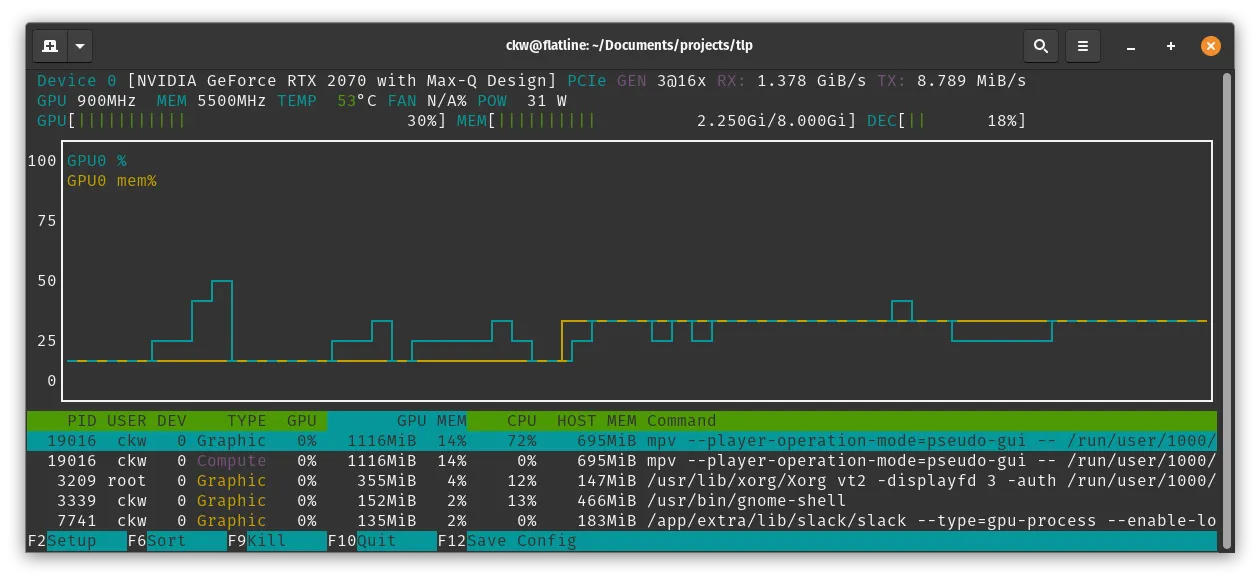
If nvtop is showing a lot of GPU activity when no GPU-heavy applications (like games or 3D software) are running, there may be an program which is using the GPU when it’s not supposed to be.
Intel Graphics: Using intel_gpu_top
Section titled “Intel Graphics: Using intel_gpu_top”Integrated Intel graphics have an additional monitoring tool called intel_gpu_top. It can be installed from the terminal with this command, along with other tools for Intel graphics:
sudo apt install intel-gpu-toolsand then run with the command:
sudo intel_gpu_topThis screenshot shows intel_gpu_top on a system running some normal applications with a 3D accelerated desktop, along with a video player that’s using the Intel hardware for decoding.
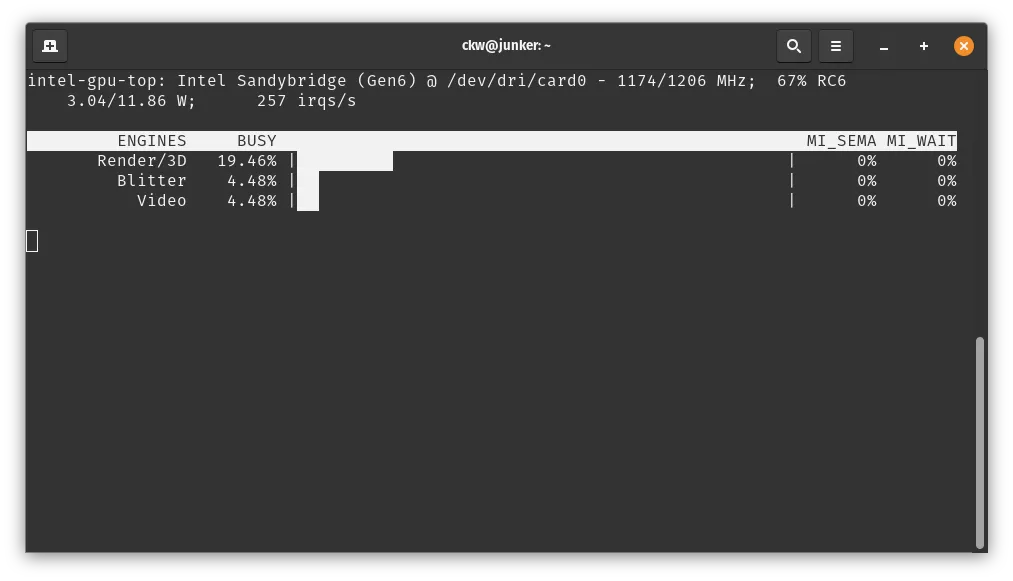
If intel_gpu_top is showing a lot of GPU activity when no GPU-heavy applications (like games or 3D software) are running, there may be an program which is using the GPU when it’s not supposed to be.
Checking Battery Health
Section titled “Checking Battery Health”This command will show the information that your computer can read about the battery:
upower -dThe “Capacity” statistic compares the original power capacity that the battery had when it with new, with the current maximum power capacity. Batteries do lose maximum power charge as they age, and this can be a good way to see if the battery needs replacement.
Fixing Inaccurate Battery Percentage
Section titled “Fixing Inaccurate Battery Percentage”If the battery life indicator at the top of the System Menu is inaccurate, which can often happen on a new system or after a battery has been replaced, this command will remove the stored battery statistics:
sudo rm /var/lib/upower/*After a few charge/discharge cycles, the indicator should become more accurate as the system learns how to estimate the correct percentage.
Tools We Do Not Recommend
Section titled “Tools We Do Not Recommend”The TLP power management tool for Linux is popular on other Linux distributions, but it is not compatible with system76-power, and both System76 and the TLP developers do not recommend installing TLP on Pop!_OS.